
Create Unit
Units define how a product is measured or sold. They are always associated with a unit group, which allows multiple related units to work together (for example: liter and milliliter, or meter and centimeter).
Accessing Unit Creation
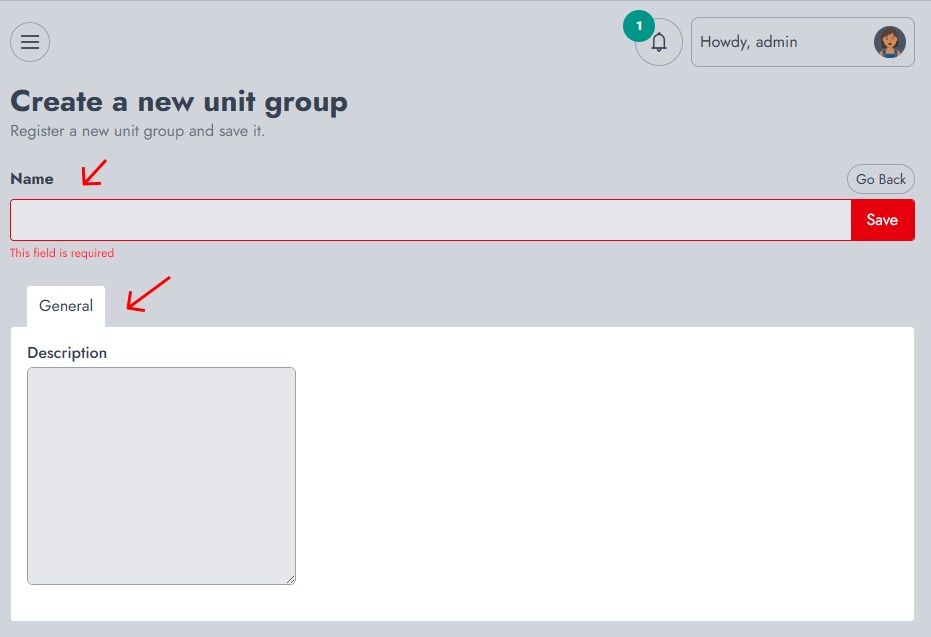
From the dashboard, navigate to Inventory → Create Unit. This will open the unit creation form.
Defining the Unit
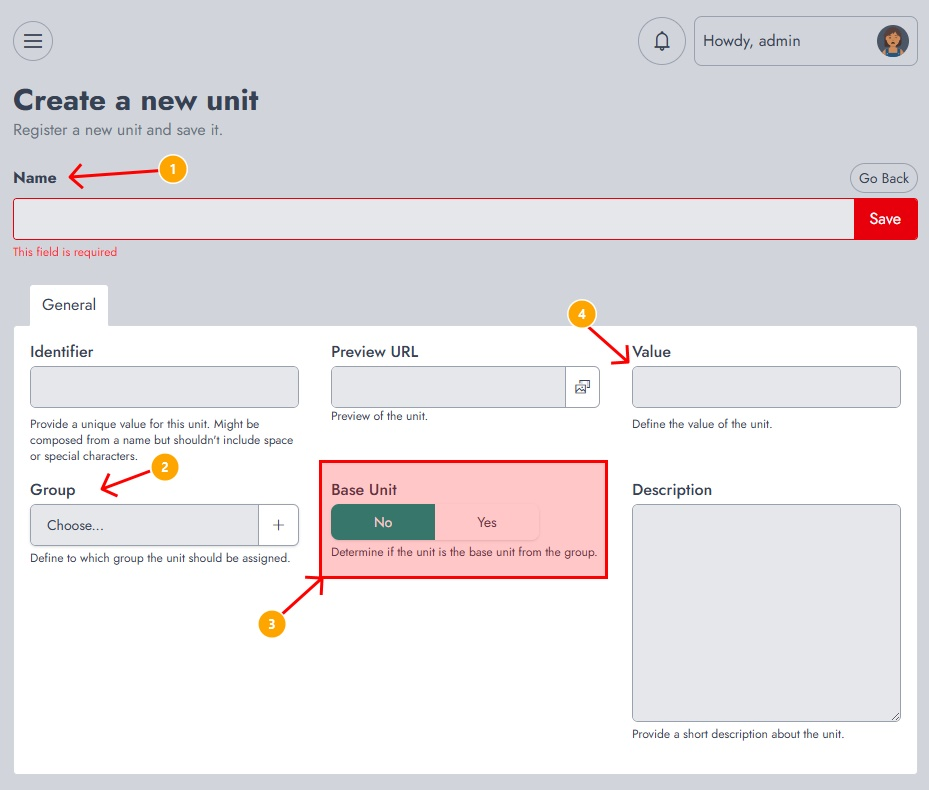
On this page, you’ll need to provide the following information:
- Name The name of the unit (e.g., Piece, Box, Liter). This field is required.
- Identifier A unique value used internally to identify the unit. It should not contain spaces or special characters.
- Group Defines the unit group this unit belongs to (e.g., Countable, Liquid, Size). This ensures the unit is linked to related measurements.
- Base Unit Determines whether this unit is the reference unit within the group. Each group should have one base unit (for example, Piece for countable items or Liter for liquids).
- Value Defines the conversion value relative to the base unit. For example, if the base unit is Piece, a Box of 12 items would have a value of 12.
- Preview URL Allows you to assign an image or visual representation of the unit.
- Description An optional field to describe the unit.
Once all required fields are filled, click Save.
After Creation
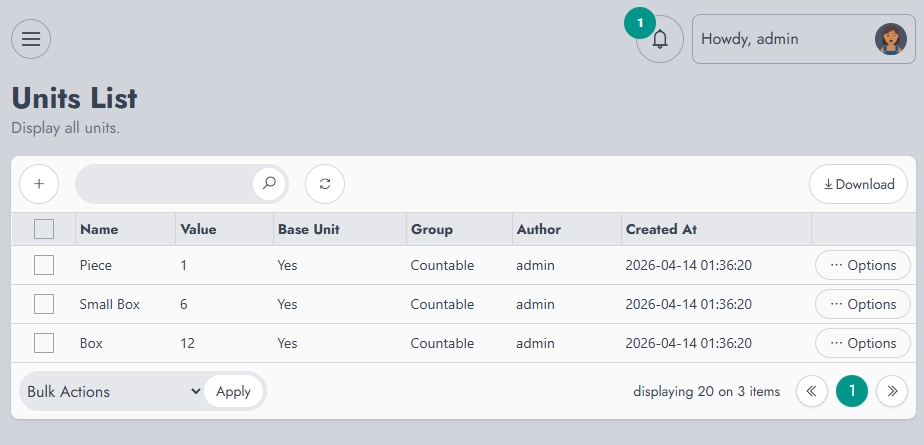
After saving, you’ll be redirected to the Units List, where all created units are displayed along with their group, value, and base unit status.
From there, you can manage, edit, or review your units.