
Not Found Module Assets
It happens that after installing a module, its assets can't be loaded. When you attempt to access the dashboard, you may end up on a page with a broken or missing feature.
You can use the console to detect where the error comes from. By pressing F12 (on Windows), it will open the developer console. On there, you'll see the error path.
Let's show you how to fix those issues.
Symbolic Link Missing
It appears sometimes that the reason for this is a symbolic link missing. The assets of a module aren't directly exposed to the browser. NexoPOS uses symbolic links to provide direct access only to the asset directory, preserving internal module files and, by the same means, avoiding any leaks or vulnerabilities.
The solution is therefore to generate the symbolic link. While it's true that NexoPOS generates the symbolic link automatically, if you've installed the module by dropping/extracting the file, this process was skipped.
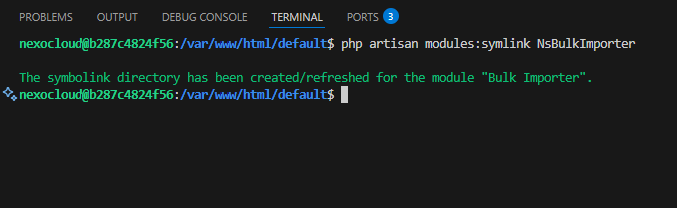
To generate a symbolic link, you'll have to retrieve the name of the folder where your module is installed. That name is also called "namespace". It is a unique name by which NexoPOS identifies modules. For the above error, the module namespace is "NsBulkImporter" (used for the Bulk Importer module). We'll then run this command on the terminal:
php artisan modules:symlink NsBulkImporterIf the issue persists, the error might be somewhere else.
Wrong Files And Permissions
If the previous solutions don't work, you might try assigning the right file permissions. You'll have to run the following commands at the root of your module directory. If we assume your module has a namespace NsBulkImporter, you'll head to:
/path/to/nexopos/modules/NsBulkImporterFrom there, you'll run the command:
find -type d -exec chmod 755 {} \;
find -type f -exec chmod 644 {} \;
This will assign 755 as permission for your directories and 644 as permission for your file.
If none of these solutions work, please get in touch with the support.