
Configuring Taxes
Chances are, in the country you'll be using NexoPOS, the state requires stores to report their taxes. On NexoPOS, you can define how taxes are applied in the system, and depending on your configuration, the pricing of foods will be affected.
Creating Tax and Tax Group
NexoPOS uses a Tax Group/Tax approach to comply with multiple countries' tax systems as much as possible. Everything starts by creating a tax group and then a tax. Now, you need to define how it will be used on NexoPOS. Here are your choices:
- Apply Tax To All Products
- Apply Unique Tax Per Product
- Choose The Tax During Sale
Tax To All Products
After having created the tax group and tax, you'll go to Settings > POS > VAT Settings. From there, you'll choose "Flat Rate"
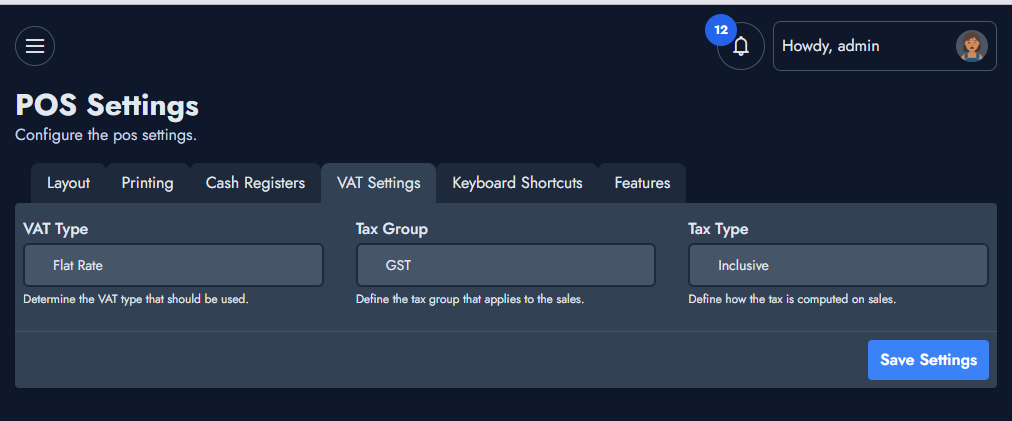
After you choose, make sure to save the settings so that the "Tax Group" and "Tax type" fields are made available.
On the Tax Group, you'll choose which tax group applies to the cart, and on the Tax type, you'll set whether the tax should be inclusive or exclusive.
Unique Tax Per Products
On the VAT settings, we'll make sure to choose "Products VAT" and save the settings.
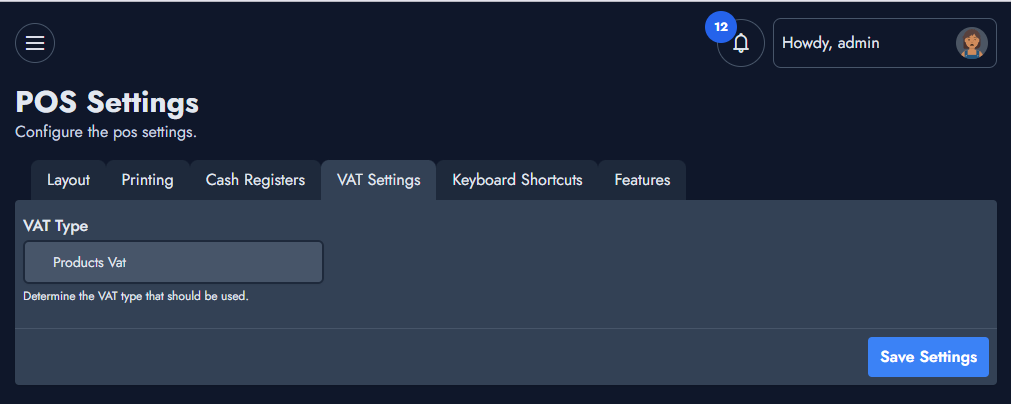
Now, we'll head to the product to which we would like to apply a unique tax and head to the "Taxes" tab.
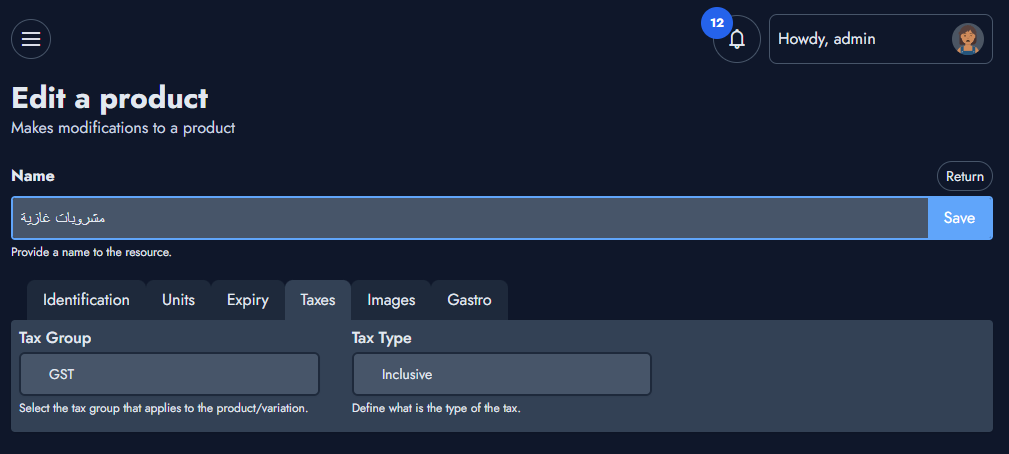
Here you'll select the tax group and the tax type that should apply.
Choose Tax On The POS
Here, you must choose "Flexible Rate" in the "VAT Settings". Make sure to save the settings before leaving the page.
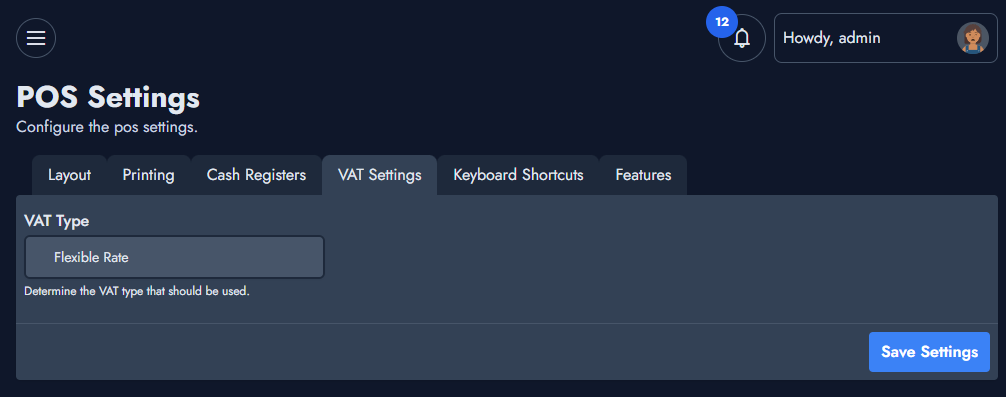
Depending on your choices, the POS will adapt the way it displays and computes taxes.