
Creating Tax and Tax Group
NexoPOS supports a multi-tax configuration, allowing businesses to define multiple taxes and organize them efficiently. This is especially useful in regions where taxation is composed of multiple components (e.g., VAT, GST, or combined taxes).
To simplify management, taxes are grouped under Tax Groups. A tax group represents a taxation system, while individual taxes define the actual rates applied.
Accessing Taxes
To manage taxes:
- Open the Taxes menu from the main navigation
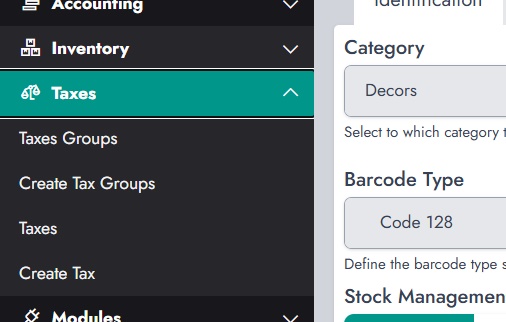
This section provides access to both Tax Groups and individual Taxes.
Creating a Tax Group
Before defining taxes, you need to create a tax group.
To create a tax group:
- Click on Create Tax Groups
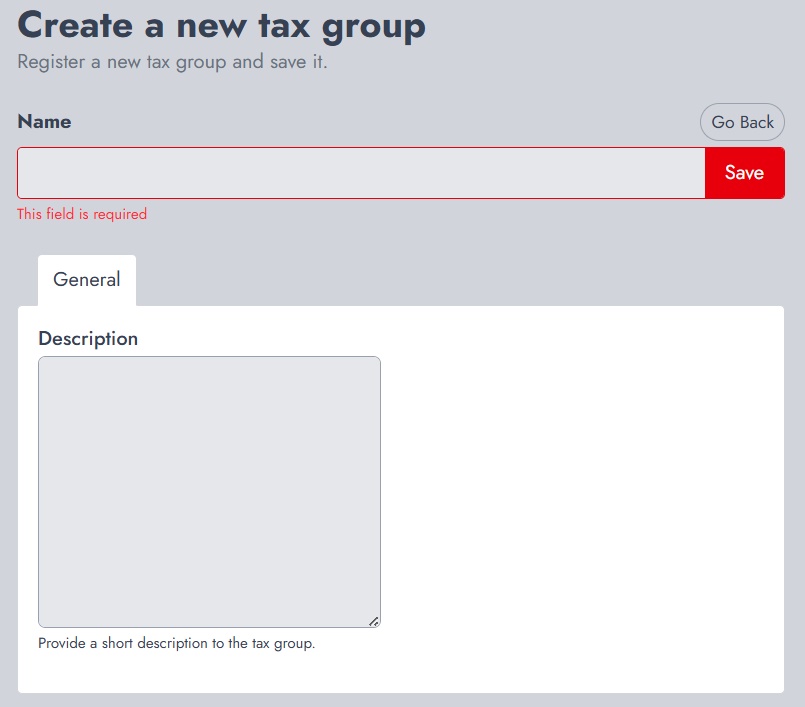
Provide a name that reflects your taxation system. For example:
- In India: GST
- In other regions: VAT, Sales Tax, etc.
This group will be used to organize related taxes.
Creating a Tax
Once a tax group is created, you can define individual taxes.
To create a tax:
- Go to the Taxes menu
- Click on Create Tax
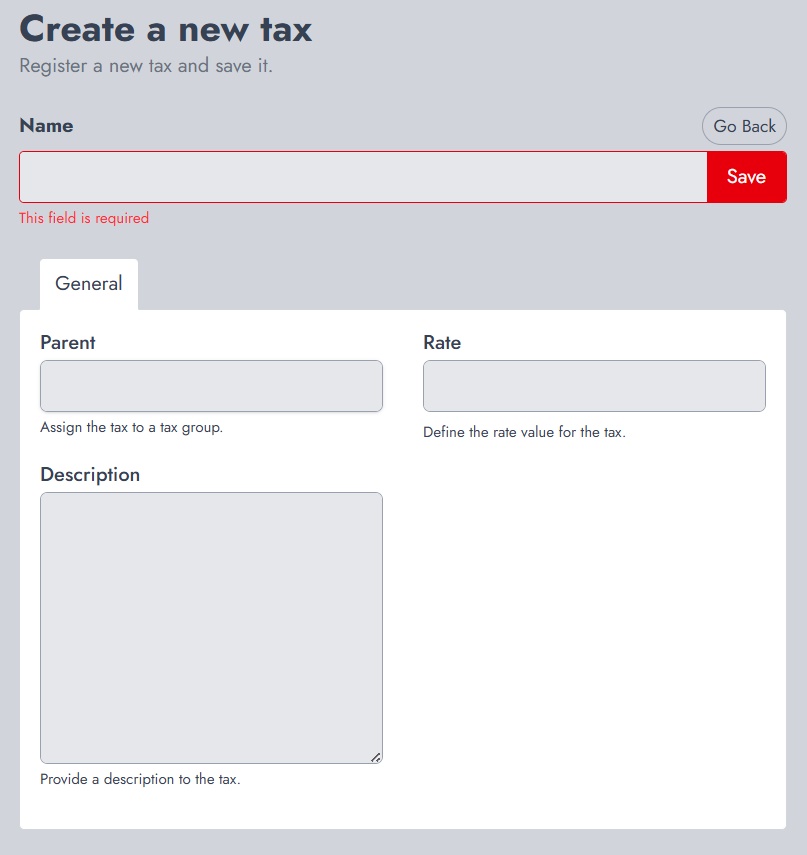
Fill in the following:
- Name: The name of the tax (e.g., CGST, SGST, VAT 20%)
- Parent: Select the tax group created earlier
- Rate: Define the percentage applied
You can also add a description if needed.
How It Works
- A Tax Group acts as a container for multiple taxes
- Each Tax defines a specific rate
- Products can later be assigned a tax group, allowing multiple taxes to apply automatically
This structure provides flexibility and supports complex tax systems.