
Create Product
NexoPOS allows you to create and manage products with flexibility. A product can be of three types:
- Materialized Product: Physical items with stock (e.g., drinks, electronics)
- Dematerialized Product: Services or non-stock items (e.g., repair service)
- Grouped Product: A collection of multiple products sold together
Accessing Product Creation
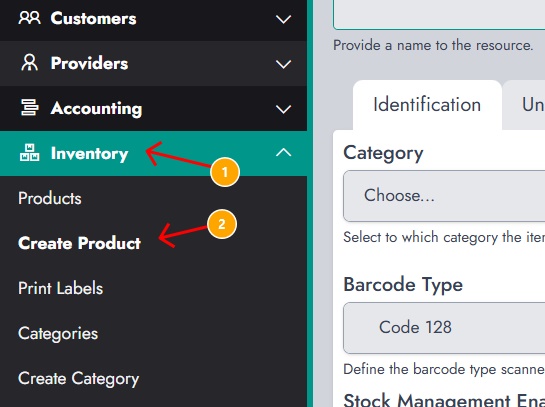
From the dashboard, navigate to Inventory → Create Product to open the product creation page.
Identification Tab
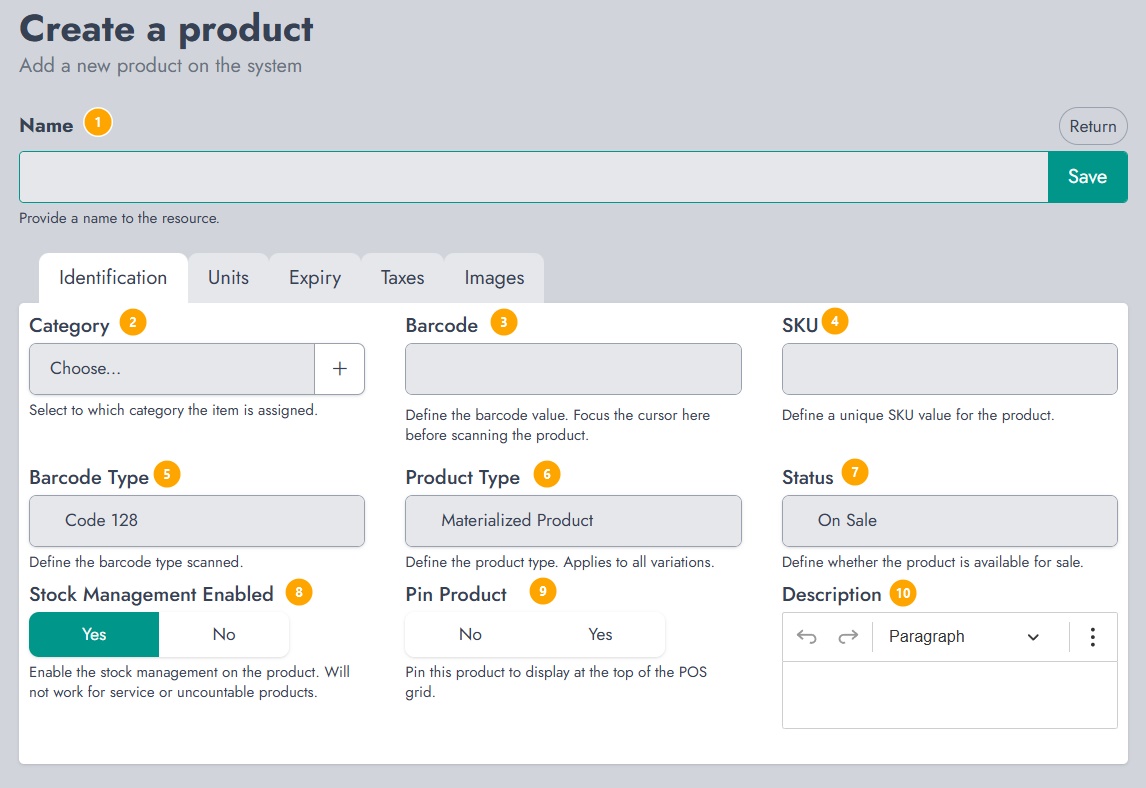
This section defines the core information of the product:
- Name The product name. This field is required.
- Category Assign the product to a category. You can also create a new category directly by clicking the "+" icon next to the field.
- Barcode Used for scanning the product during sales.
- SKU A unique identifier for the product.
- Barcode Type Defines the barcode format (e.g., Code 128).
- Product Type Choose between Materialized, Dematerialized, or Grouped product.
- Status Determines whether the product is available for sale.
- Stock Management Enabled Enables stock tracking. This is mainly used for materialized products.
- Pin Product Allows the product to appear at the top of the POS grid.
- Description Optional field to describe the product.
Units Tab
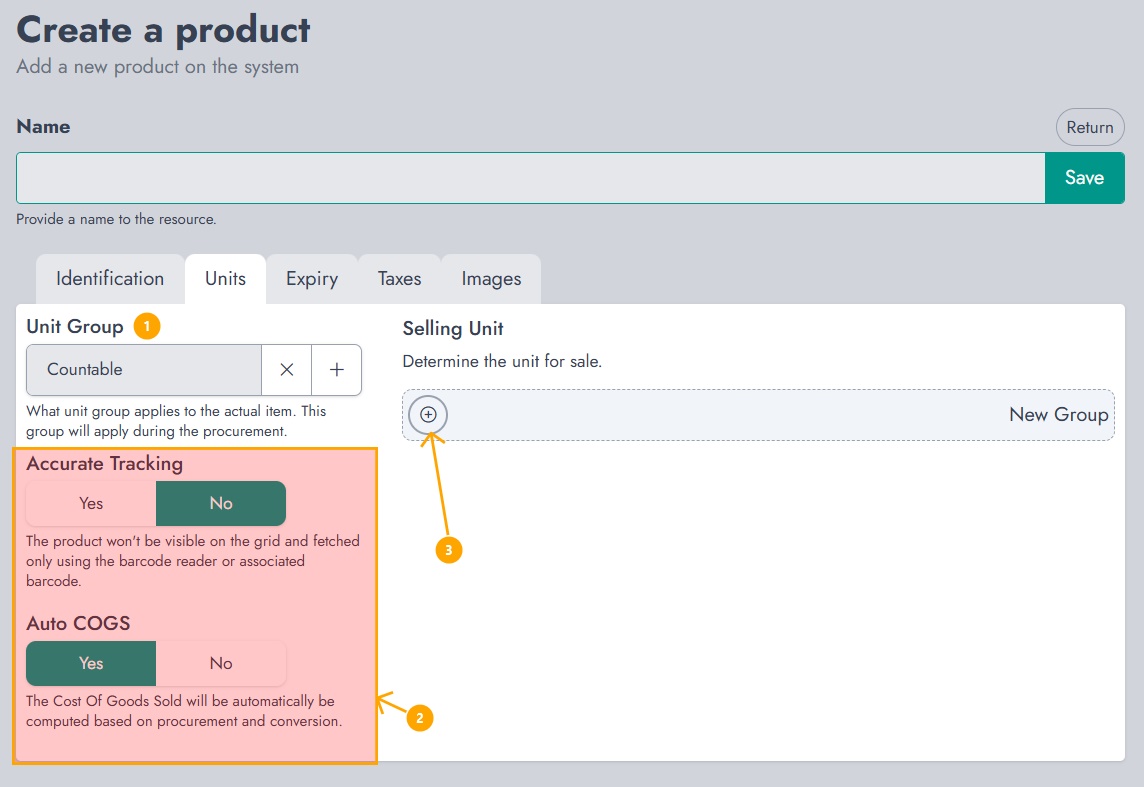
This section defines how the product is sold and managed:
- Unit Group Select the unit group that applies to the product.
- Accurate Tracking If enabled, the product won’t appear on the POS grid and will only be accessible using its barcode.
- Auto COGS Automatically calculates the cost of goods sold based on procurement and conversions.
- Selling Unit Click the "+" button to add one or multiple selling units.
Selling Unit Configuration
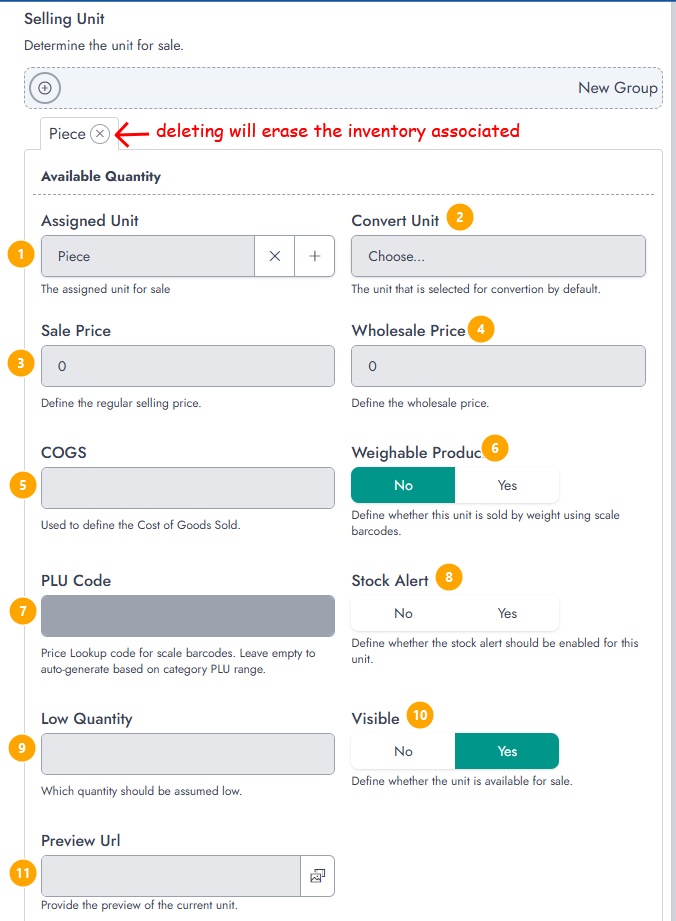
Each selling unit allows you to define how the product behaves during sales:
- Assigned Unit The unit used for selling (e.g., Piece, Box).
- Convert Unit The default unit used for conversion operations.
- Sale Price The regular selling price.
- Wholesale Price An optional price is used for bulk or special customers.
- COGS Cost of goods sold for this unit.
- Weighable Product Enable this if the product is sold by weight using a scale.
- PLU Code Used for scale-based barcode systems.
- Stock Alert Enables alerts when stock is low.
- Low Quantity Defines the threshold for low stock alerts.
- Visible Determines if this unit is available for sale.
- Preview URL Allows assigning an image to the unit.
Note that removing a unit will also remove the associated inventory.
Expiry Tab
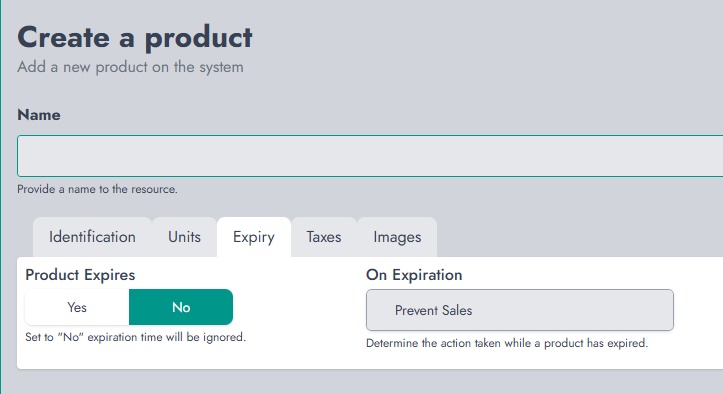
This section allows you to manage product expiration:
- Product Expires Enable if the product has an expiration date.
- On Expiration Define what happens when the product expires (e.g., prevent sales).
This is useful for perishable goods such as food or medical products.
Taxes Tab
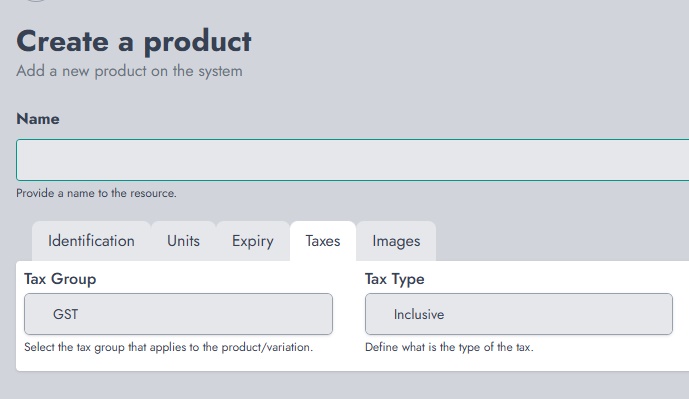
This section defines how taxes are applied:
- Tax Group Select the tax group that applies to the product.
- Tax Type Defines whether the tax is inclusive or exclusive.
Images Tab
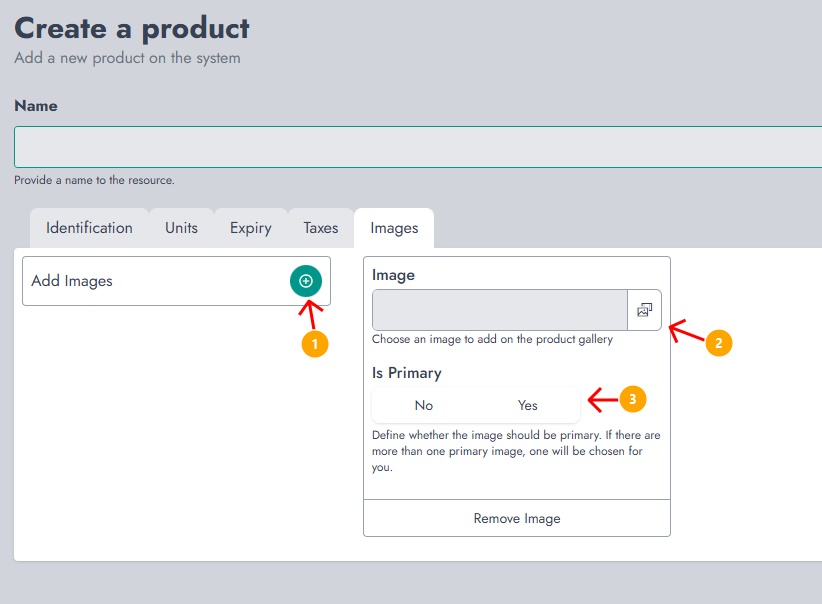
This section allows you to assign images to the product:
- Click Add Images to add a new image
- Select an image using the file picker
- Set is Primary to define the main image used for the product
Images help improve product recognition on the POS.
Final Step
Once all required information is provided, click Save to create the product. The product will then be available for use on the POS and throughout the system.