
Broken Media URL
There are several reasons why images may not display correctly on your NexoPOS installation. This guide outlines the key steps to help you identify and resolve the issue.
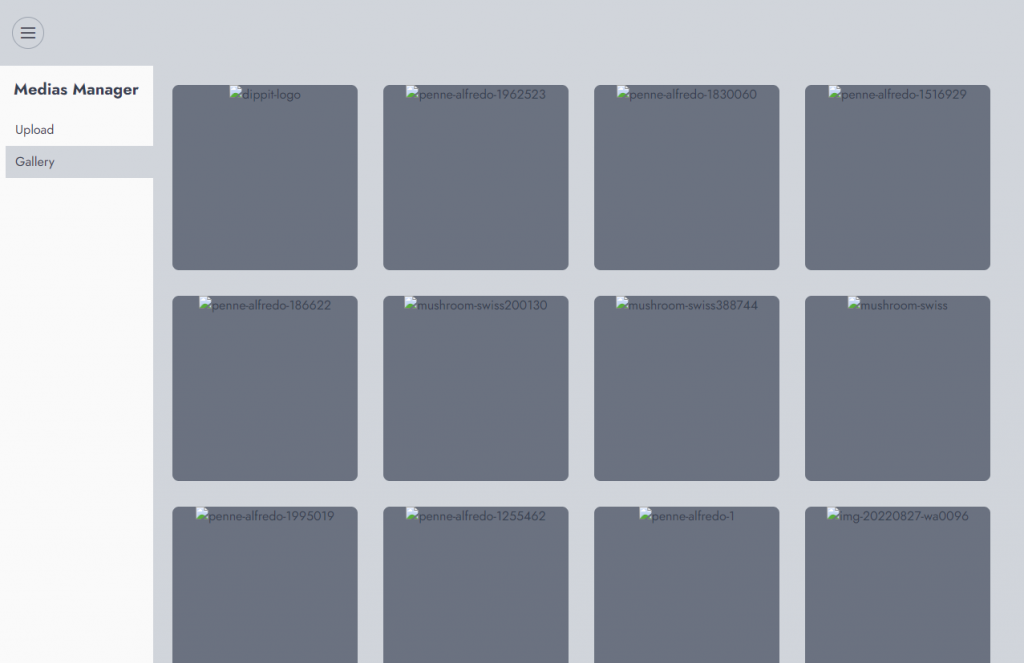
Storage is not linked with Symbolic Links
During the installation of NexoPOS, it is possible that the symbolic link for your store was not created. Since media files are stored within the storage directory, uploads may complete successfully but appear as broken images.
To resolve this issue, you need to create the symbolic link using the following command:
php artisan storage:linkWrong APP_URL Value
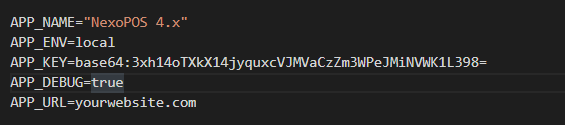
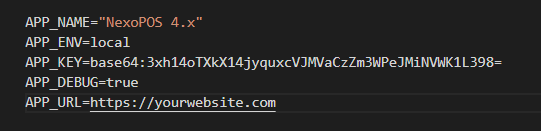
While editing the .env file, you might have omitted to add either the http:// or the https:// as the prefix for your APP_URL value. Here is a bad example of the APP_URL value:
Here is what it should look like instead:
Broken Storage Link
This can happen if you recently moved files. Note that most of the time, symbolic links are absolute; changing the location of the files invalidates the already-created link.
You have two options to fix this issue:
Delete Existing Broken Symlink
You'll need to head to the "public" folder, then delete your symbolic link manually (delete the "storage" file in the "public" folder).
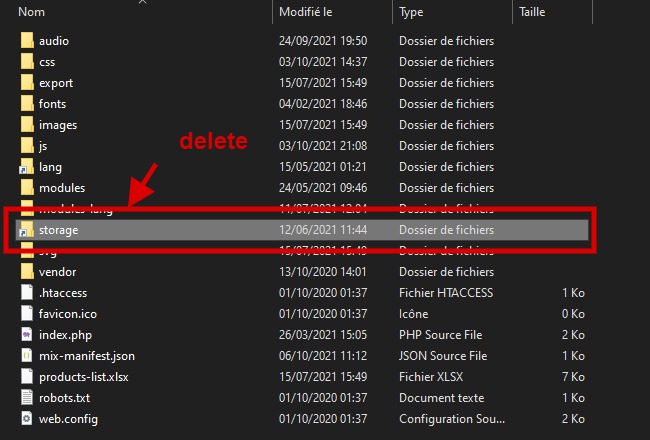
Then, after that, you need to create a link to the storage as explained above.
Using a Command
You can run a command that will rewrite the existing symlink:
php artisan storage:link --forceInvalid Files Permissions
If the link is created, but the files/directories have invalid permissions, NexoPOS won't be able to access the storage. You need to make sure your files use 644 as permissions and 755 for the folders.
From the CLI, change the directory to the root of NexoPOS and run the following commands.
find -type d -exec chmod 755 {} \;
find -type f -exec chmod 644 {} \;
Your user might have "sudo" capability to execute those commands.