
Create Grouped Products
Grouped products allow combining multiple existing products into a single sellable item. Instead of managing each product individually during a sale, a grouped product lets you bundle them together and define how they are sold as one unit.
This is particularly useful for creating packs, bundles, or kits. For example, a “Starter Pack” can include several individual items that are usually sold together.
Creating a Grouped Product
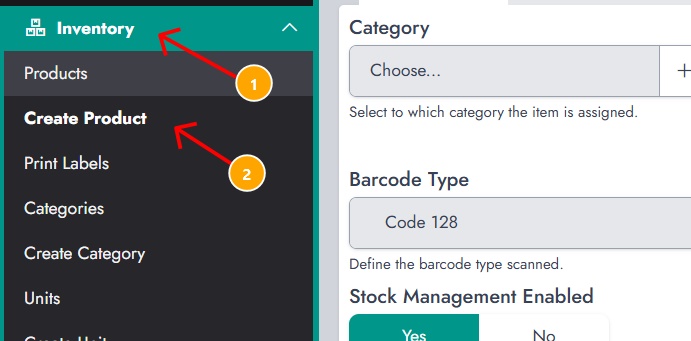
To create a grouped product, navigate to the product creation page from the Inventory section.
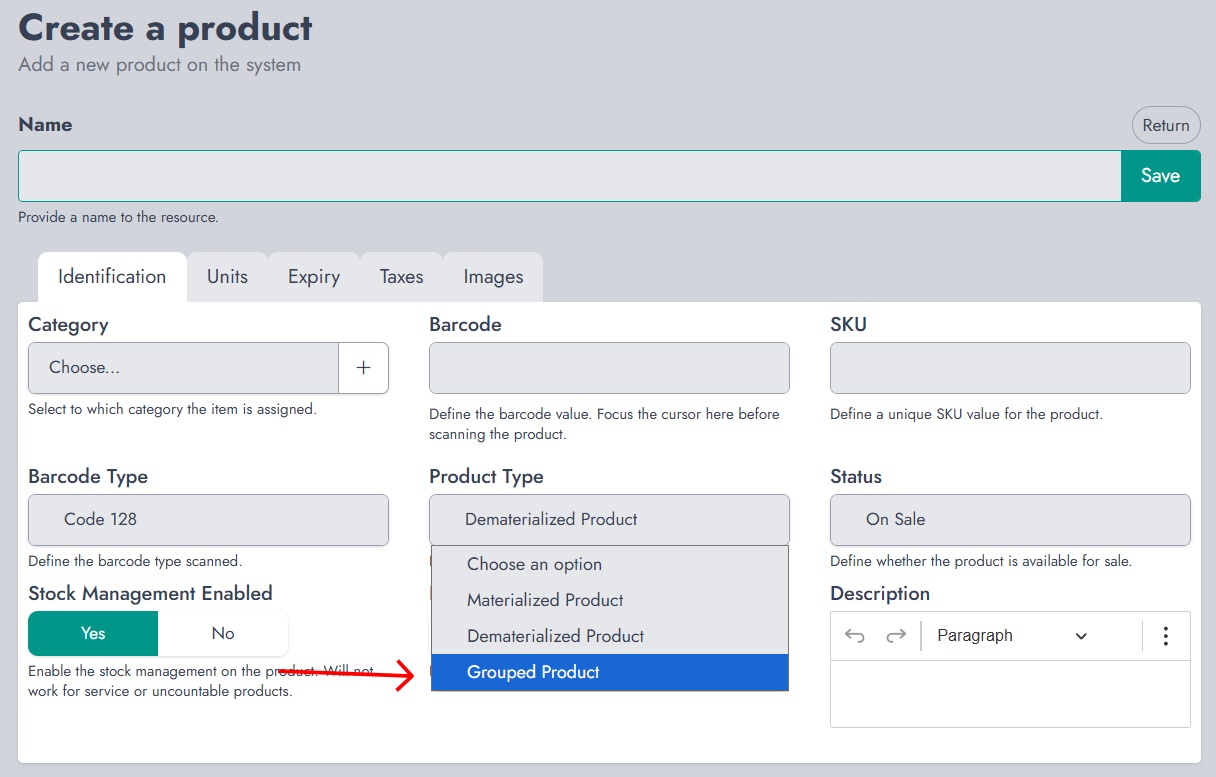
While creating the product, select Grouped Product as the product type. This enables additional configuration options specific to grouped products.
Adding Products to the Group
Once the grouped product type is selected, a new tab named Groups becomes available. This is where products can be added to the group.
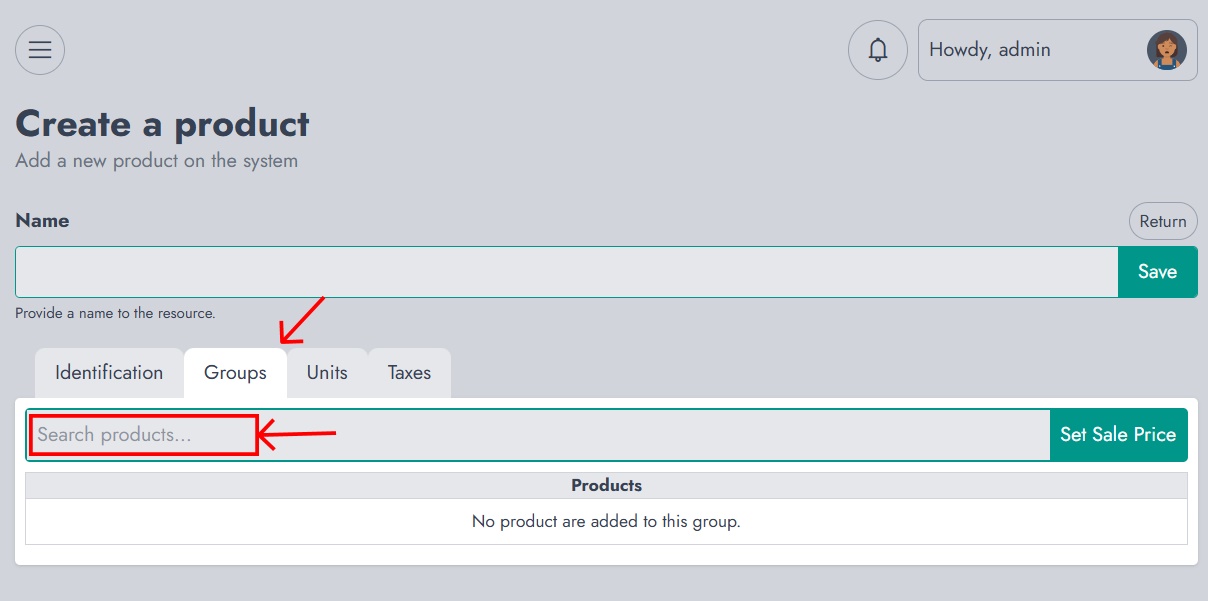
Use the search input to find existing products. As you type, matching products will appear in the list.
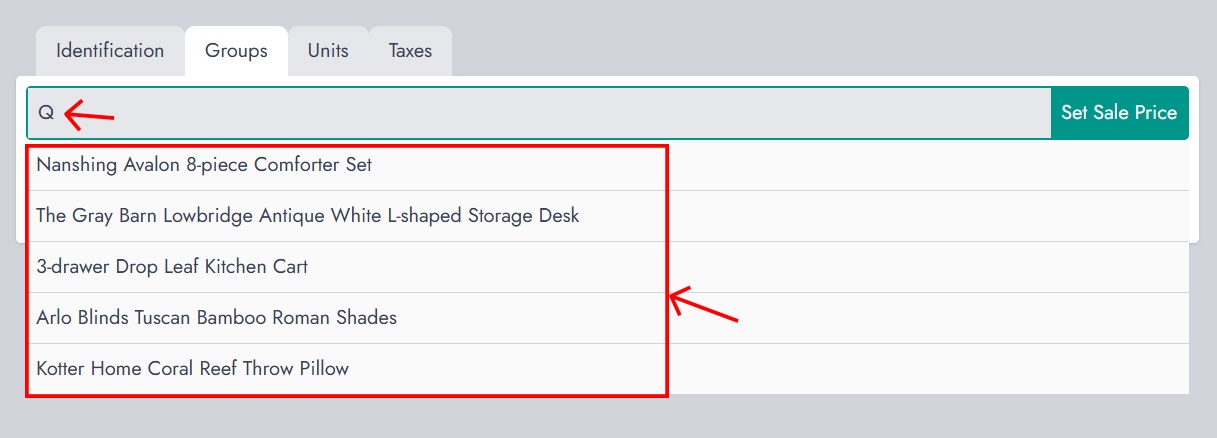
Select a product from the list to add it to the group. After selection, you will be prompted to choose the unit to use for that product within the group.
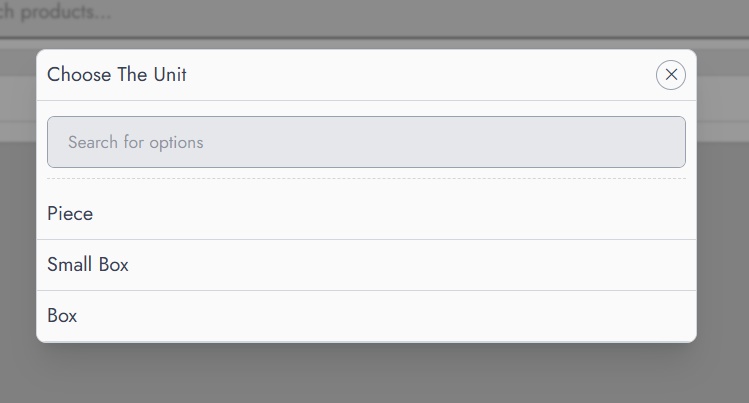
This allows precise control over how each product contributes to the group, especially when multiple units are available.
Defining Quantity and Price
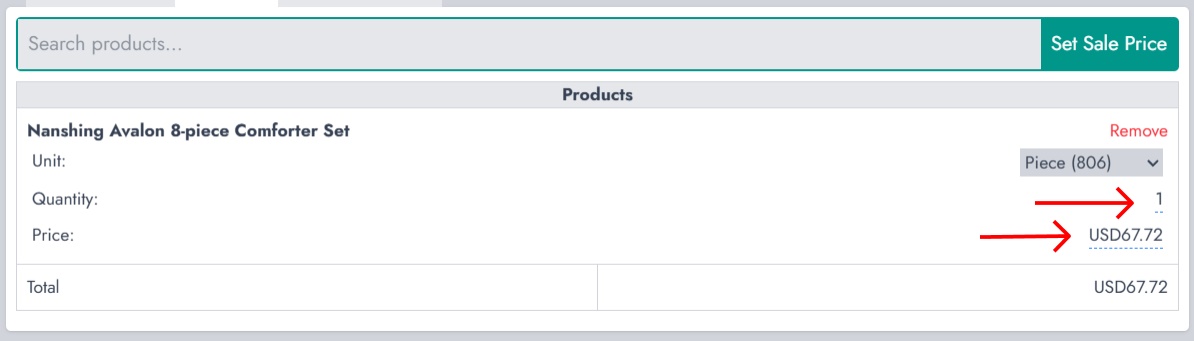
After adding a product, you can define:
- The quantity required for the group
- The price associated with that item
Each product added to the group contributes to the final total price of the grouped product.
Inventory Management
Inventory management still applies to grouped products. When a grouped product is sold, the stock of each product in the group is automatically reduced according to the defined quantities.
This ensures that stock levels remain accurate across all units and prevents inconsistencies between bundled sales and individual product inventory.