
Reset a User Password
Use Account Recovery in NexoPOS for Windows to replace the password of a local NexoPOS user when they cannot sign in. You do not need to know the user's current password.
Before you start
1. Open Settings
Open NexoPOS for Windows. On the home screen, select the Settings gear in the upper-right corner.
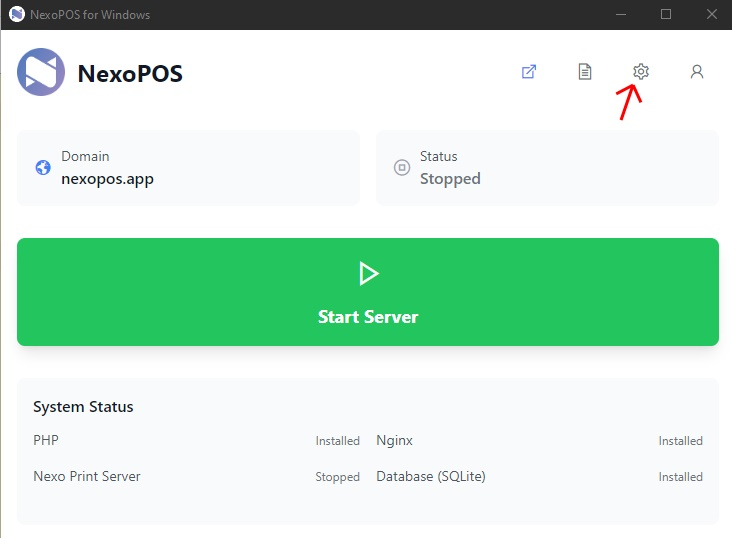
Select the Settings gear on the NexoPOS for Windows home screen.
2. Open the NexoPOS settings
In the Settings sidebar, select NexoPOS.
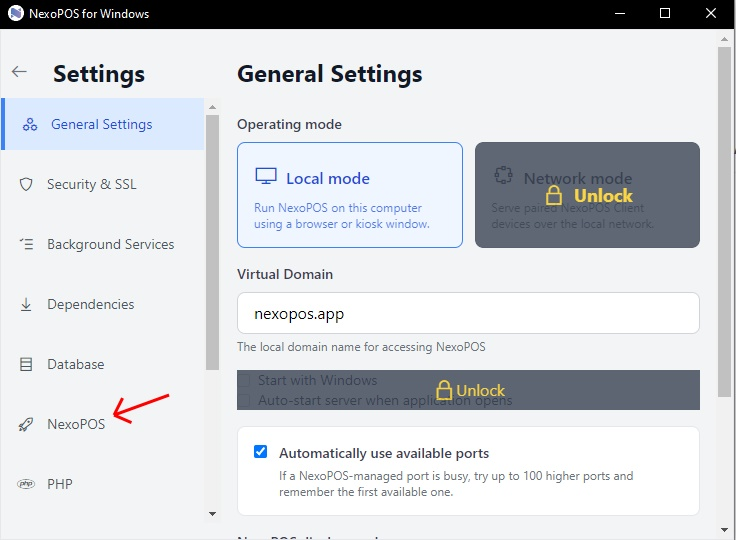
Select NexoPOS in the Settings sidebar.
3. Open Account Recovery
At the top of the NexoPOS settings, select the Account Recovery tab.
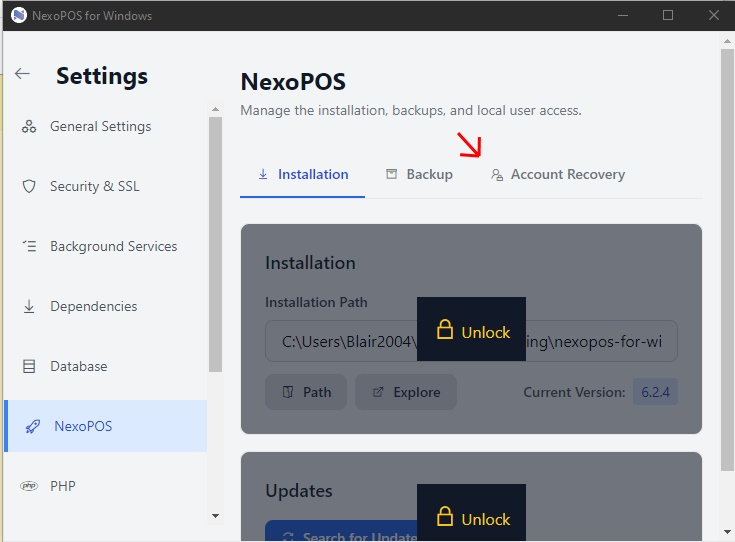
Open the Account Recovery tab.
4. Select the user
In NexoPOS User, search by username, email address, or user ID. Select the correct user from the results and confirm the username before continuing.
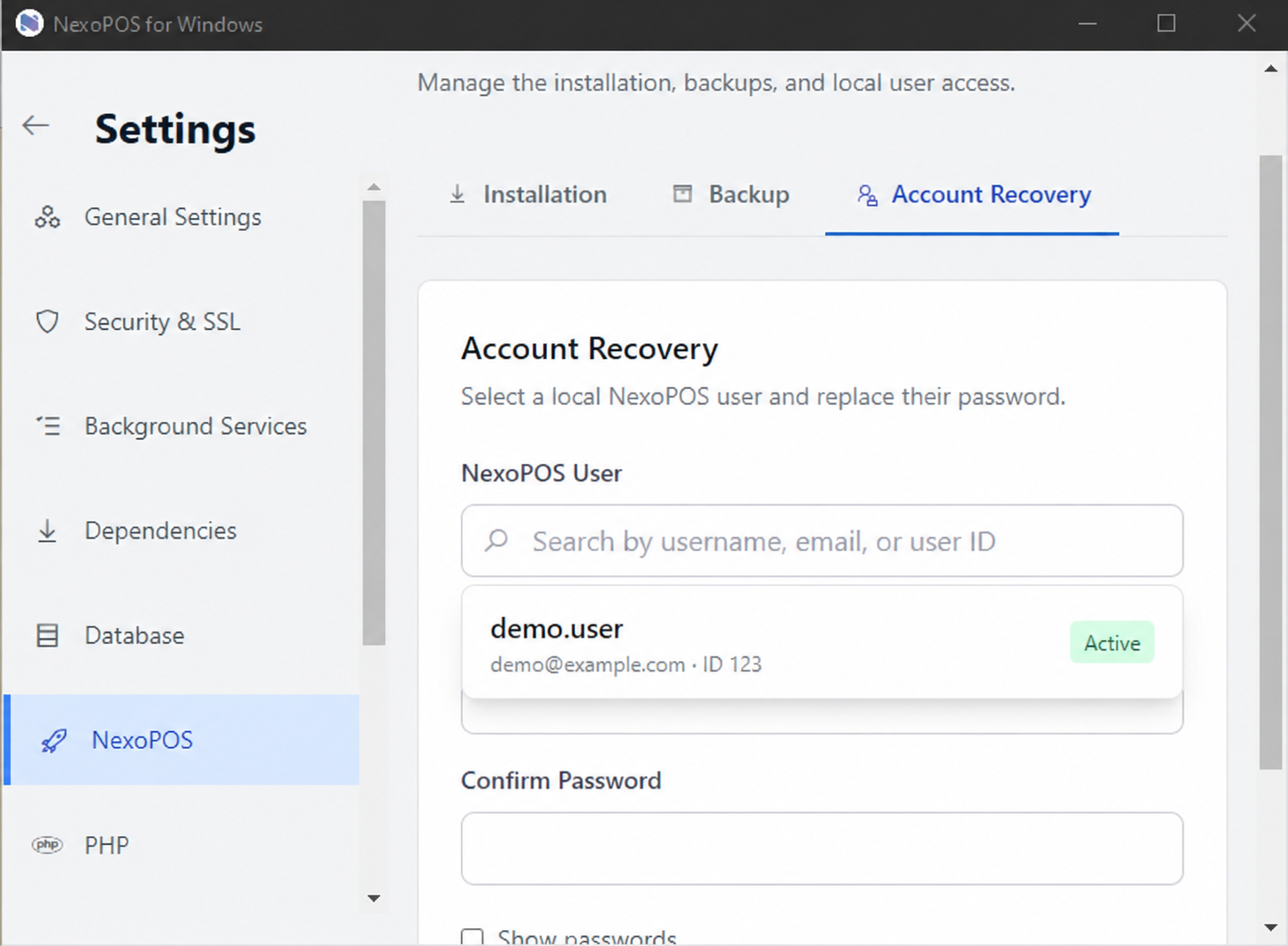
Search for and select the local NexoPOS user whose password needs to be changed.
5. Set the new password
- Enter the replacement password in New Password. It must contain between 8 and 128 characters.
- Enter the same password in Confirm Password. Select Show passwords only if you need to check what you typed and nobody else can see the screen.
- Select Update Password.
- When NexoPOS for Windows asks whether to update the password for the selected username, confirm the change.
NexoPOS for Windows displays a success message after the password is updated. The user can then sign in to NexoPOS with the new password.
Keep the new password secure
Troubleshooting
- If Account Recovery says the installation is not ready, finish installing NexoPOS, its dependencies, and PHP, then try again.
- If no user appears, search again with the exact username, email address, or numeric user ID.
- If the password is rejected, confirm that it contains 8 to 128 characters and that both password fields match.
- If the user still cannot sign in, confirm that the selected account was the intended local NexoPOS user and repeat the procedure if necessary.