
Notice Messages
Adding notices to a settings page might provide more details on how to deal with the displayed settings. This could include how to get an API key or what needs to be performed for the settings to work properly. Regardless of the reason, NexoPOS includes a way to display four types of notices: info, error, warning, and success.
The type of notice here defines its colors. You'll use one of these colors to match the expression of the severity of the notice.
To proceed, you must first define your Settings by creating a class that extends "App\Services\SettingsPage". In that class, we'll define our settings as follows:
<?php
namespace Modules\YourModule\Settings;

use App\Services\SettingsPage;
use App\Classes\SettingForm;

class MySettings extends SettingsPage
{
    const IDENTIFIER = 'my-settings';
    const AUTOLOAD = true;

    public function __construct()
    {
        $this->form   =   SettingsForm::form(
            title: __m( 'My Settings', 'YourModule' ),
            description: __m( 'Configure your settings', 'YourModule' ),
            tabs: SettingsForm::tabs(
                SettingsForm::tab(
                    identifier: 'general',
                    label: __m( 'General Settings', 'YourModule' ),
                    fields: SettingsForm::fields(
                        // ... fields here
                    )
                )
            )
        )
    }
}
Now, we'll add to the SettingsForm::tab method the notices we want to display.
<?php
namespace Modules\YourModule\Settings;

use App\Services\SettingsPage;
use App\Classes\SettingForm;
use App\Classes\Notice;

class MySettings extends SettingsPage
{
    const IDENTIFIER = 'my-settings';
    const AUTOLOAD = true;

    public function __construct()
    {
        $this->form   =   SettingsForm::form(
            title: __m( 'My Settings', 'YourModule' ),
            description: __m( 'Configure your settings', 'YourModule' ),
            tabs: SettingsForm::tabs(
                SettingsForm::tab(
                    identifier: 'general',
                    notices: [
                        Notice::info(
                            title: __m( 'How It Works', 'YourModule' ),
                            description: __m( 'You must retreive the API from your account...', 'YourModule' ),
                        )
                    ],
                    label: __m( 'General Settings', 'YourModule' ),
                    fields: SettingsForm::fields(
                        // ... fields here
                    )
                )
            )
        )
    }
}
Additionally, we've added the class App\Classes\Notice, which provides the fourth type of notice as a method. For example, we'll use "info" for a blue notice, "error" for a red notice, etc.
Now, we should have the following output on our settings page.
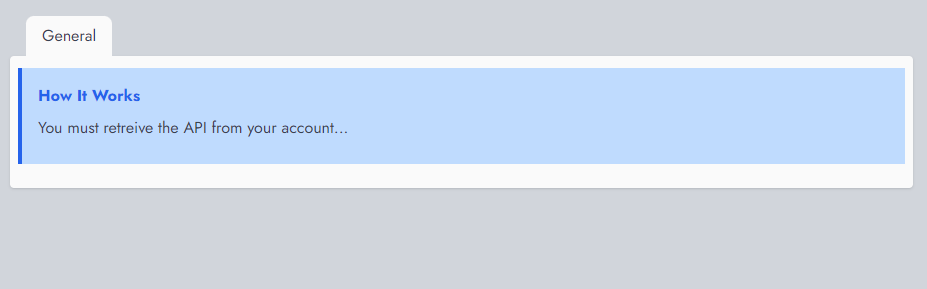
The form has no fields as we haven't set any fields.