
Performing Stock Control With Barcode Utility
Barcode Utility helps you perform a physical stock count by scanning the products available in your store and comparing the counted quantities with the stock recorded in NexoPOS. Any discrepancy can then be saved as a draft or applied as a stock adjustment.
Before you begin
Sign in to your my.nexopos.com account from Barcode Utility. Your mobile device must have internet access, and your NexoPOS installation must be accessible online. You will also need permission to view products and manage stock adjustments on the connected installation.
1. Open the Profile tab
Open the Profile tab from the bottom navigation. Under Installation API, tap Connect installation. The platform account and installation connection are separate: signing in to my.nexopos.com does not automatically connect a NexoPOS installation.
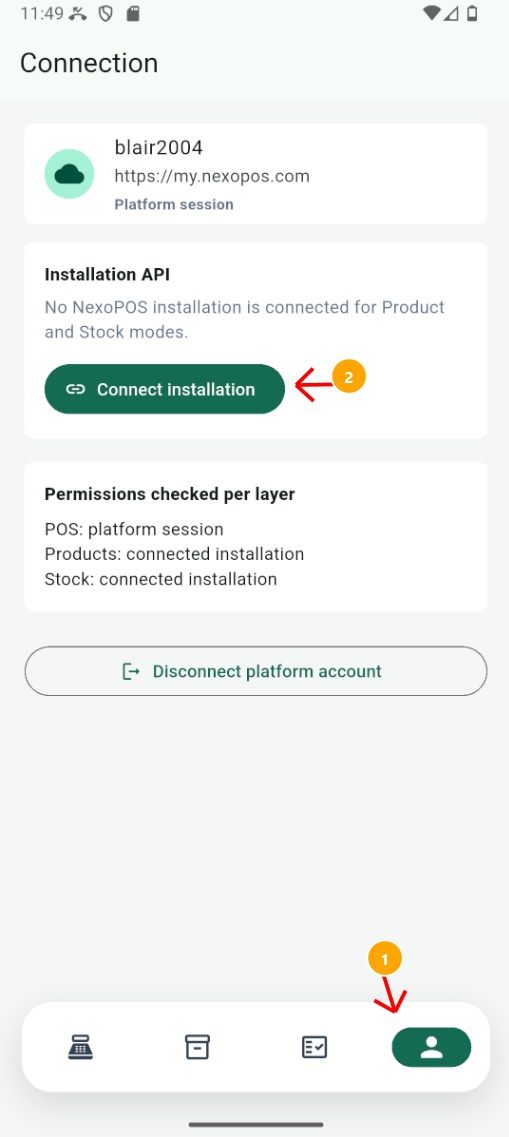
Open Profile and tap Connect installation.
2. Connect your NexoPOS installation
Enter the complete URL of your NexoPOS installation. Tap Scan token QR code, then scan an API token generated from Profile > API Token on the NexoPOS installation. When the token is accepted, tap Connect installation.
If you need detailed instructions for generating the API token, see Creating Products With Barcode Utility. Treat the token and its QR code like a password.
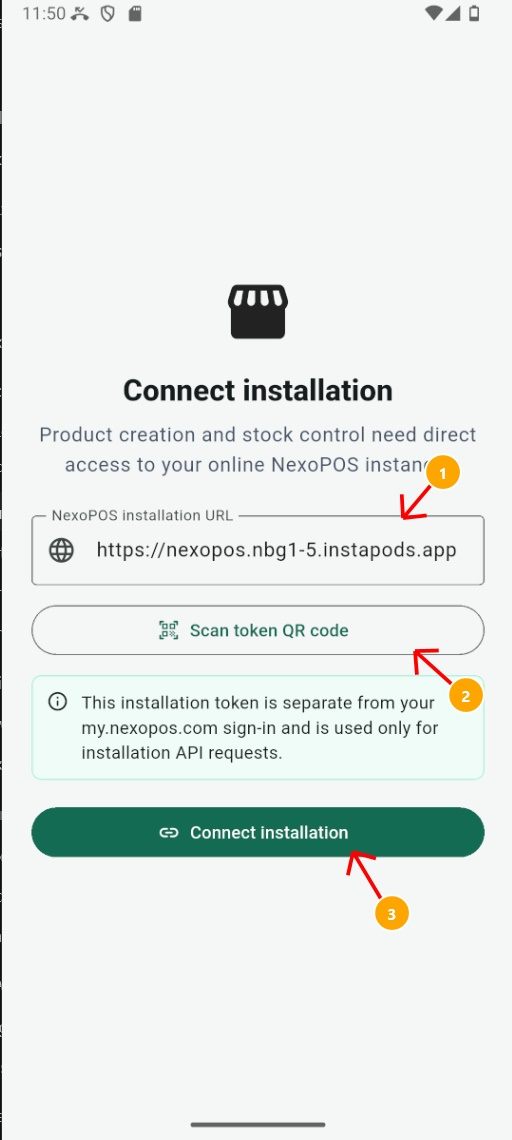
Enter the installation URL, scan its token QR code, and connect.
3. Verify the installation connection
After validation succeeds, the connected website appears under Installation API on your profile. Product and stock features now use this installation.
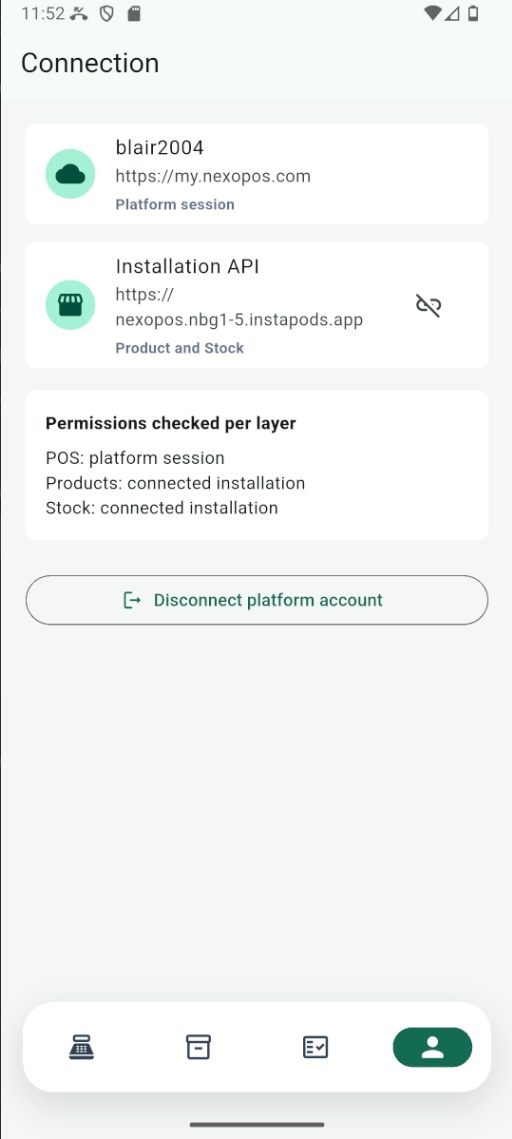
The connected NexoPOS installation appears on the profile.
4. Start a new stock adjustment
Open the Stock control tab from the bottom navigation. This page displays the adjustment history and lets you filter records by All, Draft, or Performed. Tap New adjustment to begin a physical count.
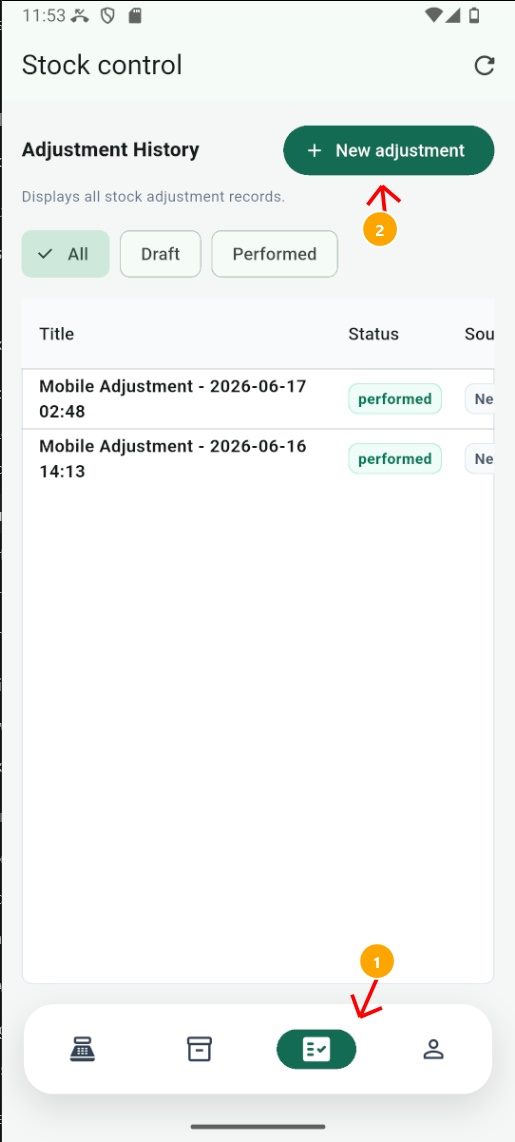
Open Stock control and tap New adjustment.
5. Name the adjustment and add products
Enter a descriptive title for the stock-control job. You can add an item by scanning its barcode or by searching for the product name. Search results are displayed as product units, so select the exact unit you are counting.
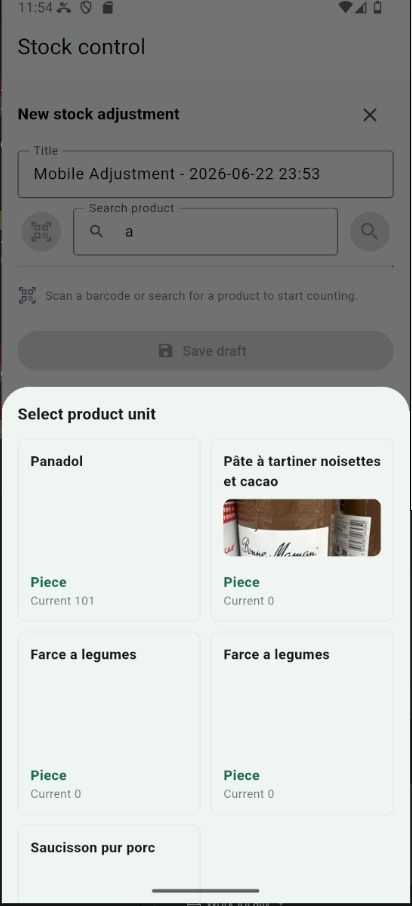
Search for a product and select the product unit to count.
Tip: When you scan the same item several times, Barcode Utility does not create duplicate lines. Each additional scan increases the counted quantity on the existing line.
6. Review quantities and adjustment details
Each row shows the product, unit, current stock, and counted quantity. Swipe the table horizontally to access the remaining controls. Set the counted quantity, choose the required adjustment action, and provide a reason at the end of the row. Repeat this process for every product included in the physical count.
7. Save the draft or perform the adjustment
Tap Save draft when you want to keep the count for later review without changing stock immediately. Tap Perform now when the information is complete and you want NexoPOS to apply the adjustment immediately.
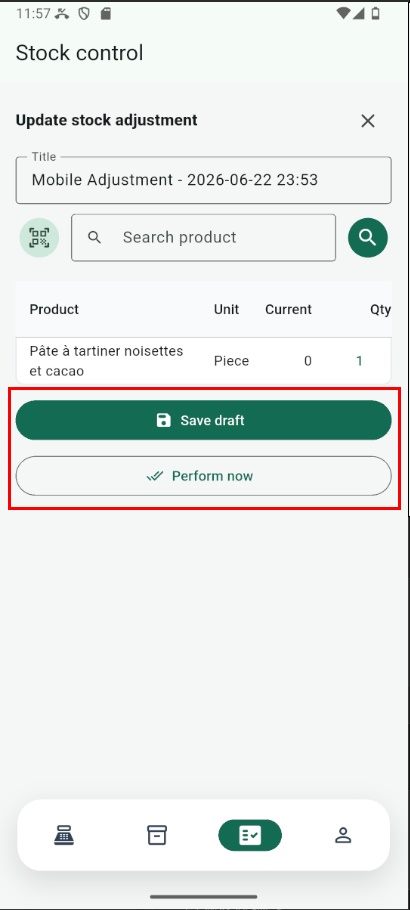
Save the adjustment as a draft or perform it immediately.
8. Find a saved draft
Saved adjustments appear in the adjustment history with a draft status. Use the Draft filter when you only want to see adjustments that have not yet been performed. Tap an adjustment row to open it.
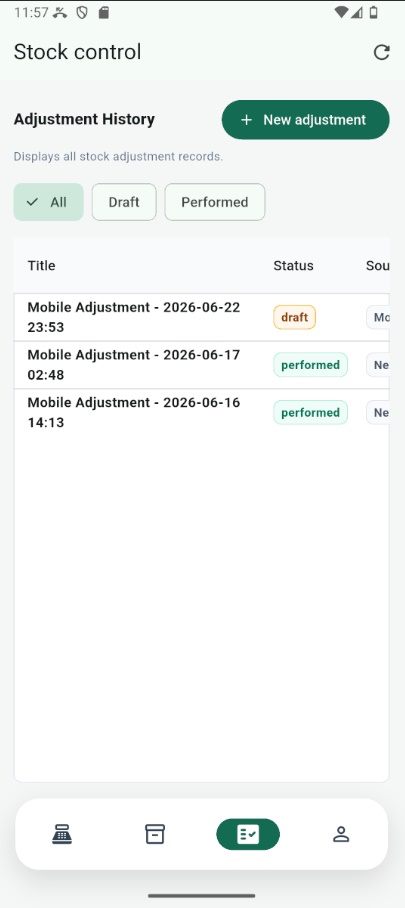
Draft adjustments remain available from the adjustment history.
9. Review and complete a draft
The adjustment preview summarizes the products, current stock, and counted quantities. From this page, you can download a PDF summary, edit the draft, perform it immediately, or delete the draft. Selecting Perform now applies the stock changes to the connected NexoPOS installation.
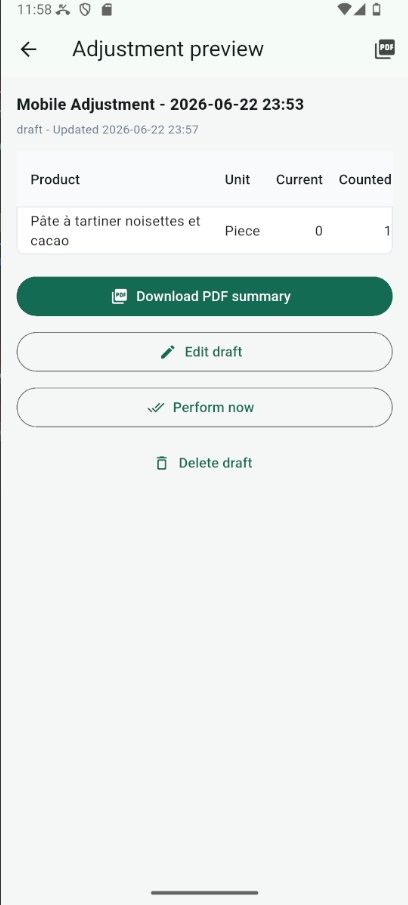
Preview, export, edit, perform, or delete the saved draft.
Once performed, the adjustment appears with a performed status in the history. Use the recorded adjustment and its PDF summary as a reference for reviewing differences between the physical count and the stock previously recorded in NexoPOS.