
Checkout Popup
Checkout Popup
The Checkout Popup is the final payment screen used to complete a sale from the POS. It lets you choose a payment type, enter one or more payments, review order totals, and submit the order.
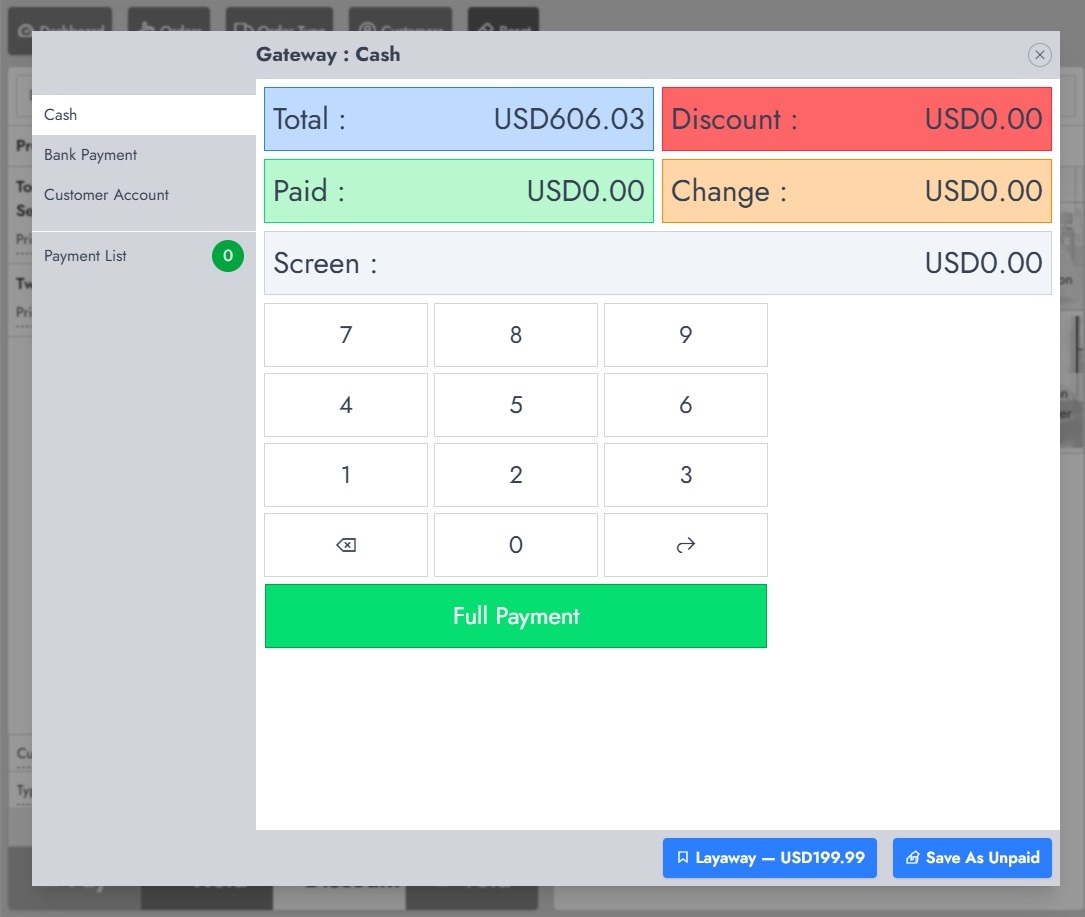
Checkout Popup layout
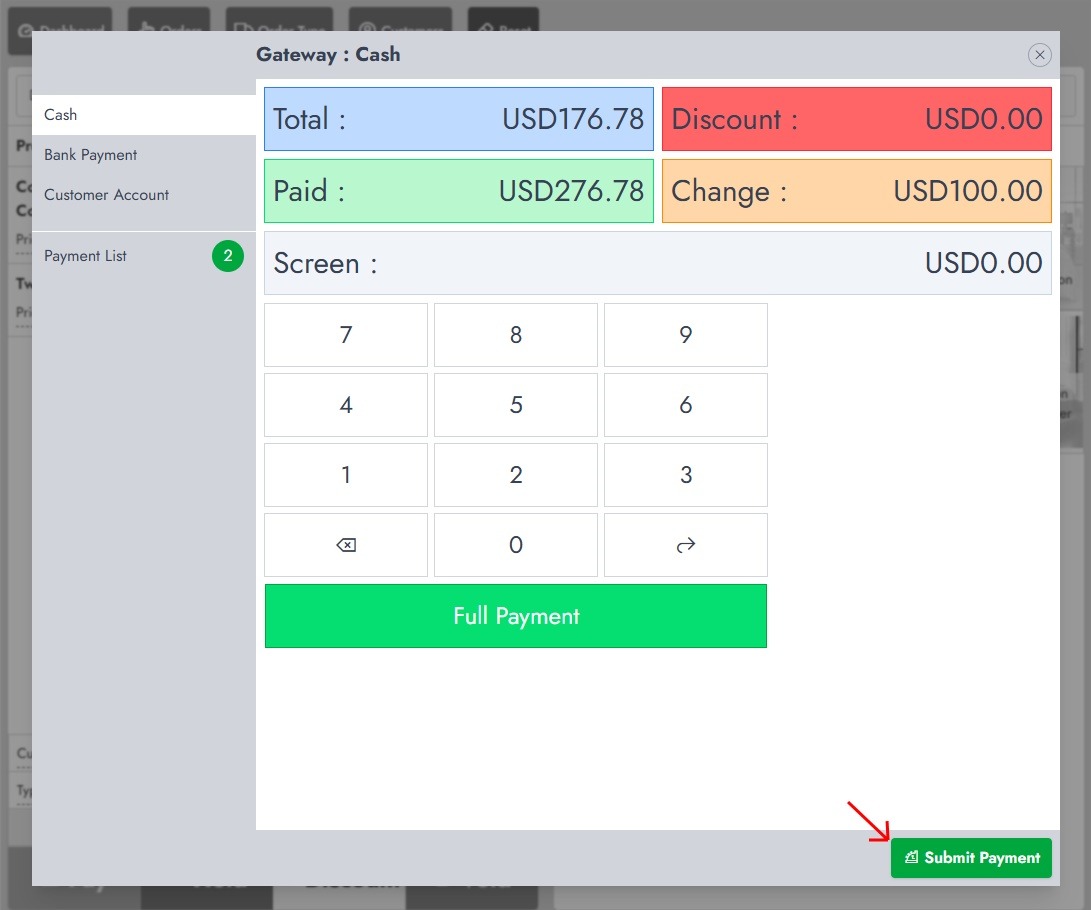
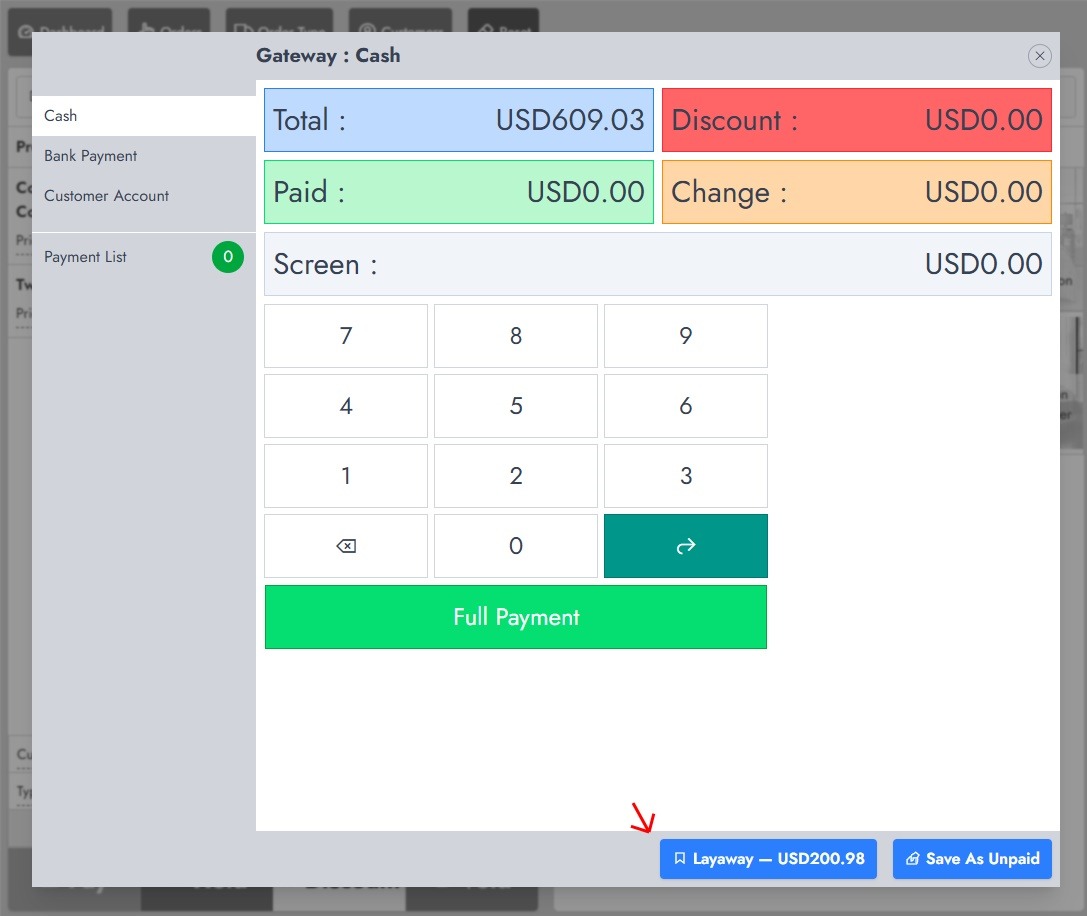
Total is the amount due. Discount shows the applied discount. Paid shows the amount entered. Change is the difference between the amount paid and the total: a positive value is returned to the customer, while a negative value shows that the order is not fully paid. Screen shows the amount currently being entered. Payment List shows the number of payments added.
Complete an order with one payment
Select a payment type, enter the amount, and press the next-arrow key to add it to Payment List. Select Full Payment to add the remaining balance automatically, then select Submit Payment when Paid equals Total.
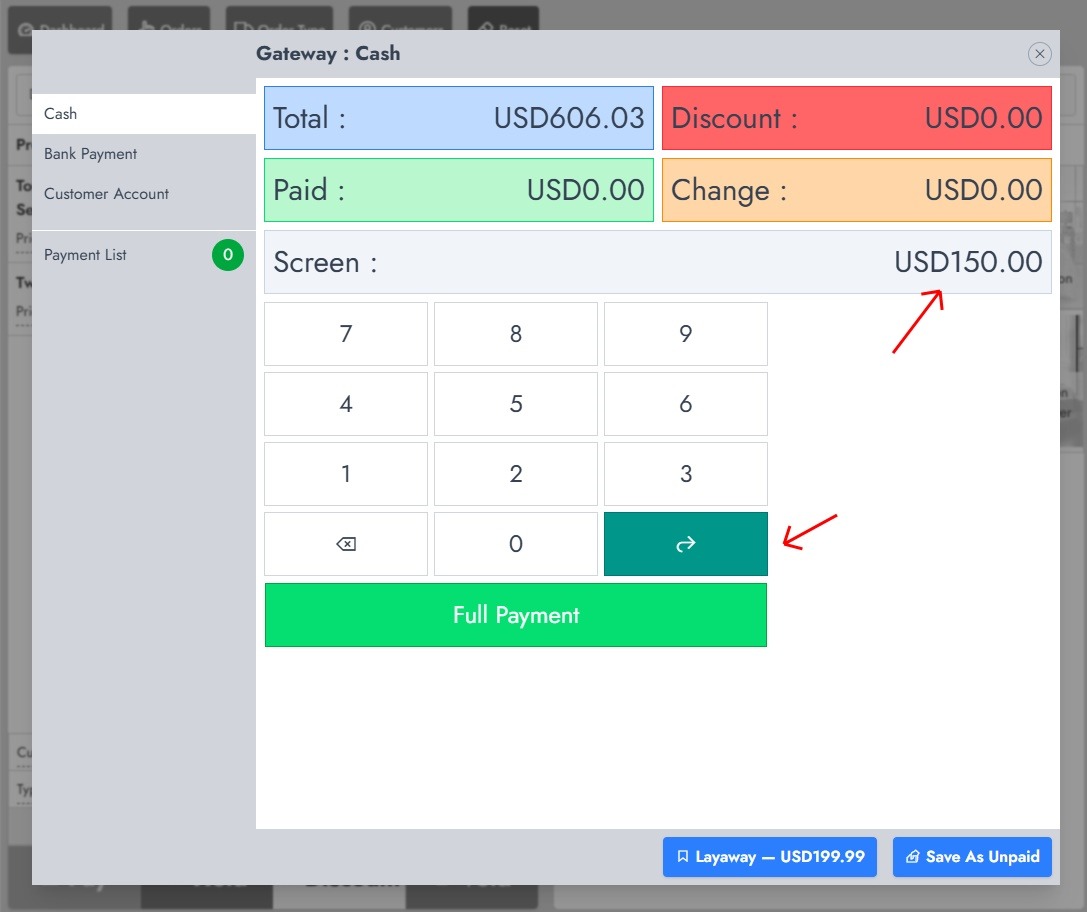
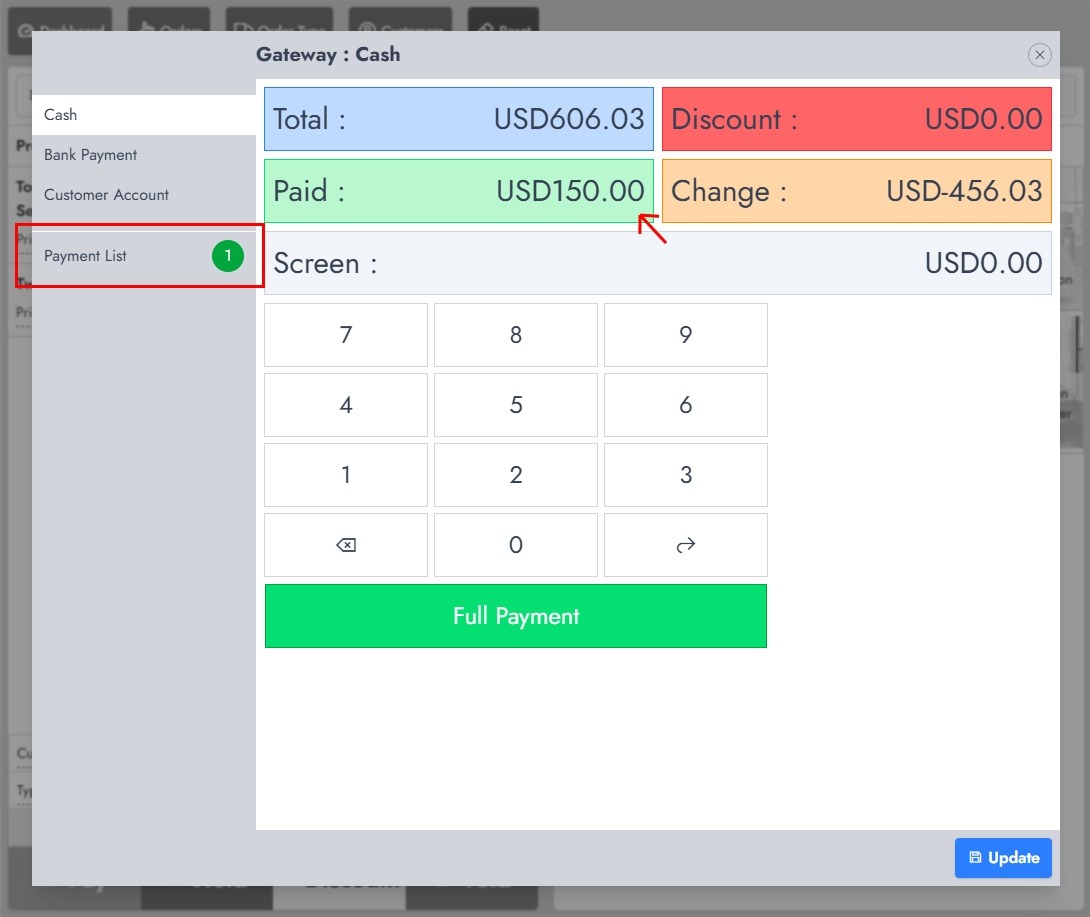
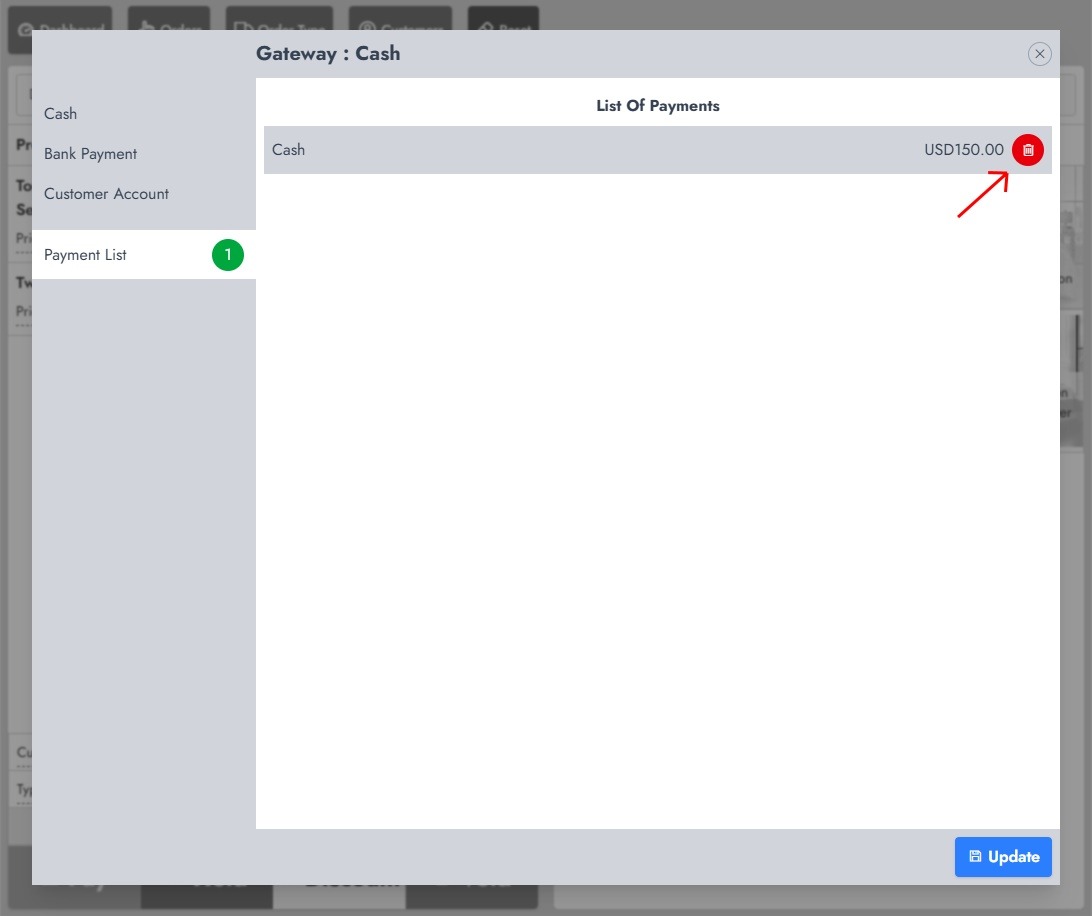
Complete an order with multiple payment types
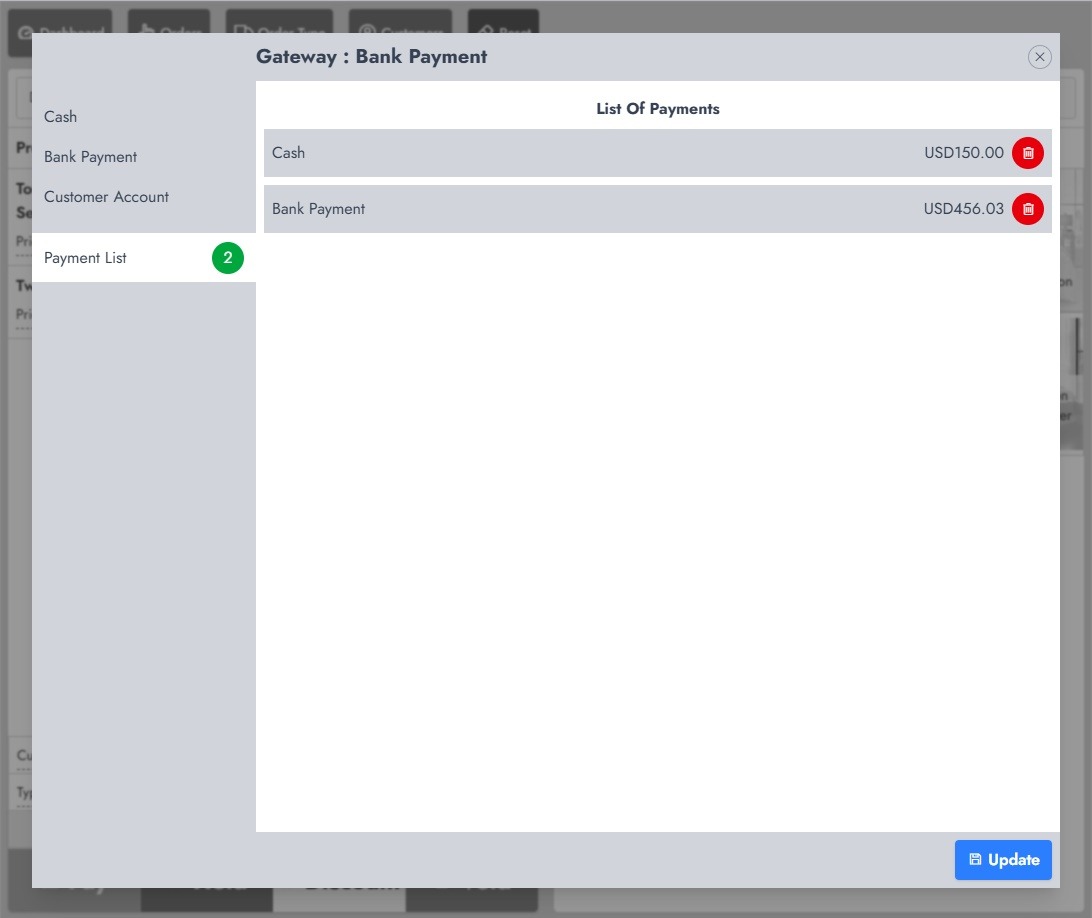
Add the first payment, select another payment type, and add the remaining amount. Open Payment List to verify each entry. For example, USD150.00 Cash plus USD456.03 Bank Payment pays a USD606.03 total.
Use a customer's account balance
Select Customer Account and enter an amount within the available balance, or select Full Payment. The customer account can be used only once per order.
Save an order without payment
Leave Paid at 0.00 and select Save As Unpaid. Confirm the action to save the order with an unpaid status and no payment entries.
Save an order as partially paid
Enter and add an amount lower than Total, then select Layaway to save the order with an outstanding balance. If a payment has already been added, the action may appear as Update.
Important distinction
- Save As Unpaid saves the order with no payment recorded.
- Layaway saves an order with a payment or expected instalment arrangement and an outstanding balance.
Activate an unpaid or partially paid order
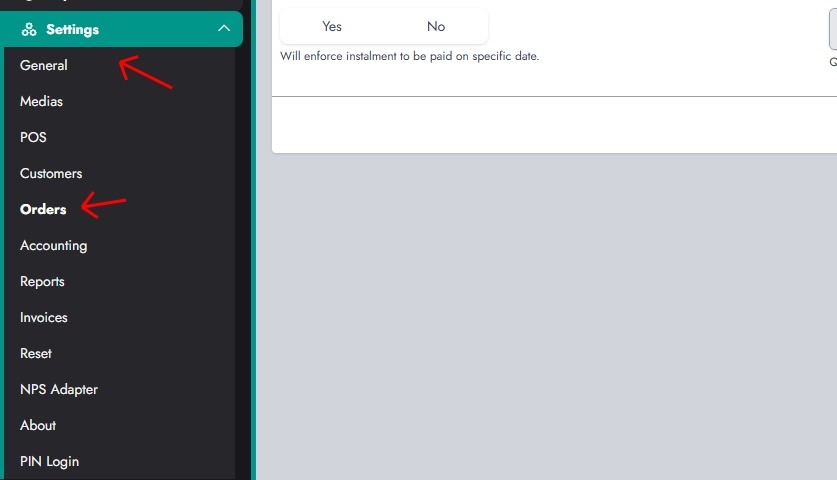
An unpaid or partially paid order can be opened later so that the customer can make another payment. Before using these options, review Settings > Orders > General.
Orders settings
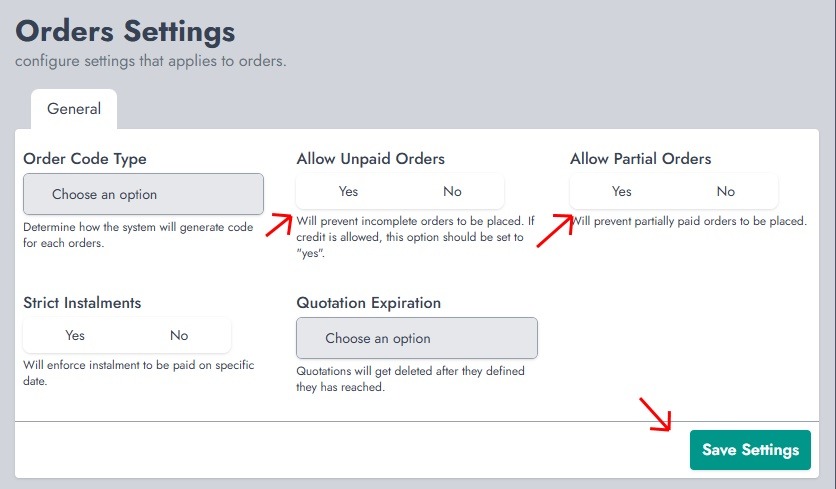
Allow Unpaid Orders controls whether an order with no payment can be saved. Allow Partial Orders controls whether an order with an outstanding balance can be saved. Strict Instalments enforces the dates defined for instalments. Quotation Expiration controls how long quotations remain available; select Never to disable expiration. Select Save Settings to apply the configuration.
Start a layaway or instalment plan
From the Checkout Popup, enter and add the payment already received. When the order is still below its total, select Layaway.
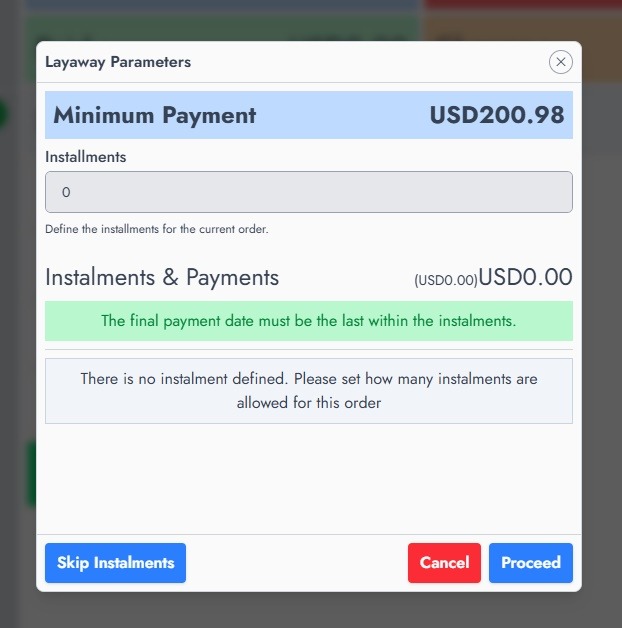
The Layaway Parameters window shows the minimum payment required for the order. Instalments is the number of scheduled payments. Instalments & Payments shows the scheduled total and the remaining amount to pay. As valid instalment amounts are entered, the remaining amount must reduce until it reaches USD0.00.
Every instalment must have a valid amount and date, dates cannot be in the past, the payment due today cannot be lower than the minimum payment, and the total of all instalments must equal the order total.
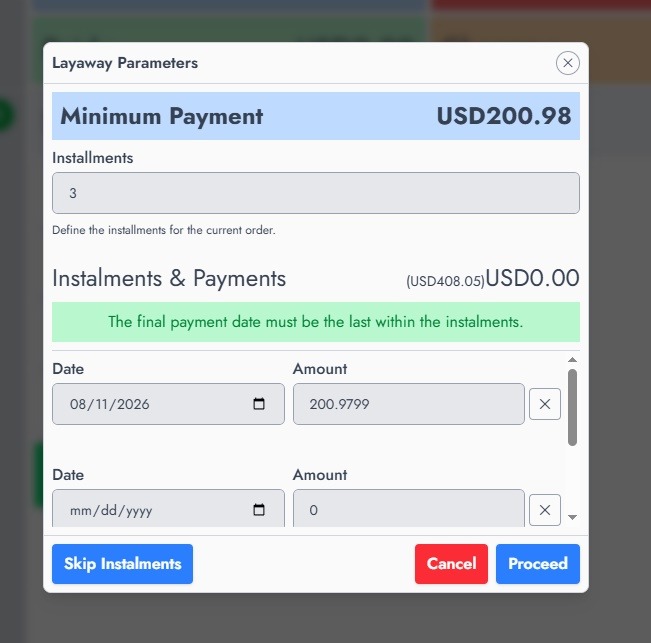
In the example, three instalments are defined. Continue adjusting the amounts until Instalments & Payments shows a remaining amount of USD0.00. Select Proceed to attach the schedule to the order.
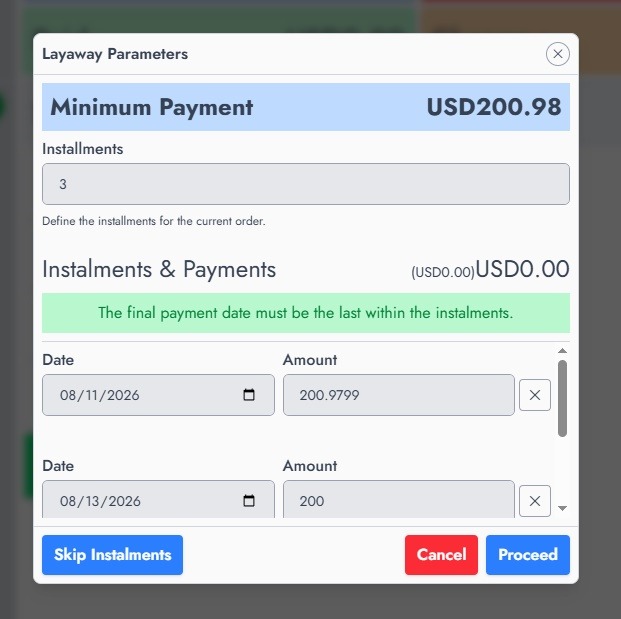
Strict instalments versus ordinary partial payment
An ordinary partial payment only records that the customer has paid part of the order. It does not create a dated payment schedule. Strict instalments create a schedule with due dates and amounts. When Strict Instalments is enabled, NexoPOS enforces the schedule and may prevent a customer from paying an instalment before its due date. Use strict instalments when payments must follow an agreed timetable; use an ordinary partial payment when the remaining balance can be paid at any time.
The initial payment uses the selected payment gateway
When starting a layaway or instalment order, the payment gateway selected in the Checkout Popup is always used for the initial payment. Select the gateway first, such as Cash, before entering the initial amount.
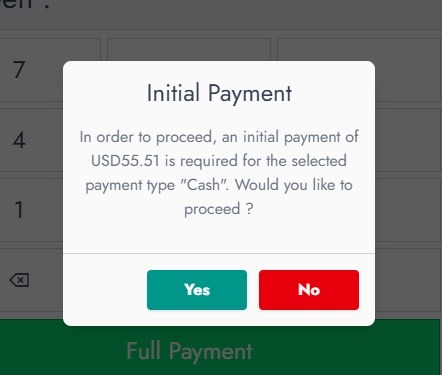
NexoPOS checks that the initial payment meets the required minimum amount for the selected gateway. In the example, the system requests an initial payment of USD55.51 through Cash. Select Yes to proceed or No to return to the payment screen. If another gateway should be used, select it before continuing.