
Connect NexoPOS to My NexoPOS
Connect your NexoPOS installation to My NexoPOS to browse the official marketplace, install modules linked to your account, and manage the licenses assigned to this installation.
Before you start
1. Start the connection from NexoPOS
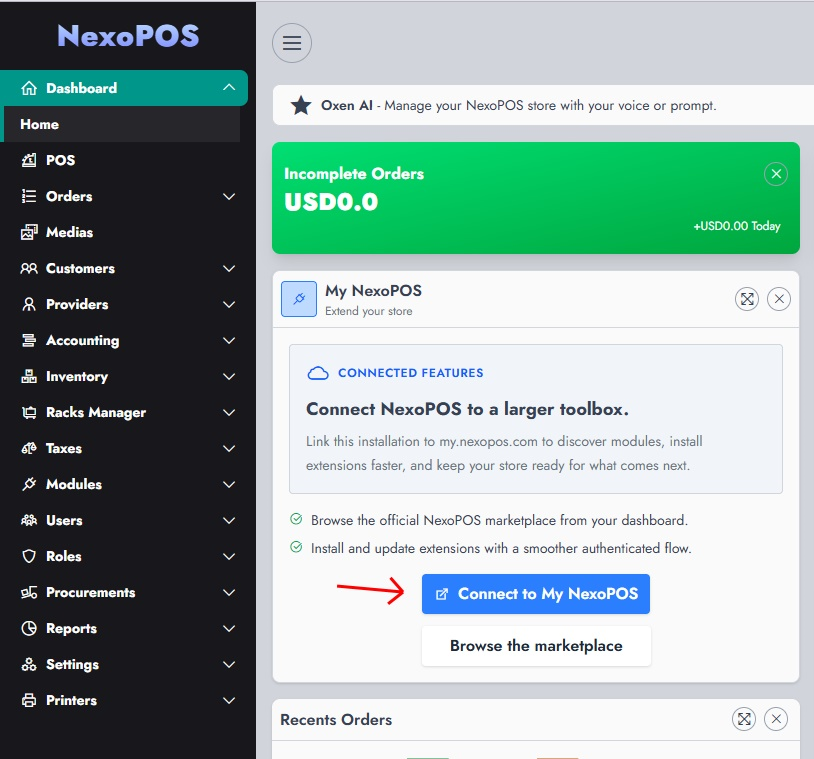
Open your NexoPOS dashboard and find the My NexoPOS card. Select Connect to My NexoPOS.
2. Continue to My NexoPOS
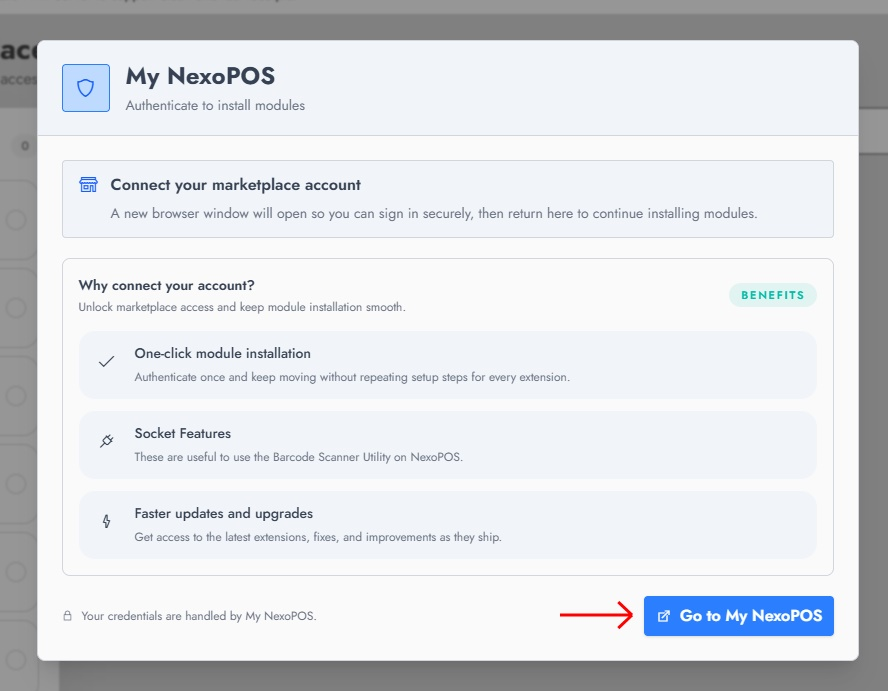
The connection window explains the features enabled by linking your account. Select Go to My NexoPOS. A browser window opens so you can sign in securely.
3. Authorize the installation
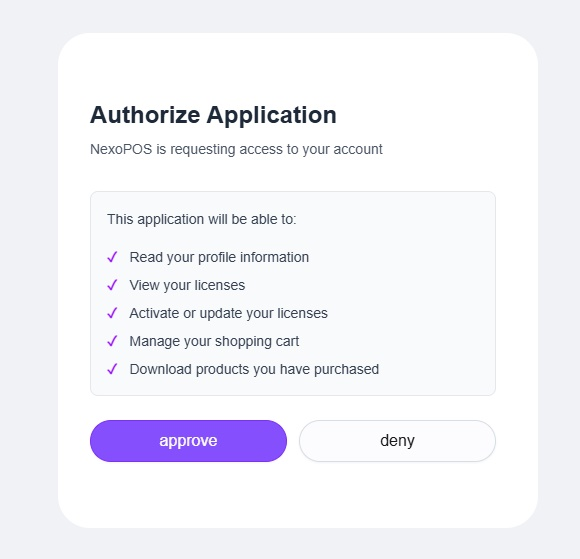
After signing in, review the access requested by NexoPOS. Select Approve to link this installation to your account. Selecting Deny cancels the connection.
- Read your profile information
- View your licenses
- Activate or update your licenses
- Manage your shopping cart
- Download products you have purchased
4. Browse and acquire modules
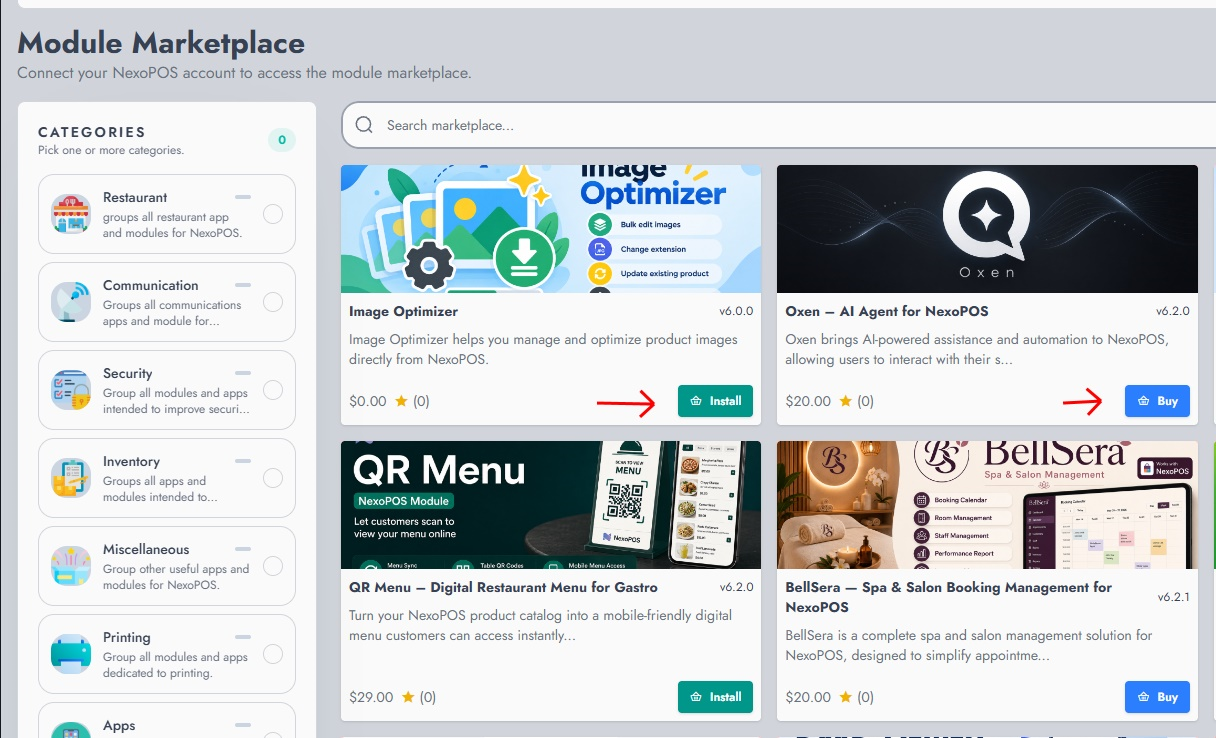
Return to NexoPOS after approval. The Module Marketplace now recognizes your My NexoPOS account and shows the action available for each module.
- Install: the module is already available to your account. This includes modules you purchased earlier and free modules you have acquired.
- Buy: the module must be purchased before it can be installed.
- Free modules: acquire the module for free, then return to the marketplace to install it.
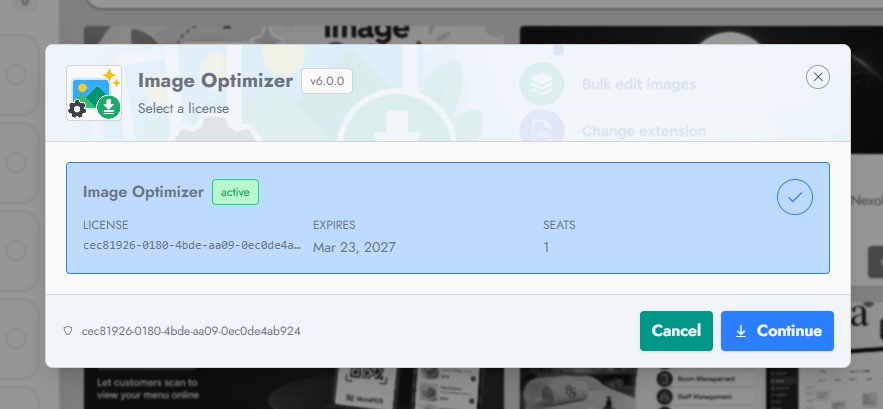
5. Assign a license and install
When you select Install, NexoPOS asks you to assign an eligible license to this installation. Select the license you want to use, then choose Continue. The installation uses one available activation seat from that license.
No license appears?
Troubleshooting
- If the browser does not open, allow pop-ups for your NexoPOS installation and try again.
- If the marketplace still asks you to connect, refresh NexoPOS after approving access.
- If the wrong purchases appear, disconnect and repeat the process with the correct My NexoPOS account.
- Never share your My NexoPOS password or authorization details with another person.