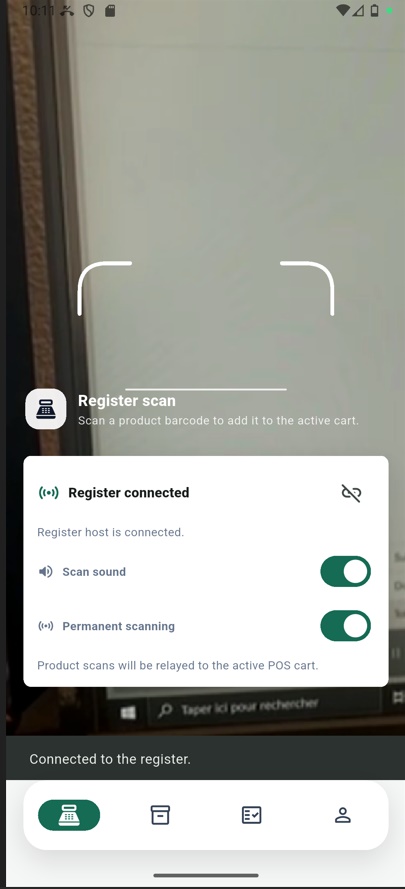
Connecting Wireless Barcode Reader
The wireless barcode reader is a feature that was added in NexoPOS 6.2. Combined with the Barcode Utility application, it helps you use your mobile phone as a barcode reader for NexoPOS.
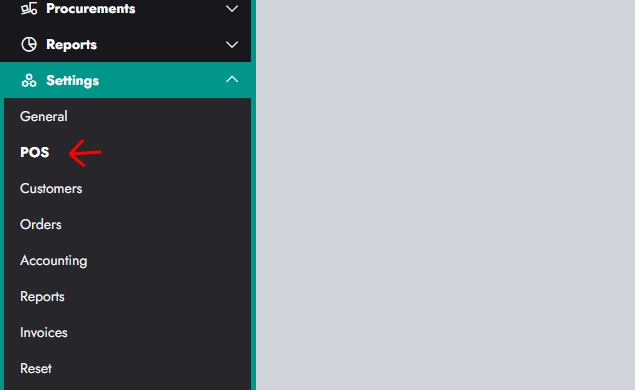
To get started, we'll enable the feature on Settings > POS > Features.
From there, we'll scroll down to enable the wireless barcode reader.
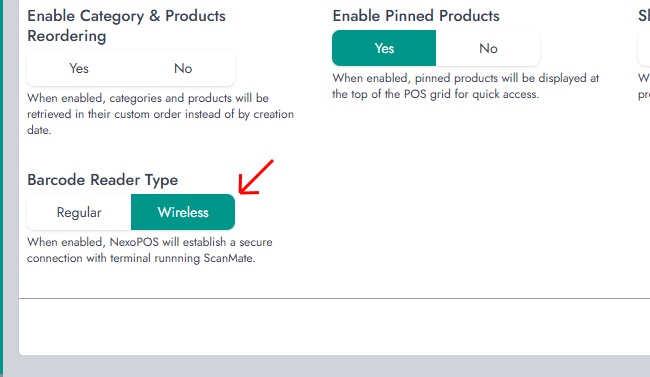
Once enabled, make sure to save your settings.
Connecting To my.nexopos.com
From NexoPOS 6.2, you can now link your installation to my.nexopos.com. When accessing the POS and trying to click on the barcode icon. It's currently showing a flashing icon.
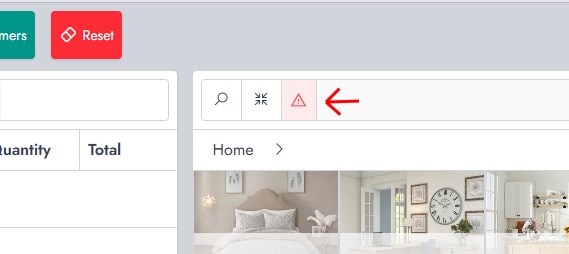
By clicking on that icon, a notification will appear at the bottom right, giving you a link to the authentication to my.nexopos.com.
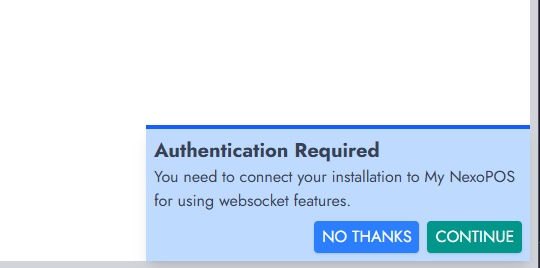
By clicking on Continue, you'll be redirected to the marketplace within your NexoPOS installation. From there, you'll just have to click on Authenticate with my.nexopos.com.
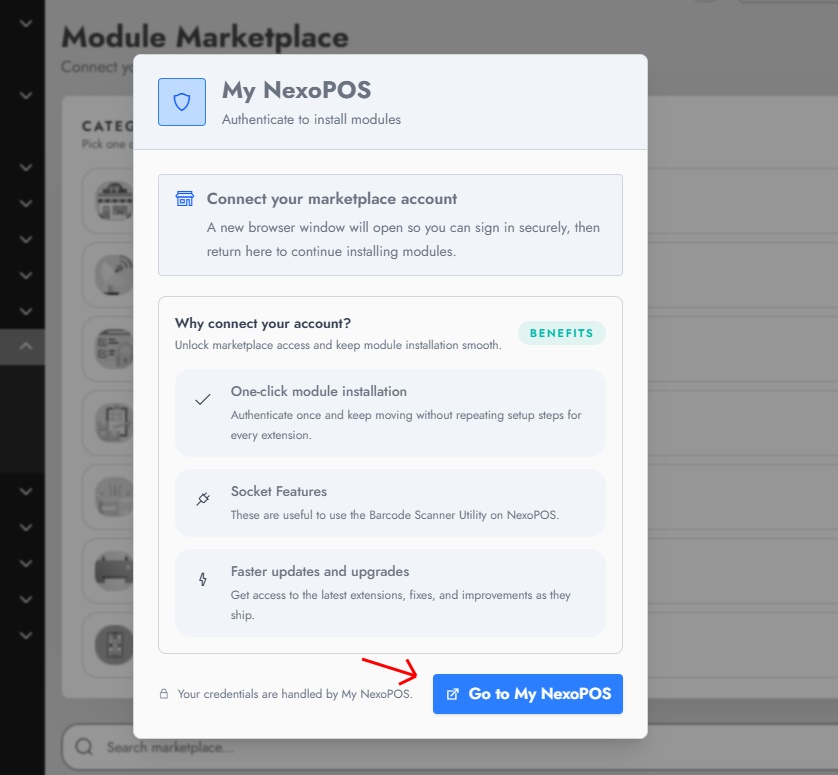
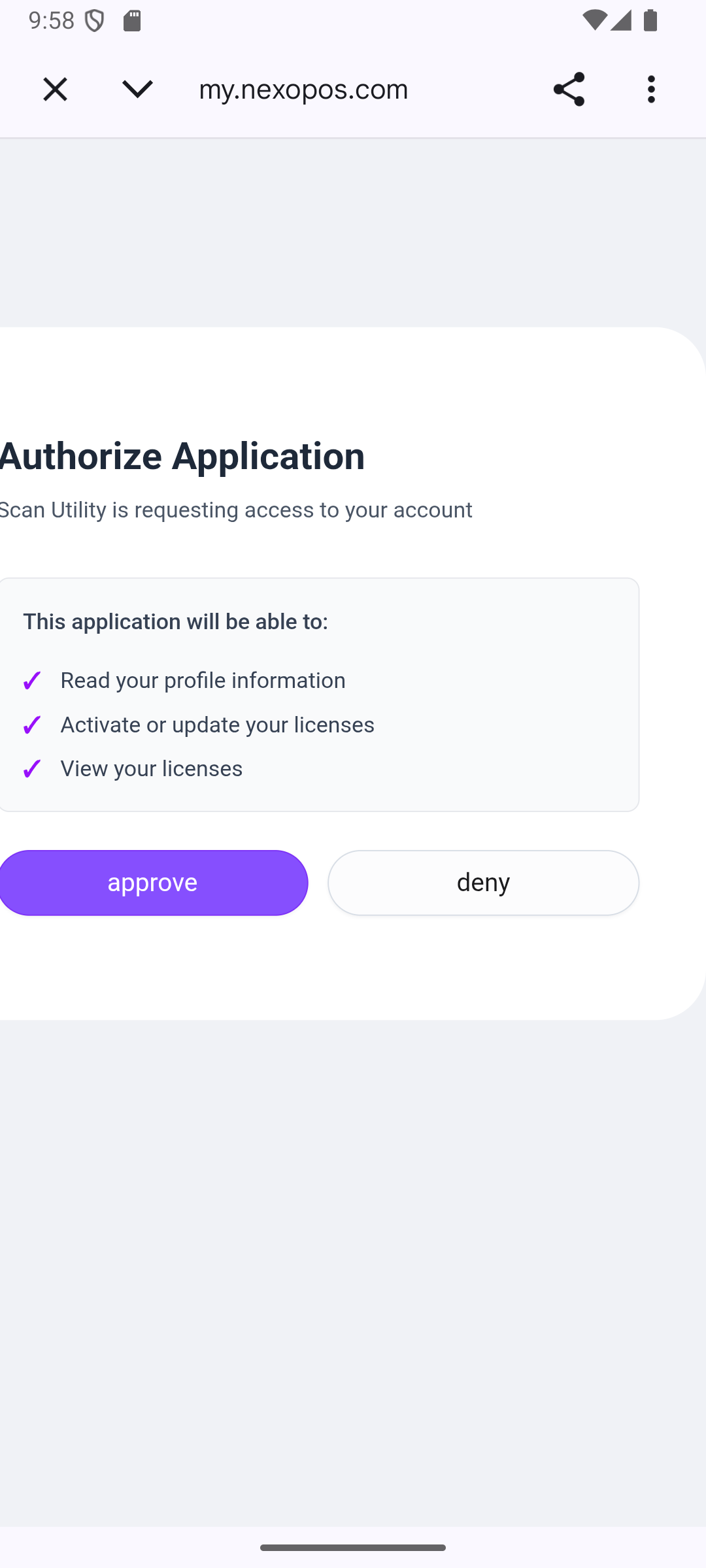
By clicking on it, you'll land on the my.nexopos.com authentication page (if you're not yet connected). Afterward, you'll land on the authorization page that lists everything NexoPOS will have access to on your account.
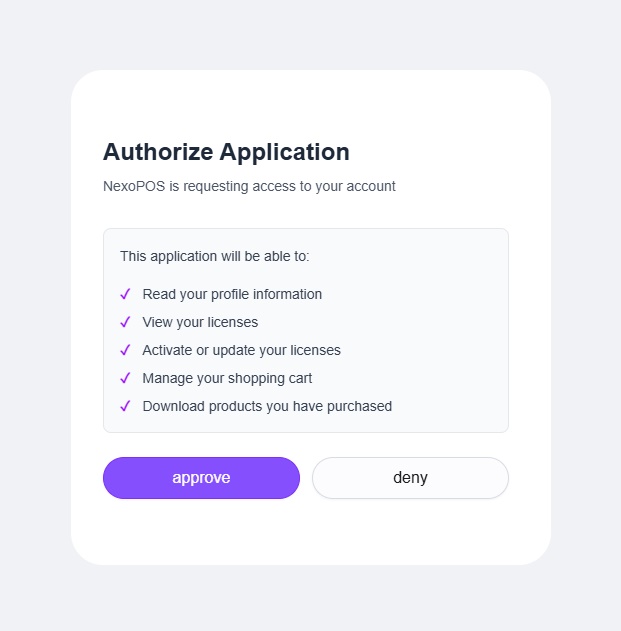
Once approved, you just have to access your POS screen and click on the barcode icon (which should have a green background).
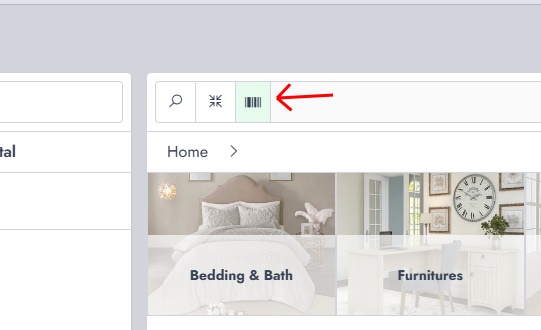
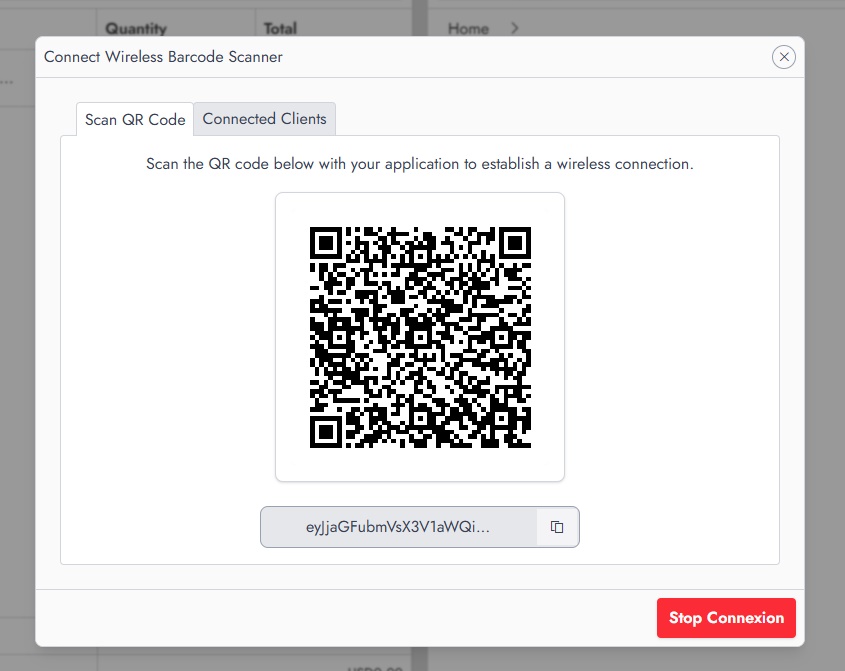
Now you only need to use the Barcode Utility for NexoPOS. This should show a window with both the scan code and connected devices.
Connecting Barcode Utility to Your Account
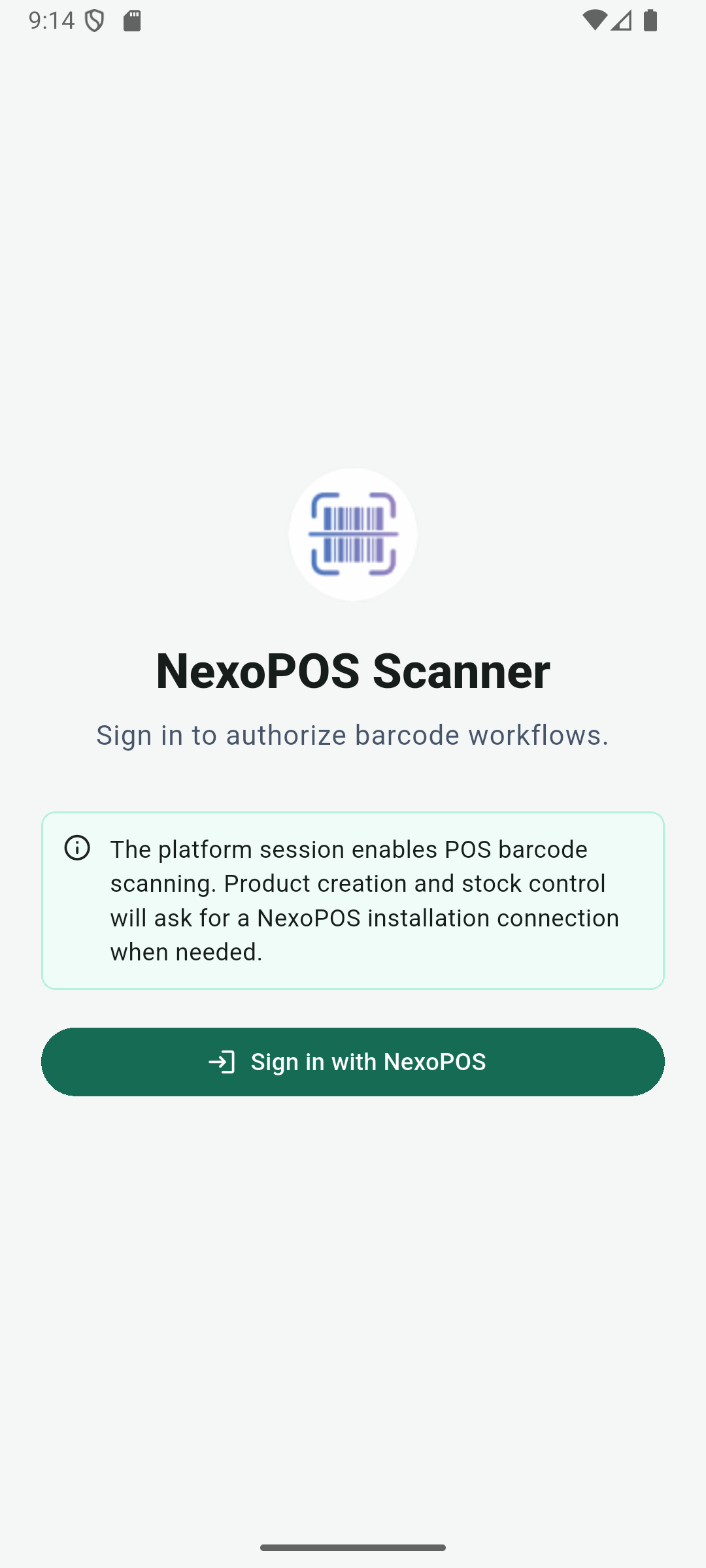
Now that you're set, we need to configure the Barcode Utility app to connect to your account. You'll then land on Google Play to download the Barcode Utility for NexoPOS and install it. When you open the app, you'll land on the welcome page.
By connecting to my.nexopos.com, you'll be requested to grant access to your account. The Barcode Utility will request certain access for the barcode scanning to work.
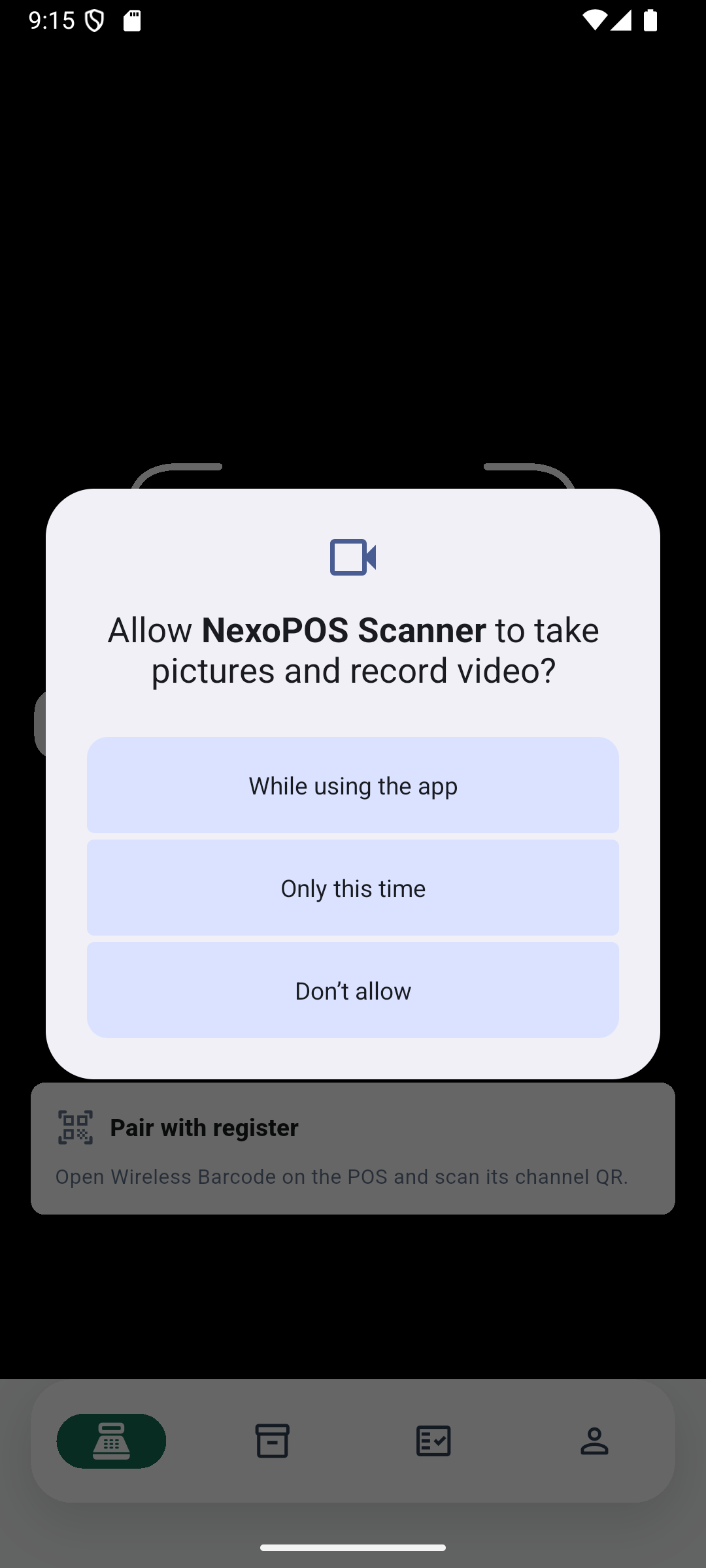
Once you're connected, you'll land on a page with multiple tabs. We'll focus on the barcode scanning tab, which is the default tab. You might also receive a permission access to use your camera device.
You'll now only have to scan the QR code that is shown on NexoPOS to link your POS to the mobile device.
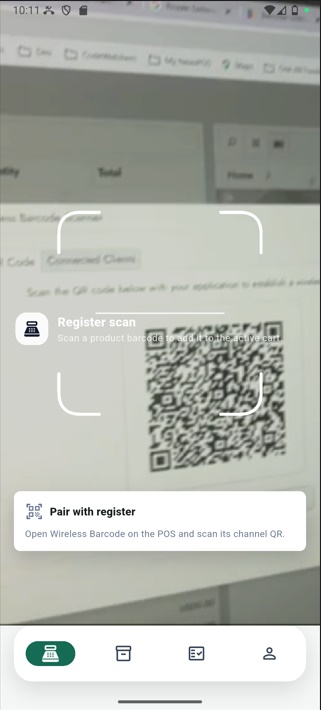
Once you're connected, you'll see the settings for the feature, and your POS is ready to start scanning products.