
Make Procurement
Procurement is the process of acquiring goods for resale. It allows adding products into inventory after purchasing them from a provider. This feature ensures that stock levels are updated accurately and that purchase-related data is recorded for reporting and accounting purposes.
Procurement also plays an important role in cost tracking. It automatically computes the purchase price of products and helps define the Cost of Goods Sold (COGS), which is later used when products are sold.
Creating a Procurement
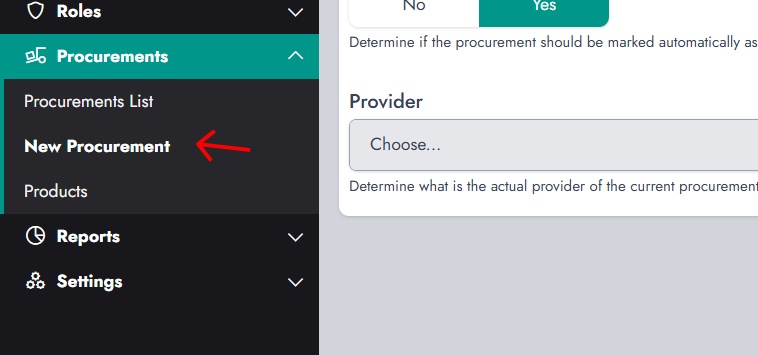
To create a procurement, navigate to the Procurements section and click on New Procurement.
Start by providing a Procurement Name. This helps identify the procurement later.
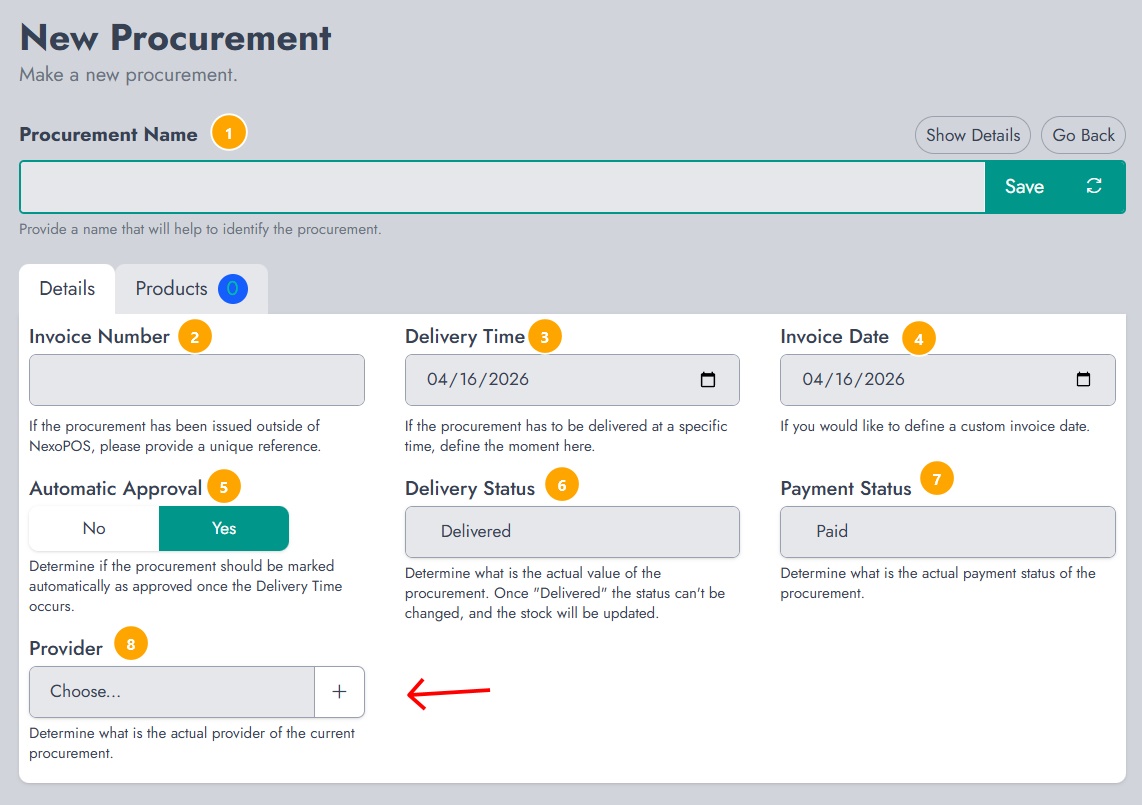
Additional details can be defined:
- Invoice Number to reference an external document
- Delivery Time to specify when the goods are expected
- Invoice Date for accounting purposes
- Automatic Approval to determine whether the procurement should be validated automatically
- Delivery Status, which impacts stock update
- Payment Status to reflect whether the procurement is paid
- Provider to specify the supplier
These details help structure the procurement and ensure proper tracking.
Adding Products
Switch to the Products tab to add items to the procurement.
Use the search input to find products by name, SKU, or barcode. Matching results will appear as you type.
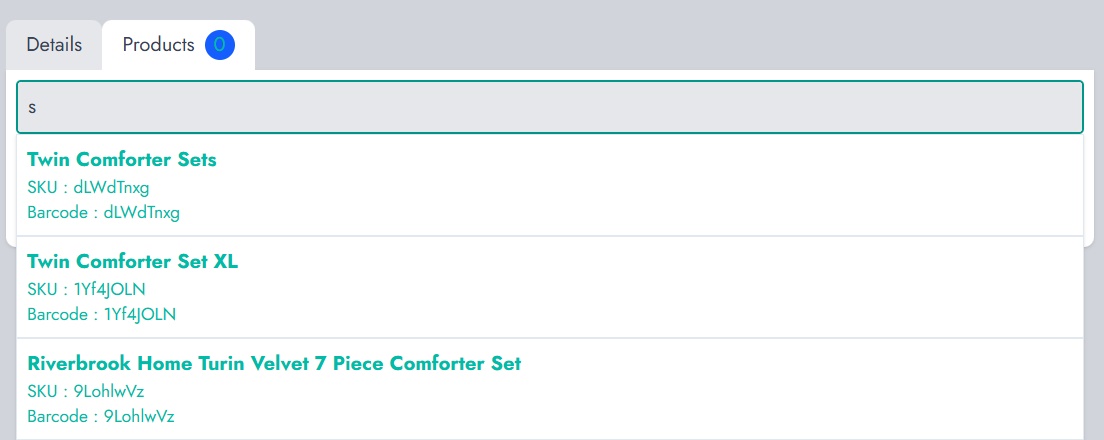
Select a product to add it to the procurement. Once selected, the product will appear in the list with editable fields.
Configuring Product Details
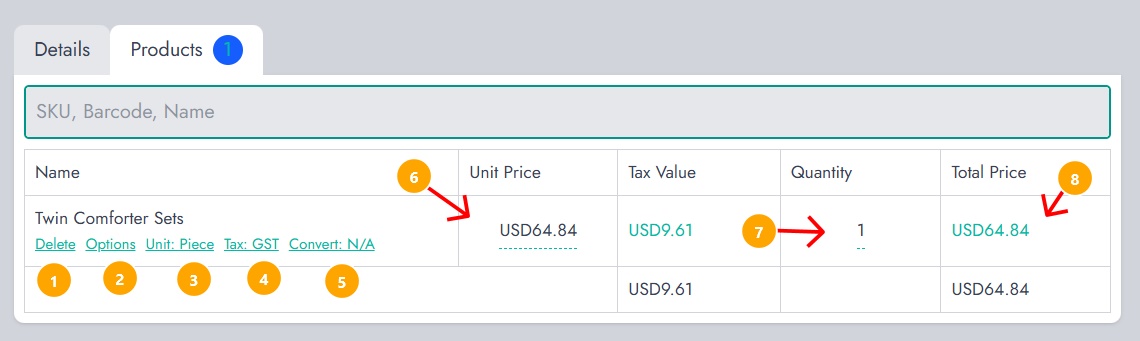
Each product added to the procurement includes several configurable fields:
- Unit: The unit in which the product is purchased
- Unit Price: The purchase price per unit
- Tax Value: The tax applied to the product
- Quantity: The amount purchased
- Total Price: Automatically calculated based on quantity and unit price
These values are used to compute the total cost of the procurement and influence future sales calculations.
Unit Conversion
The Convert option allows converting the purchased unit into another unit used for selling.
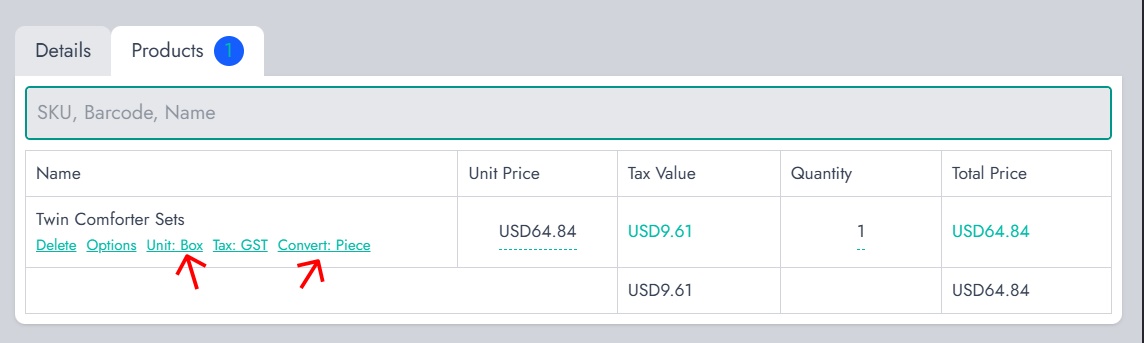
For example, a product may be purchased as a box but sold as pieces. By using the convert option, the system will transform the purchased quantity into the desired unit automatically.
However, this requires that all relevant units are already defined and assigned to the product. If a unit is missing, the conversion will not be possible. Units must therefore be configured during product creation or update before performing procurement.
Additional Options
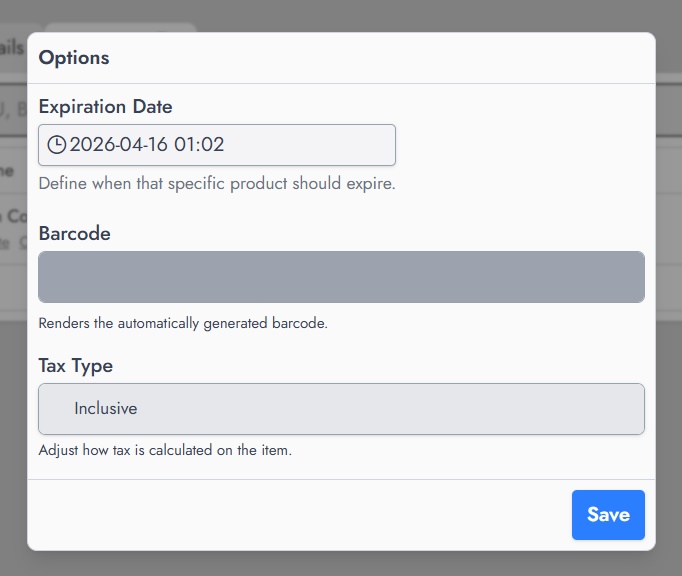
The Options tab provides additional settings for each product. This may include details such as:
- Expiration date
- barcode information
- Tax type
These options allow refining how the product behaves once added to inventory.
Quantity Input
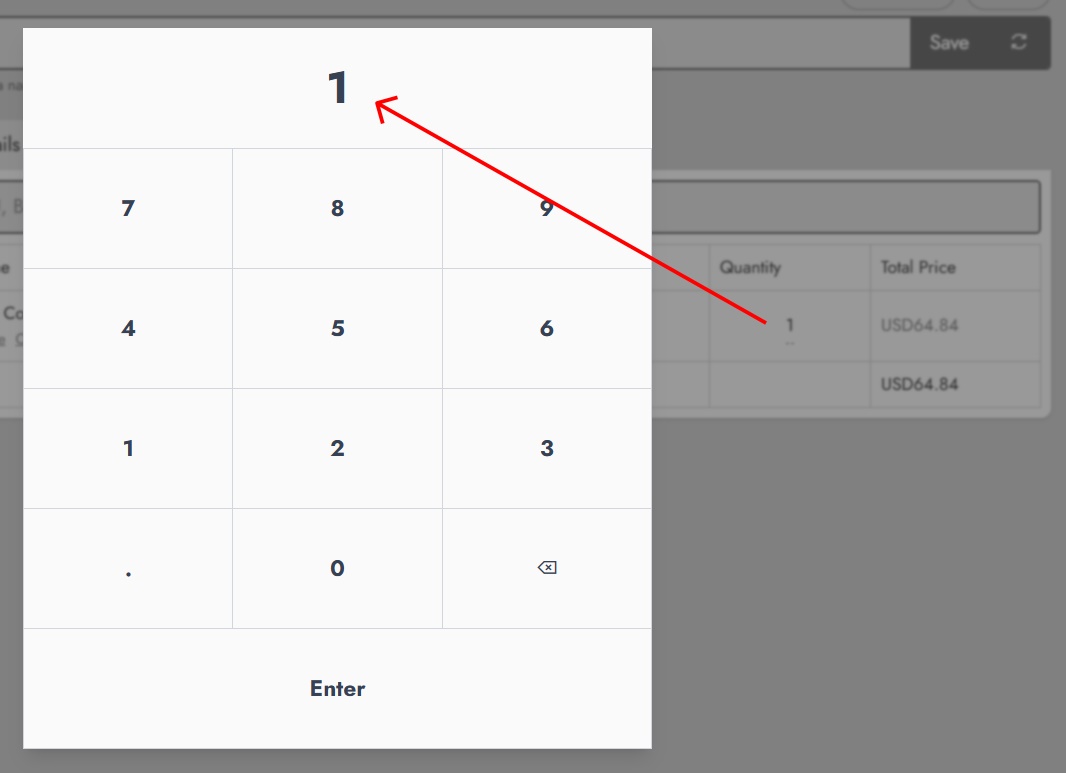
When defining quantities, a numeric keypad may be displayed to simplify input. This ensures accurate entry, especially in touch-based environments.
Inventory Impact
Once the procurement is marked as delivered or approved, the system updates the inventory automatically. The purchased quantities are added to stock, and if conversion is used, the resulting units are adjusted accordingly.
This ensures that products purchased in bulk can be sold in smaller units without manual stock adjustments.