
Network Mode
Network Mode allows NexoPOS for Windows to serve approved NexoPOS Client devices over the local network. It is useful when a store needs NexoPOS available from more than one computer, such as an additional checkout, an office workstation, or a stock-management device. Each device must be paired and approved before it can connect.
Keep the Server Running
NexoPOS Client can discover NexoPOS only while the server is running. Before pairing or managing devices, open NexoPOS for Windows and confirm that its status is Running. If the server is stopped, select Start and wait for the services to start.
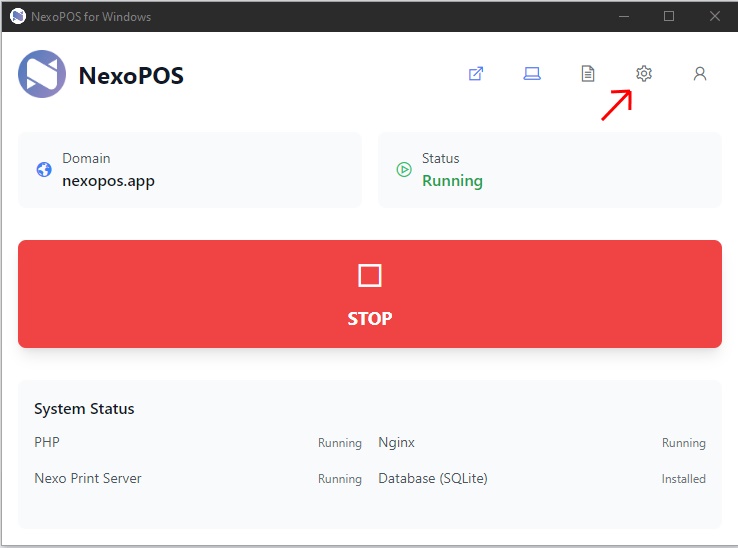
The NexoPOS for Windows server is running.
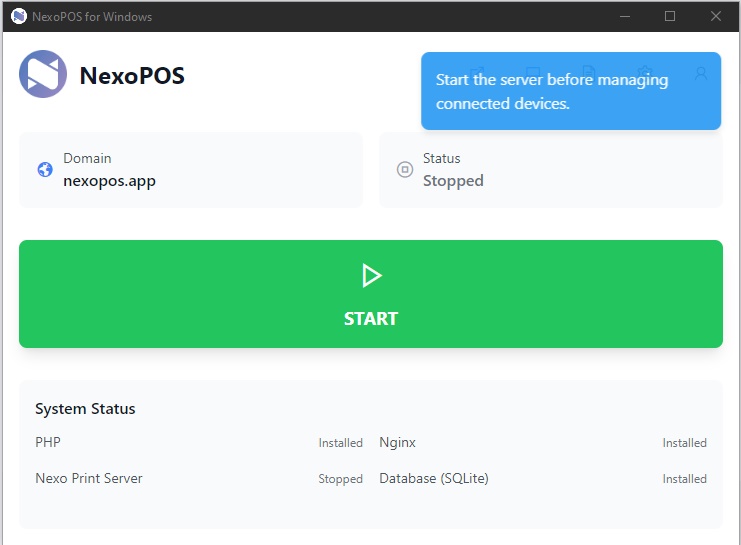
A stopped server cannot be used for device discovery or device management.
Enable Network Mode
Open Settings, then select General Settings. Under Operating mode, select Network mode. This enables NexoPOS for Windows to serve paired NexoPOS Client devices over the local network. Save the settings when you are finished.
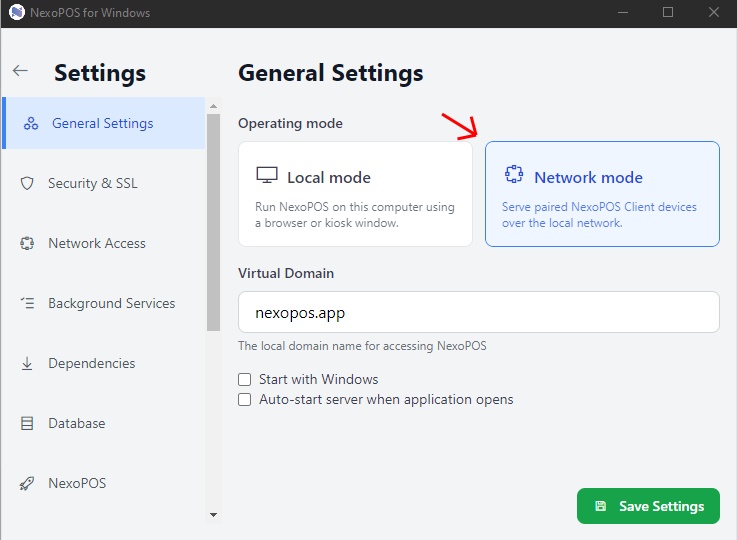
Select Network Mode, then save the settings.
Configure Network Access
In Settings, open Network Access. The LAN gateway allows approved NexoPOS Client devices to reach this server.
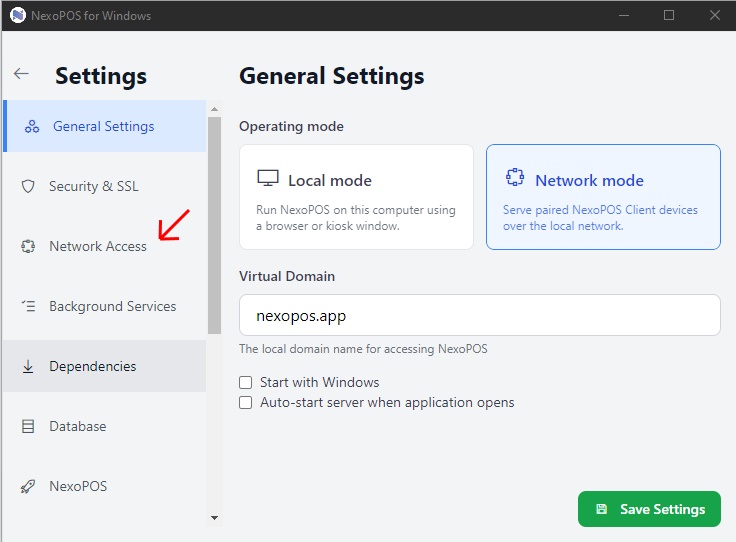
Open Network Access from the Settings sidebar.
Set a recognizable display name so nearby devices can identify the server during discovery. The HTTPS gateway port is the secure port used by NexoPOS Client; changing it may require Windows administrator approval.
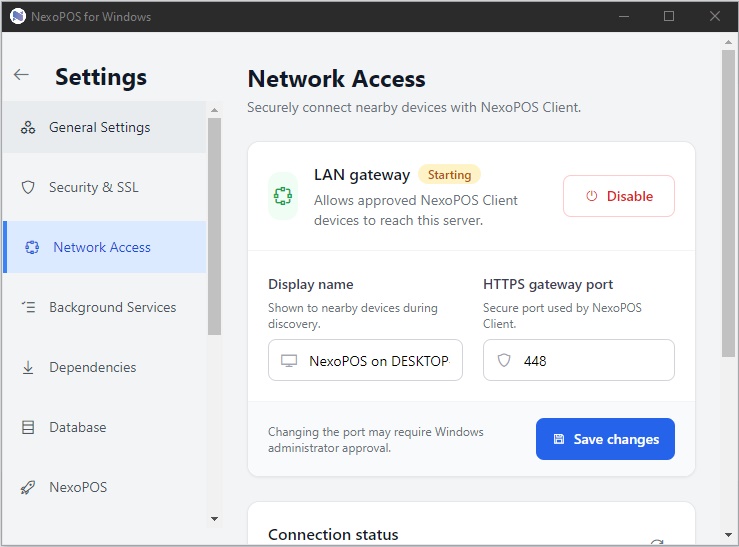
The LAN gateway settings include the display name and secure gateway port.
Pair a NexoPOS Client Device
- Make sure the NexoPOS for Windows server is running and Network Mode is enabled.
- On the NexoPOS Client device, start discovery from the same local network.
- On the server, select the Device management icon.
- Open Pending Requests, check the device name and confirmation code, then select Approve.
- The device appears under Paired Devices and can use NexoPOS Client access.
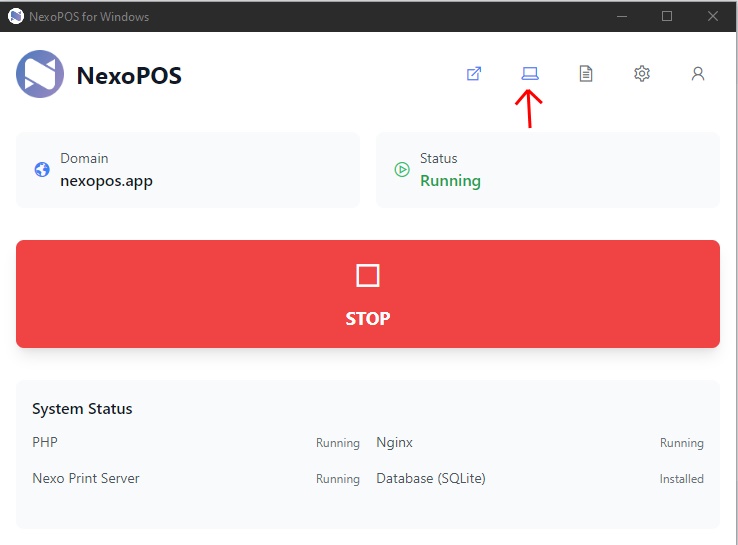
Open Device management from the NexoPOS for Windows home screen.
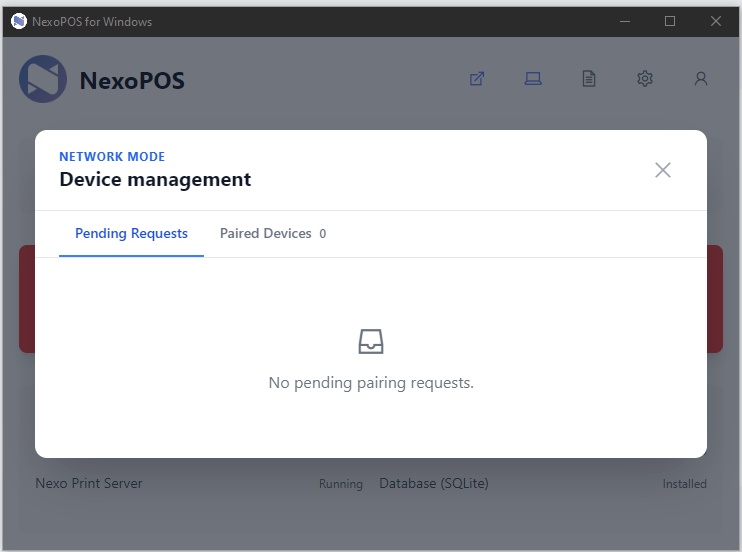
Device management lists pending requests and paired devices.
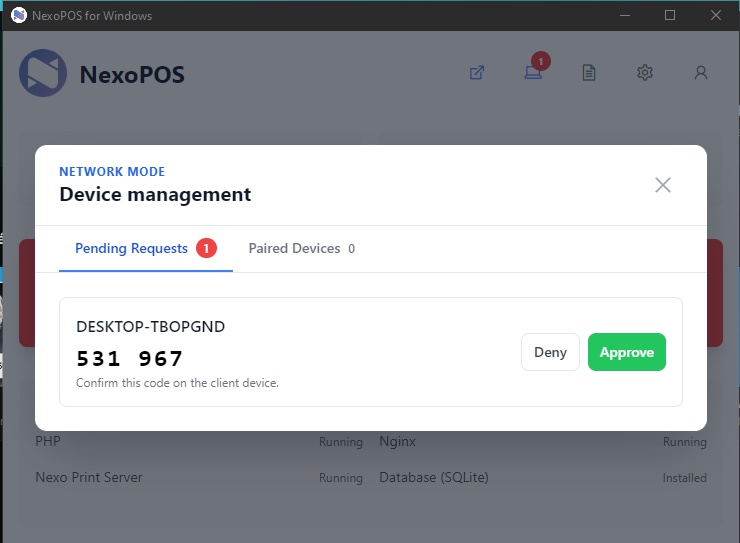
Verify the displayed code on the client device before approving its request.
Revoke a Paired Device at Any Time
You can revoke a paired device at any time. Open Device management, select Paired Devices, then choose Revoke next to the device. This immediately removes that device’s NexoPOS Client access. Re-pair the device if it needs access again later.
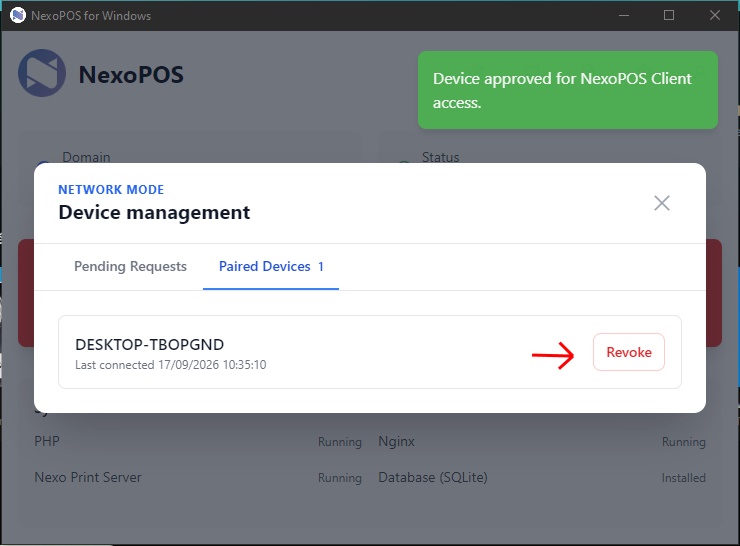
Select Revoke to remove a device’s NexoPOS Client access.
Troubleshooting Discovery
- If the gateway shows Waiting For Server, start the NexoPOS for Windows server.
- Confirm that the server and NexoPOS Client device are on the same local network.
- Confirm that Network Mode and the LAN gateway are enabled before attempting discovery.
- Check the connection-status information for the advertised addresses and secure port when diagnosing a network issue.