
Low Stock Notification
The low stock warning has been added on NexoPOS 4.6.x. This helps you to create notifications for all products in which units reach a threshold. This will explain how to enable the notification and how to use the report related to this low stock notification.
Activating The Low Stock Notification
In order to activate the low stock notification, you need to edit all the products where you would like the notification to be active.
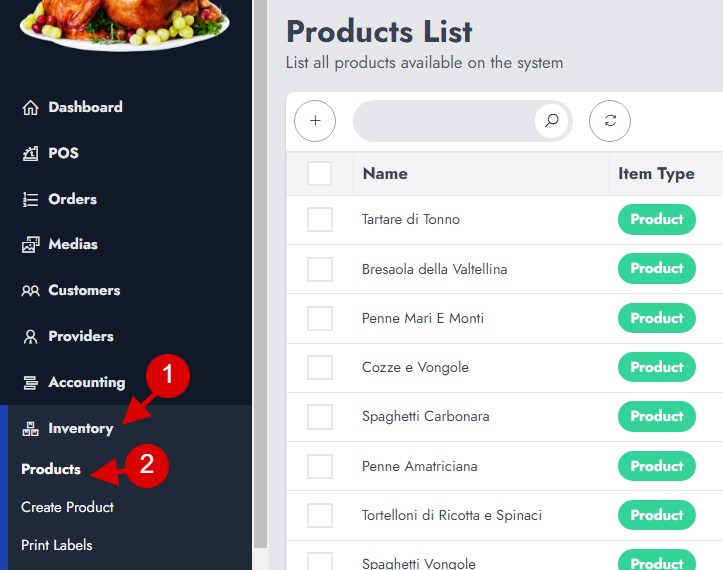
While editing the product, you'll need to head to the tab "Units".
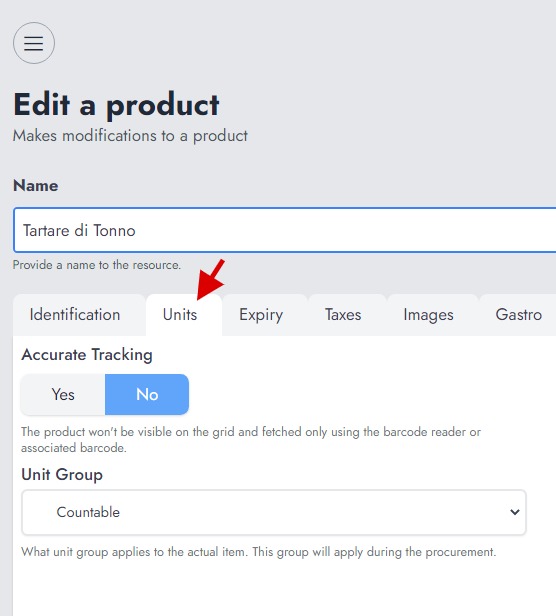
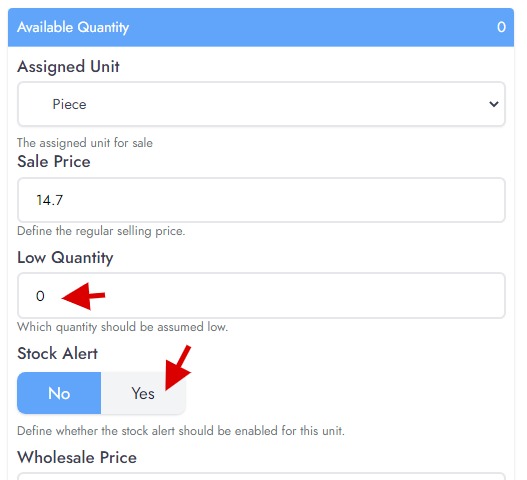
From there, you'll see on all the units assigned to the product 2 new controls, which are :
- Low Quantity : where you define the quantity that should assumed to be a low stock
- Stock Alert: where you enable the alert for that item or not.
Low Quantity Notification
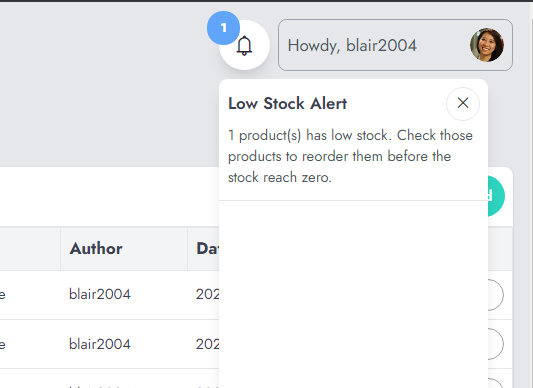
Periodically, NexoPOS will check the products that have reached a low inventory. For those products, it will issue a notification that mentions the count of products that is low.
Low Stock Report
You can monitor all the products that are currently running low on inventory by checking the dedicated report created for that.
Head to the Reports, then Low Stock Report.
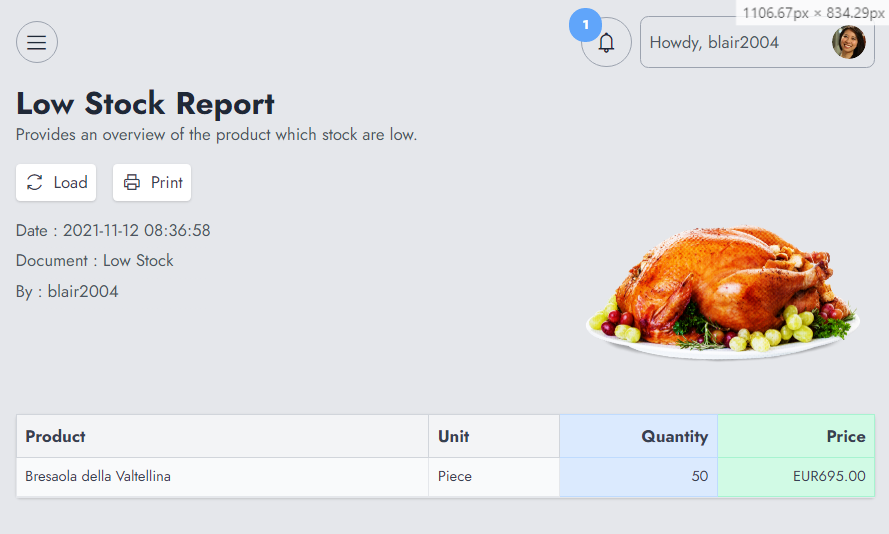
This is how the report should look.