
Access Apps Versions
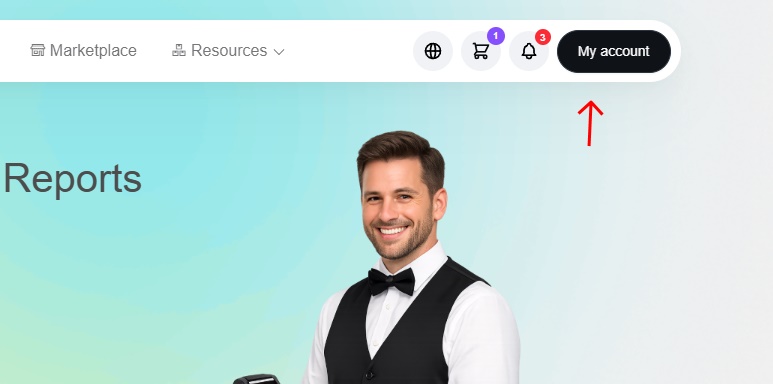
After purchasing an app or module, you can access it directly from your account dashboard. The dashboard gives you an overview of your account, including your support tickets and recent purchases. To access the versions available for a purchased app, start from the My Account then Dashboard (opened by default).
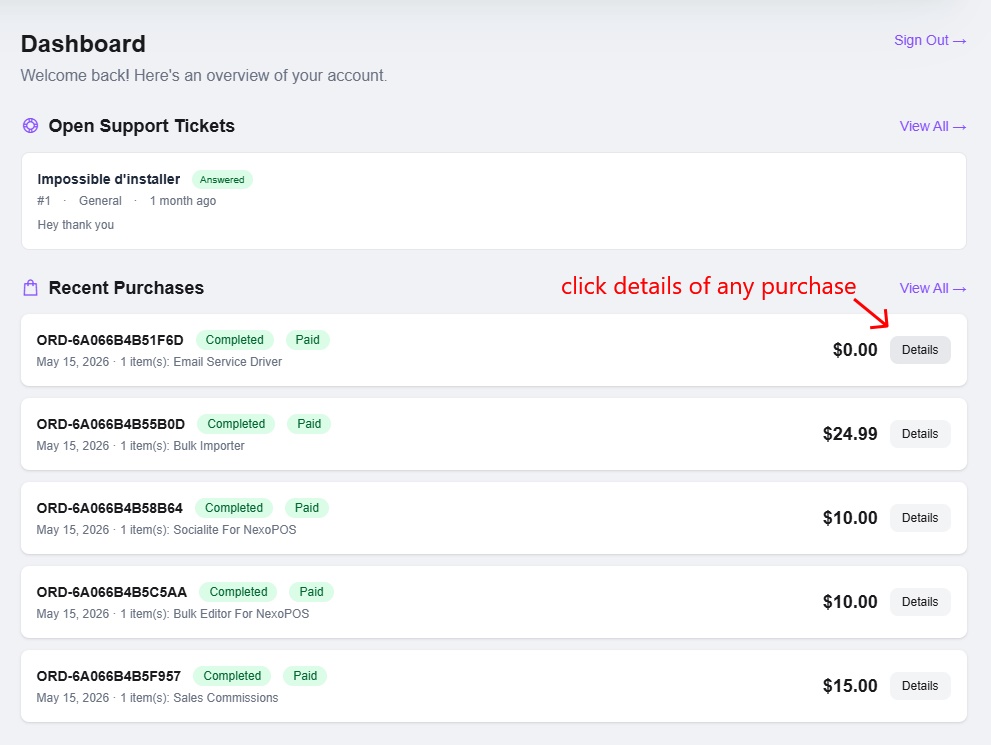
In the recent purchases list, each order displays useful information such as the order number, purchase status, payment status, purchase date, item name, and total amount. To open a specific purchase, click the Details button displayed on the right side of the order.
Once the order details page is opened, you will see the purchased item listed under the Order Items section. This area shows the item name, the version currently attached to the order, the quantity, the unit price, the license key, the license status, and the expiration date when applicable.
The main Download button allows you to download the current version of the app. If you want to view all available releases, look for the All Versions section below the license information. This section lists the available versions for the selected app, including the release date and a label indicating the latest version.
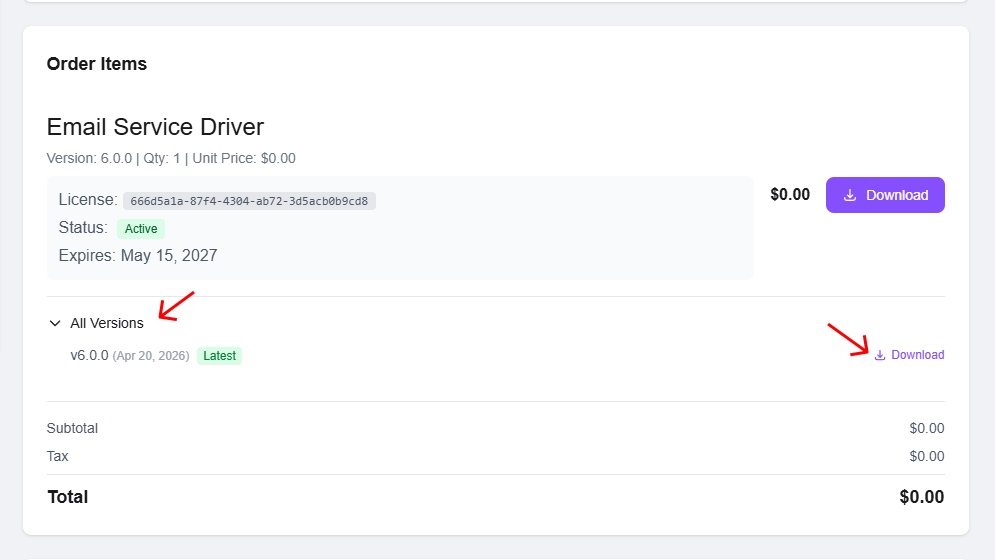
To download a specific version, click the Download link displayed next to that version. When a version is marked as Latest, it means it is the most recent release currently available for that item.
If the version list or download button is not visible, make sure you are viewing the correct order and that your license is still active.