
Creating Products With Barcode Utility
Barcode Utility can speed up product creation by retrieving product information from a scanned barcode. The application uses the Open Food Facts database, so the barcode must identify a product available in that database.
Before you begin
Make sure that your mobile device has internet access, your NexoPOS installation is available online, and you can sign in to the installation as a user allowed to create products. You will also need access to your profile to generate an API token.
1. Open the installation connection screen
Open Barcode Utility and select the product area. Enter the complete URL of your NexoPOS installation in the NexoPOS installation URL field. Do not connect yet—you must first scan an API token.
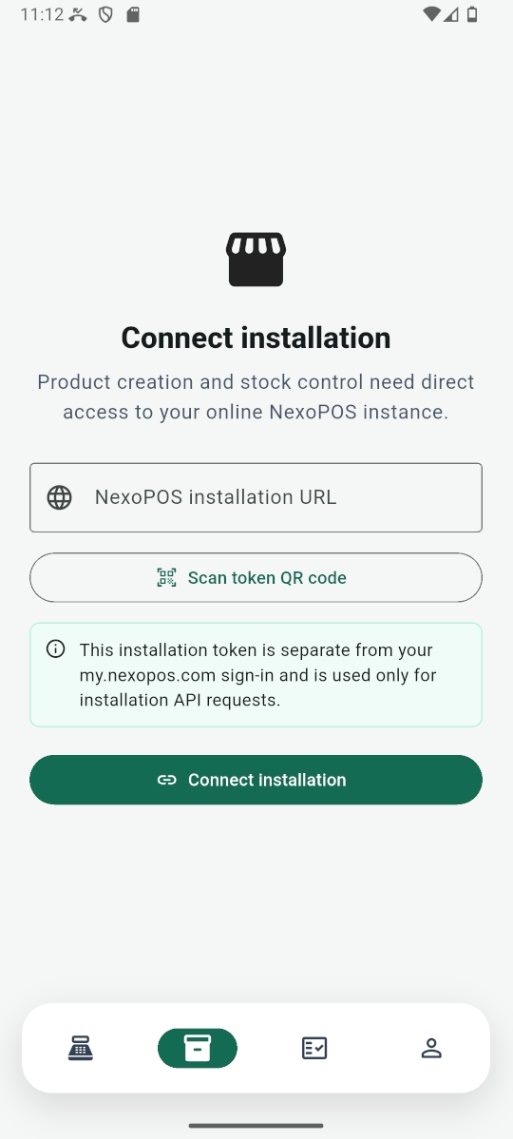
Enter the URL of the NexoPOS installation and prepare to scan its API token.
2. Generate an API token in NexoPOS
Sign in to your NexoPOS installation in a web browser. Open the user menu in the upper-right corner, then select Profile.
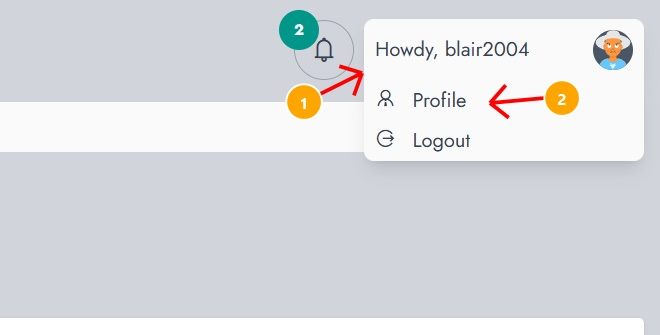
Open the user menu and select Profile.
On the profile page, open the API Token tab. Enter a descriptive token name, such as Barcode Utility, then select Save Token.
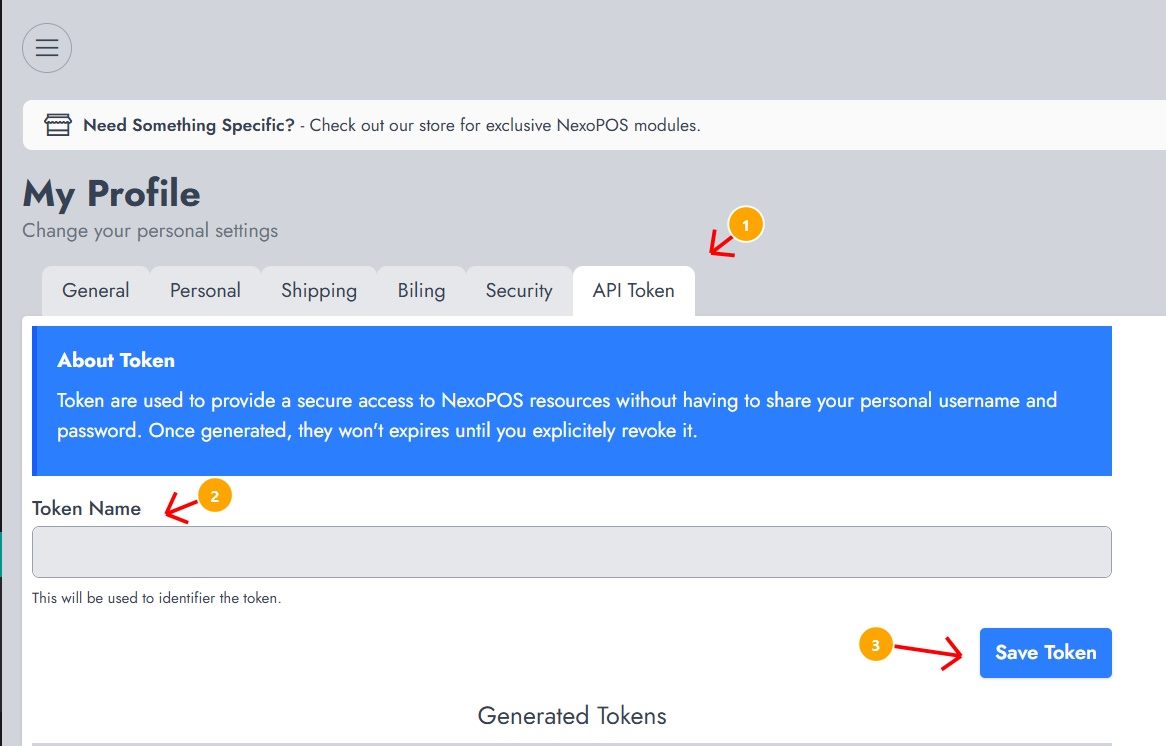
Name and generate an API token from the API Token tab.
Important: Treat an API token like a password. Do not share it or publish its QR code. The token is displayed only once; if it is exposed or lost, revoke it and generate a new one.
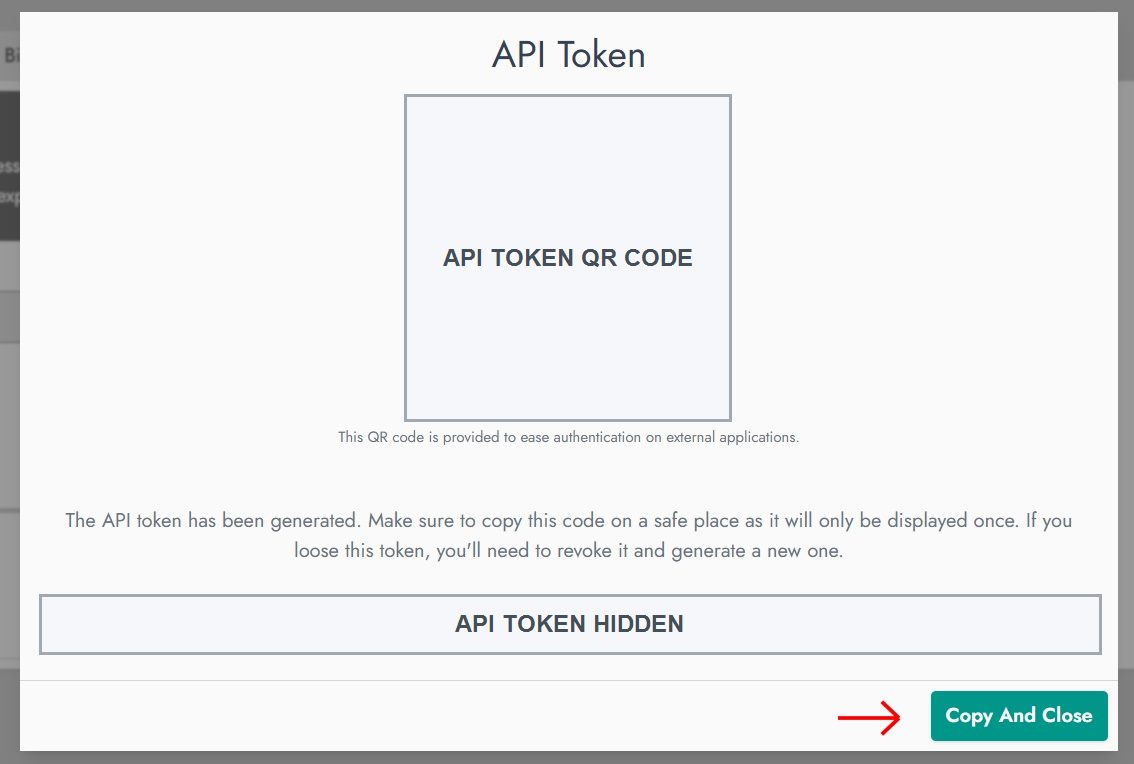
NexoPOS displays the generated token and its QR code.
3. Scan the token and connect
Return to Barcode Utility and tap Scan token QR code. Point the phone camera at the QR code displayed by NexoPOS.
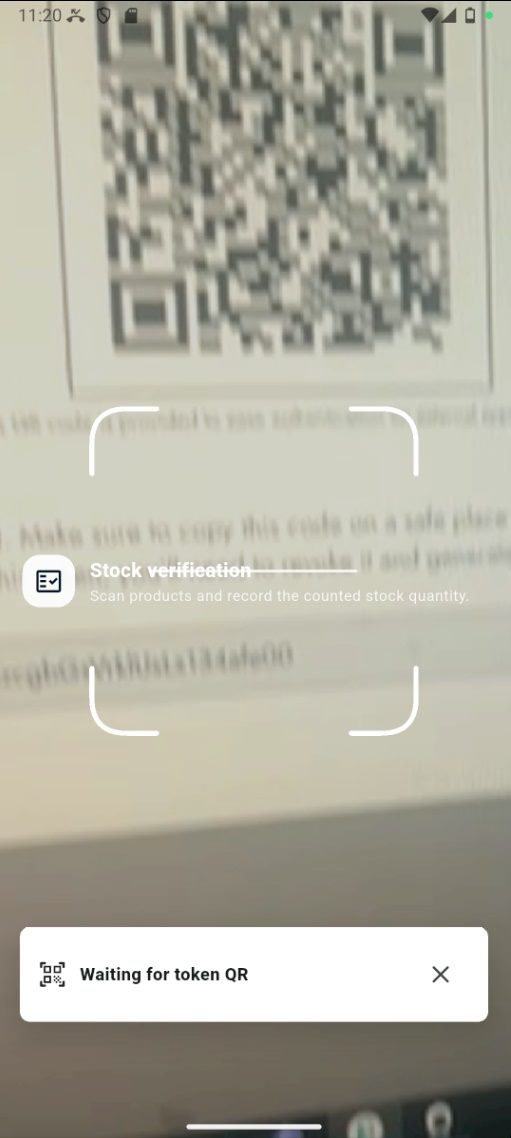
Scan the API token QR code with Barcode Utility.
After a successful scan, the application displays Token ready. Confirm that the installation URL is correct, then tap Connect installation.
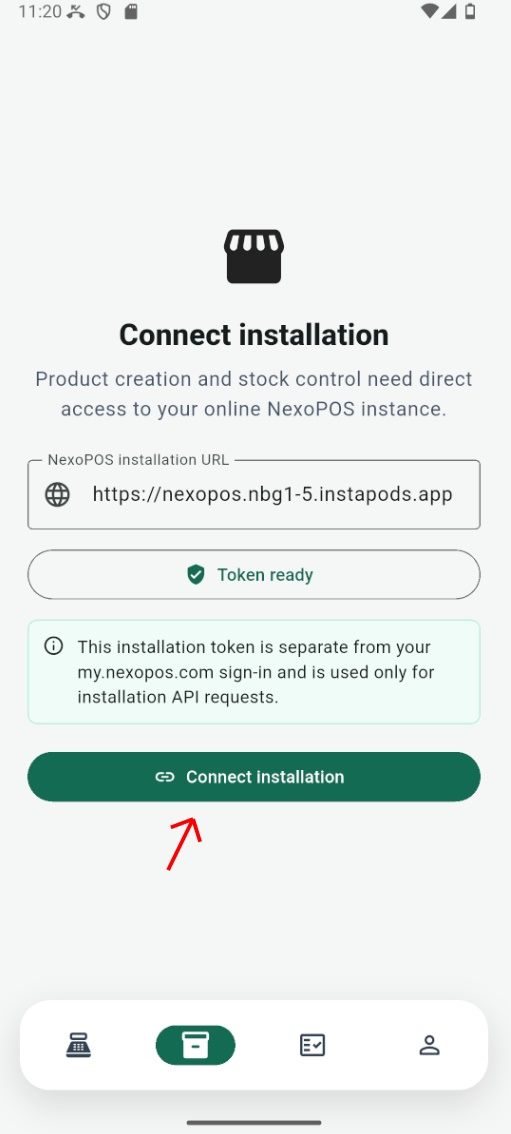
Connect after the token is ready.
4. Open the product creation screen
Once connected, Barcode Utility loads products from the linked store. Tap Create at the top of the product list.
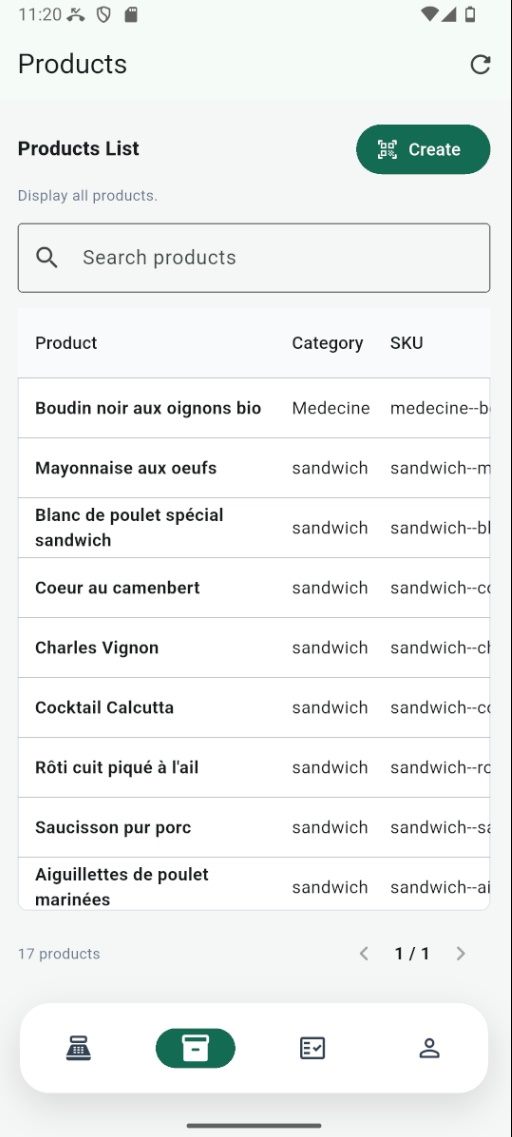
Tap Create from the Products list.
The creation screen also includes New Category, which you can use when the product requires a category that does not exist yet.
5. Scan a product barcode
Tap Scan, then place the product barcode inside the camera frame. Barcode Utility searches Open Food Facts for the scanned code.
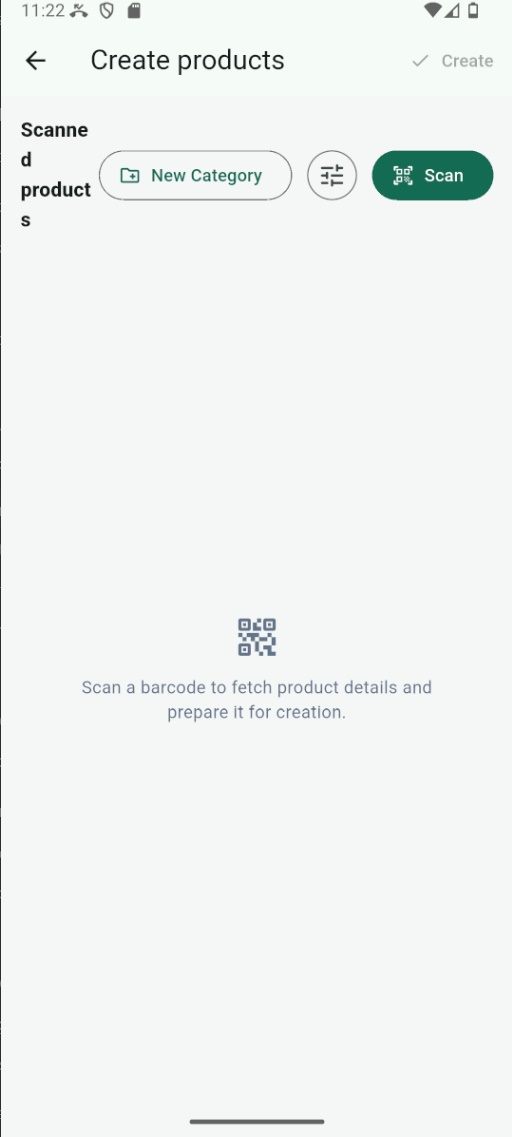
Tap Scan to start adding a product by barcode.
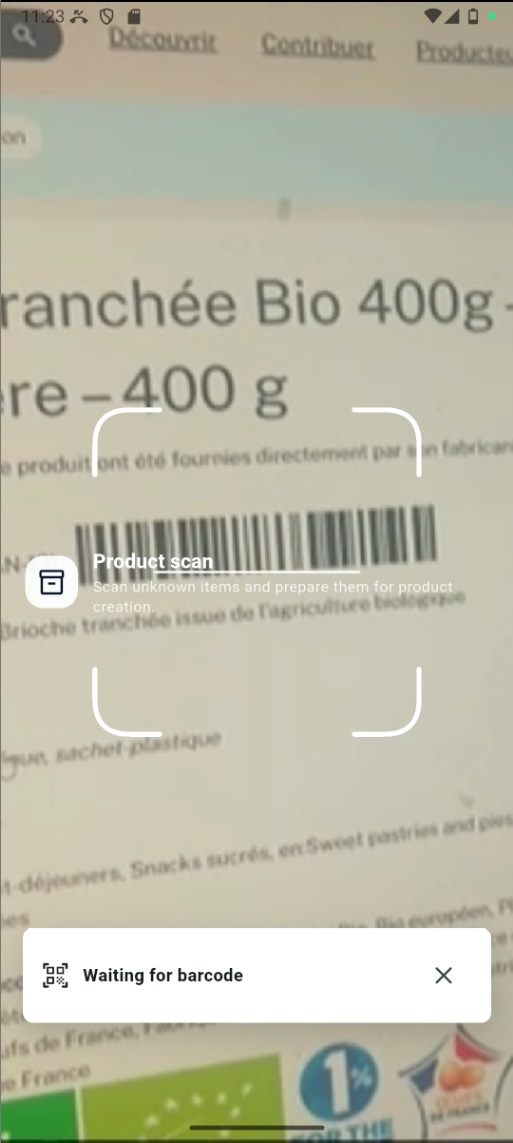
Keep the barcode inside the scanning frame until it is recognized.
If the barcode is supported, the product is added to the scanned-products table with the information returned by Open Food Facts. If no product is found, verify the barcode and check whether the product exists in the Open Food Facts database.
6. Review the product information
Review the product image and name. You can edit the available fields before creation or remove an incorrect row using the delete icon.
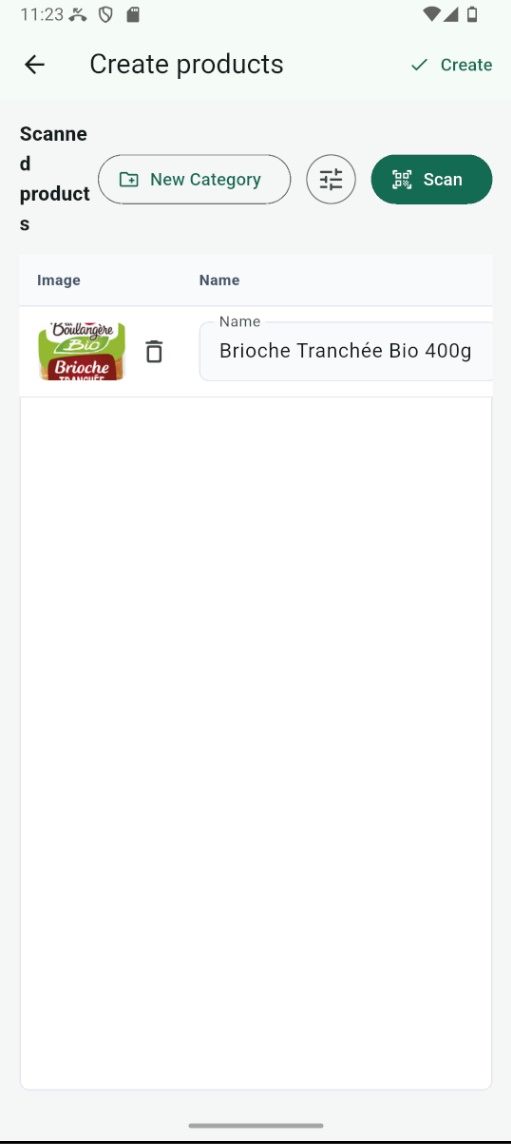
Review and adjust the scanned product.
Swipe the table horizontally to see the remaining fields, including the sale price, barcode, category, unit group, and unit. Complete the required values before creating the product.
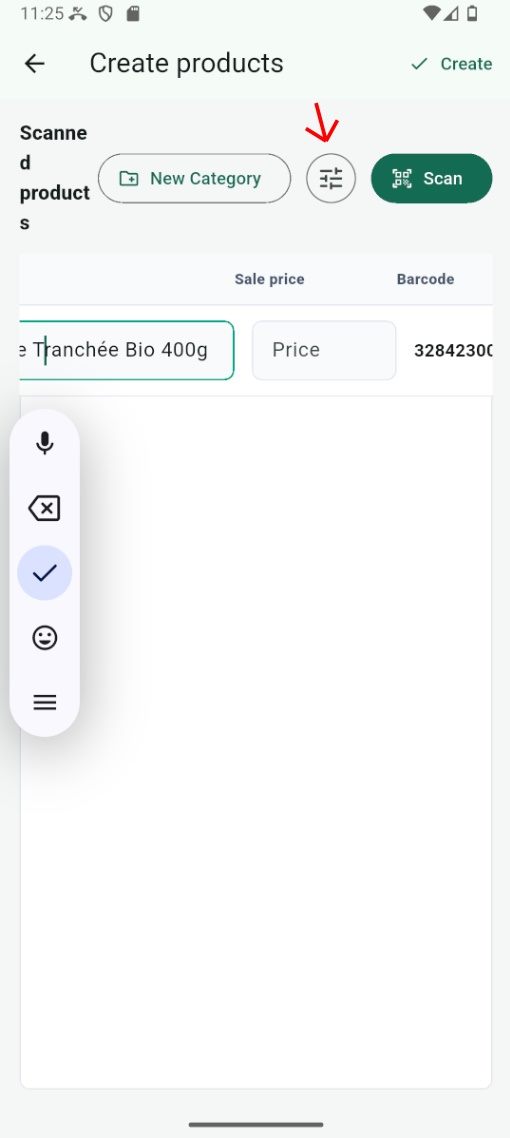
Swipe horizontally to access the other product fields.
7. Set defaults for faster scanning
When several products use the same configuration, tap the settings icon beside New Category. Select a default category, unit group, and unit, then tap Apply. These defaults reduce the amount of editing required for each scanned product.
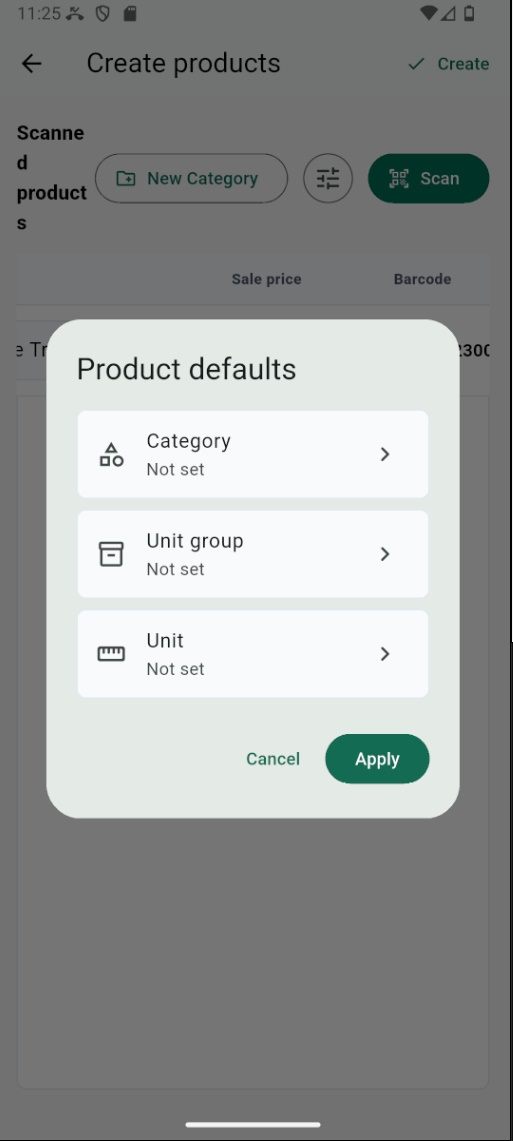
Set the category, unit group, and unit applied to scanned products.
8. Create the product
After checking the product details and required assignments, tap Create in the upper-right corner. Barcode Utility sends the prepared product to the connected NexoPOS store.
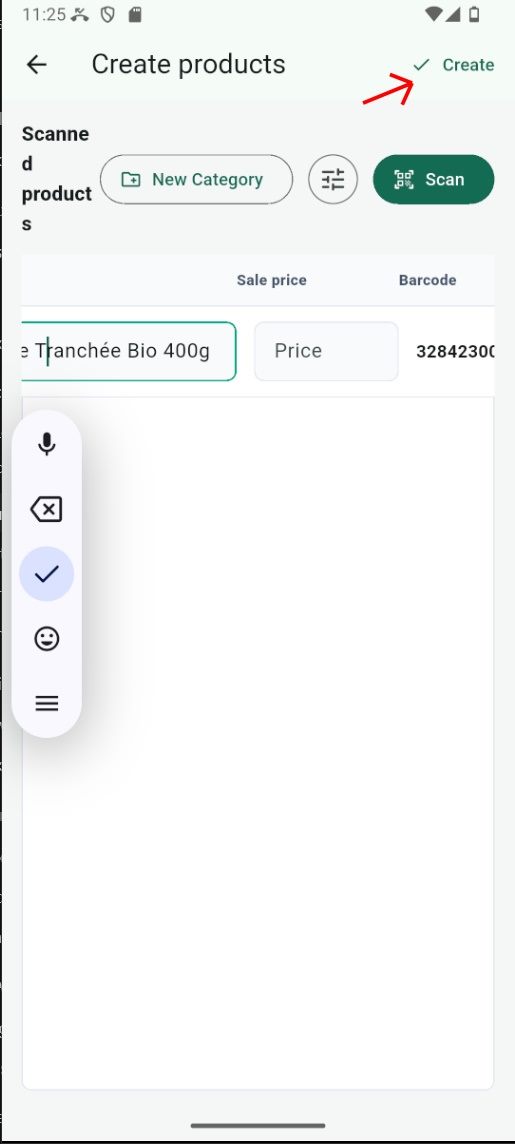
Tap Create to add the prepared product to NexoPOS.
Repeat the scan-and-review process whenever you need to add more products. Setting defaults first is especially useful when creating several products for the same category and unit group.