
Weighted Products
Scale barcodes allow selling products based on weight or price using barcodes generated by a scale device. This is commonly used for items like fruits, meat, or bulk goods where the final price depends on the measured weight.
When a barcode is scanned, the system automatically identifies the product, extracts the encoded value (weight or price), and adds it to the cart without manual input.
Enabling Scale Barcode Feature
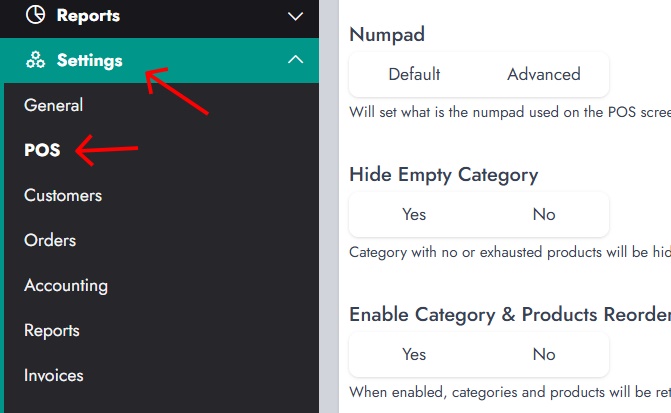
Before using scale barcodes, the feature must be enabled. We'll head to the Settings > POS
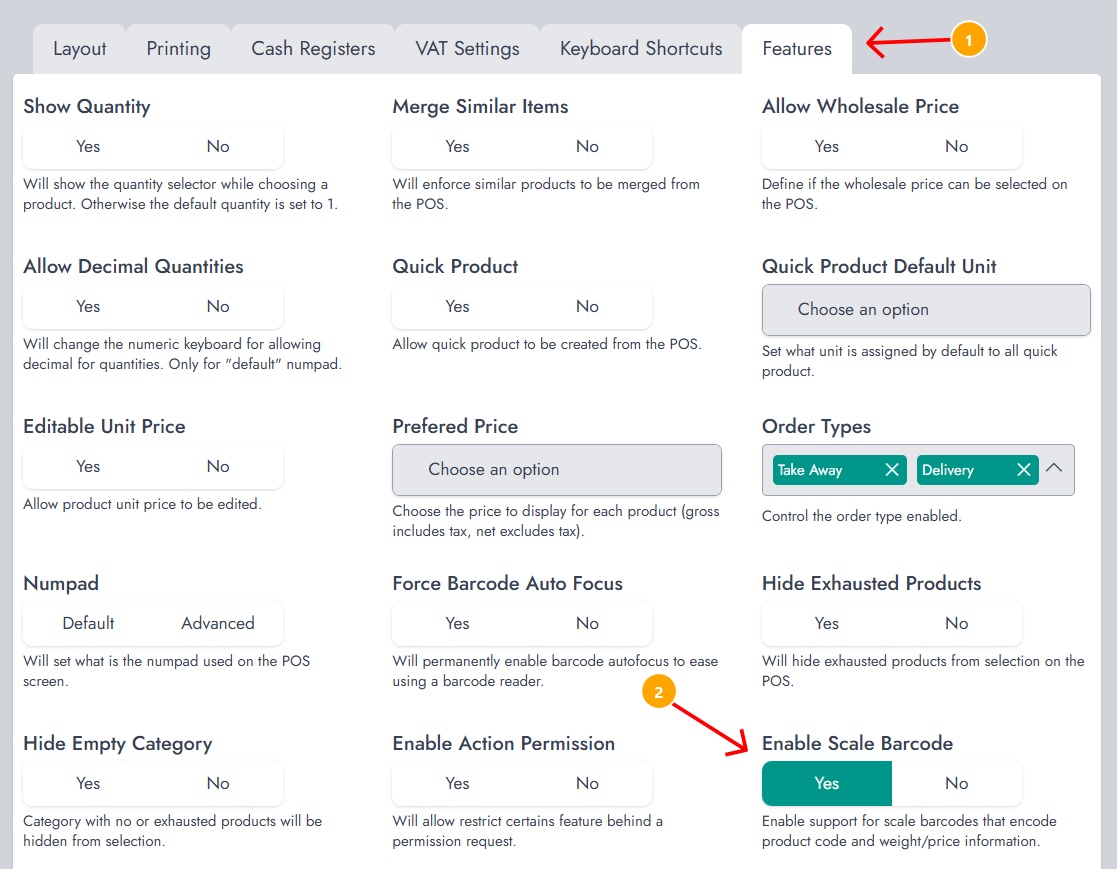
We'll proceed by clicking on the tab "Features" and making sure the feature "Enable Scale Barcode" is set to yes. Once enabled, a new tab called Scale Barcode will appear in the POS settings.
Configuring Scale Barcode
After enabling the feature, you can configure how barcodes are interpreted.
To access the configuration:
- Go to Settings → POS
- Open the Scale Barcode tab
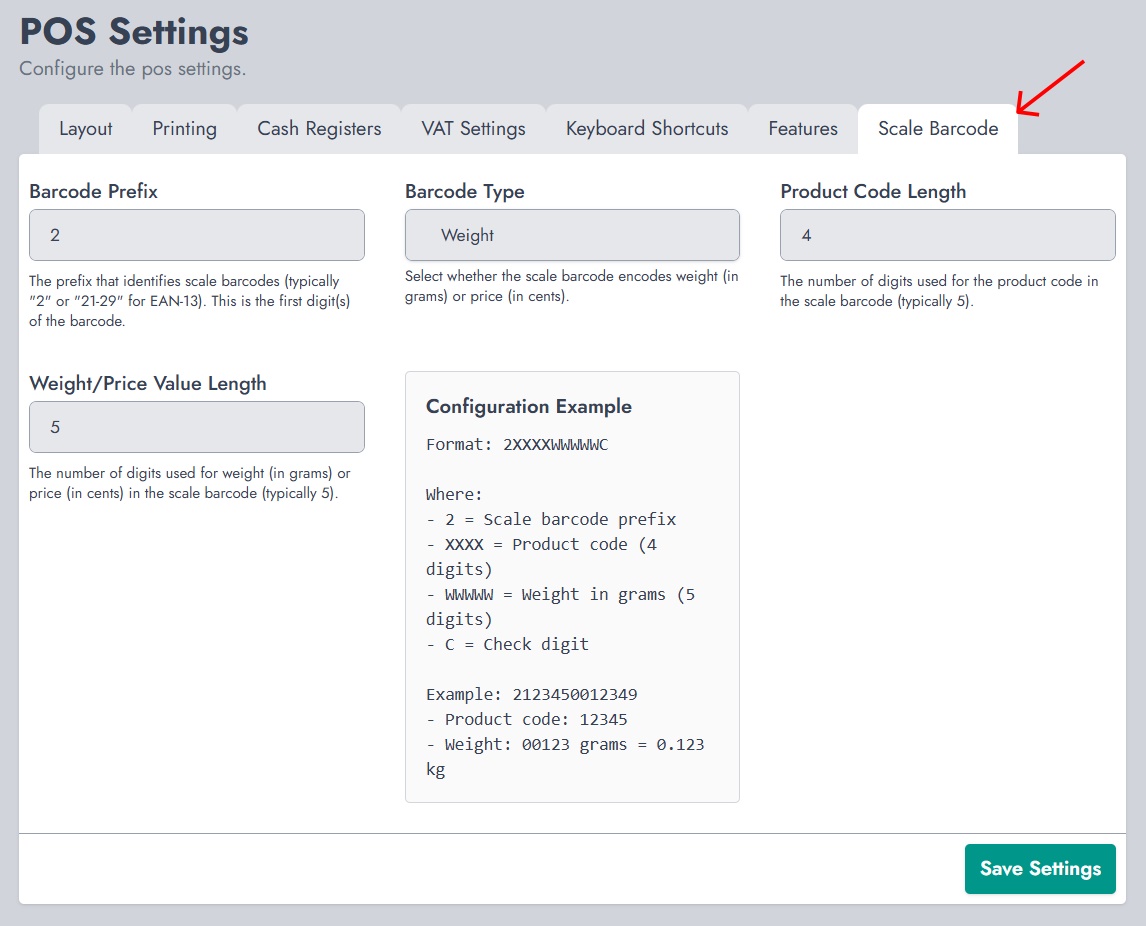
You can define:
- Barcode Prefix: Identifies scale barcodes (commonly 2)
- Barcode Type: Defines whether the barcode encodes weight or price
- Product Code Length: Number of digits used for the product identifier (PLU). By default, NexoPOS assigns 4 as product codes
- Weight/Price Value Length: Number of digits used for the encoded value
These settings determine how the barcode is structured and decoded.
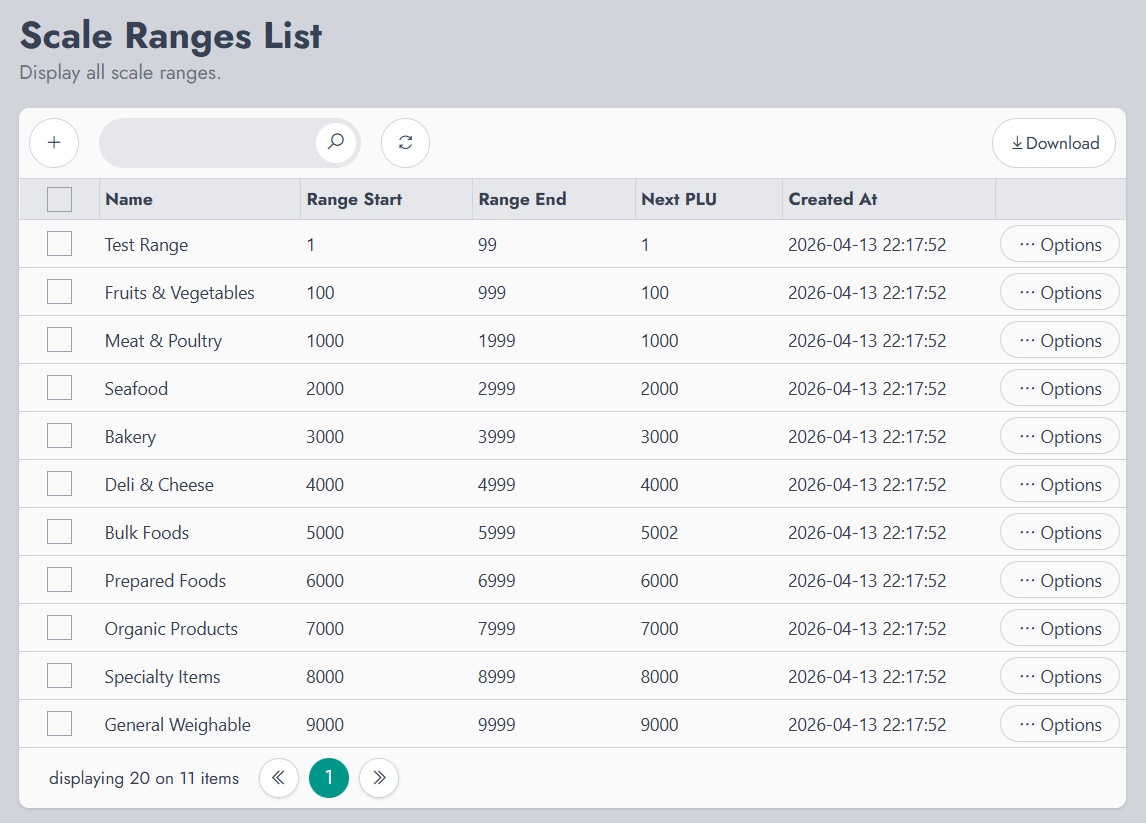
Defining PLU Ranges
PLU ranges are required to generate product codes used in scale barcodes.
To manage PLU ranges:
- Go to Inventory
- Click on Scale Range
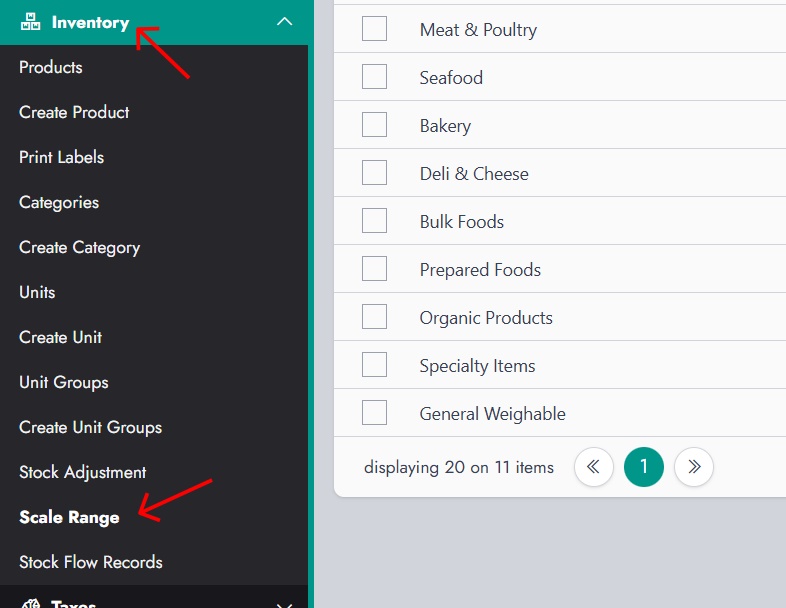
Each range defines:
- A start and end range
- The next available PLU code
These ranges ensure products receive unique identifiers.
Assigning PLU Range to Categories
Products inherit PLU codes from their category. Therefore, categories must be linked to a PLU range.
To assign a PLU range:
- Go to Inventory → Create Category (or edit an existing one)
- Select a PLU Range
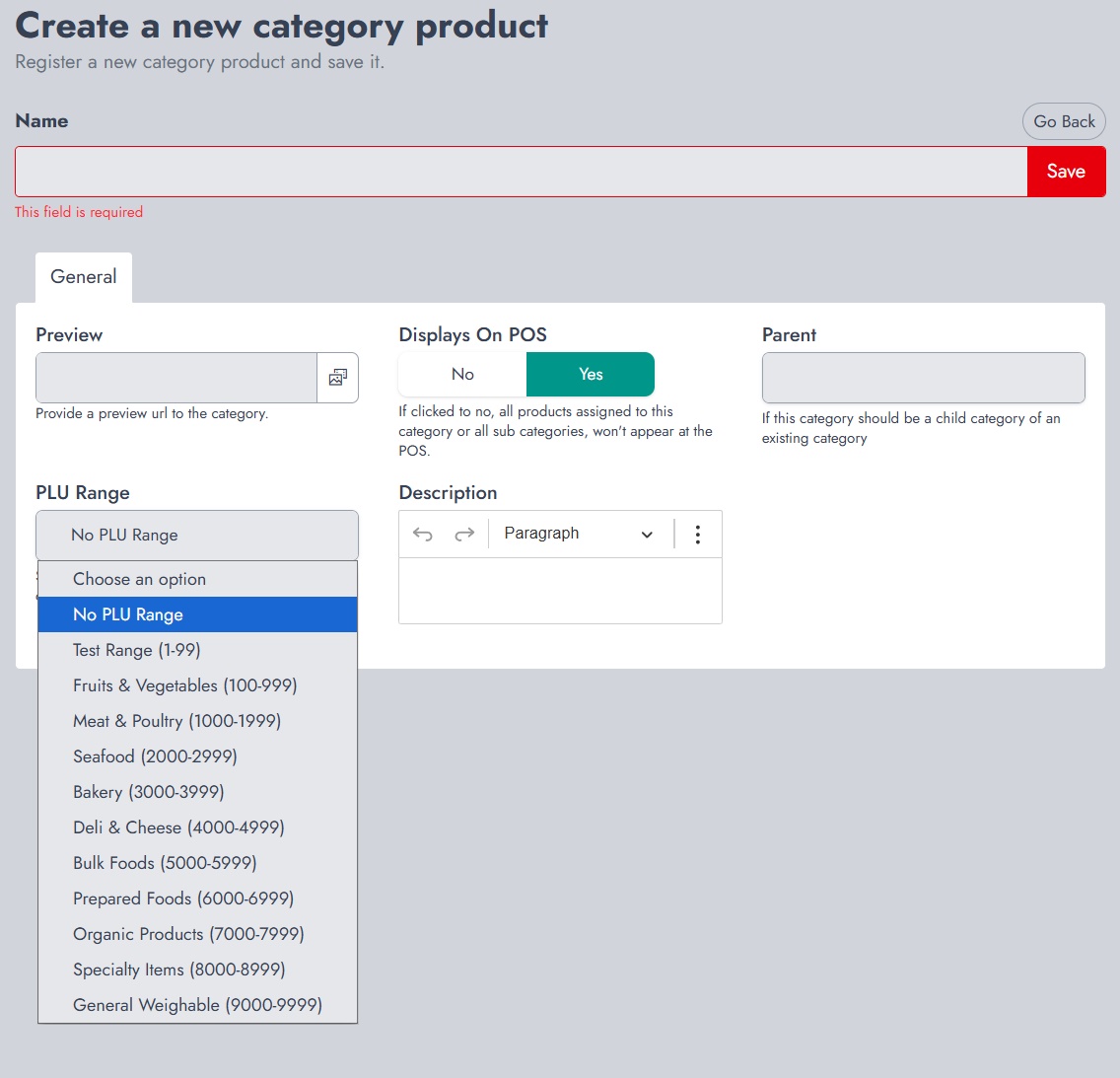
Without this step, PLU codes won’t be generated properly.
Configuring the Product
Each product must be configured to work with scale barcodes.
To do so:
- Create or edit a product
- Go to the Units tab
- Enable Weighable Product
- Ensure a PLU Code is assigned
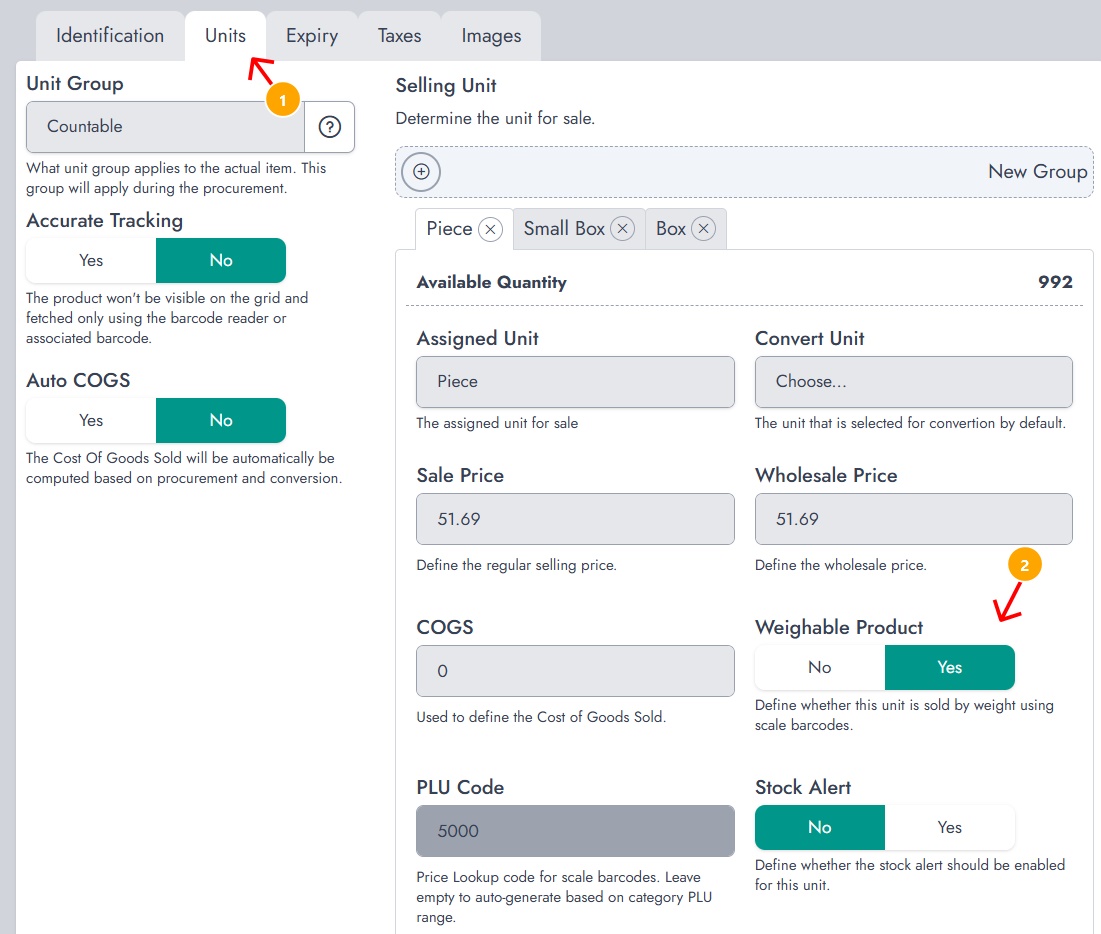
This tells the system the product is sold based on weight. Note that the PLU code is generated after saving the product as a "Weightable product".
Important Considerations
Before testing, ensure:
- The Product Code Length matches the PLU code length
- By default, NexoPOS uses 4 digits for PLU codes
- Units and categories are properly configured
Barcode Structure Explained
A scale barcode follows a structured format.
Example: 25001001239
Breakdown:
- 2 → Barcode prefix
- 5001 → Product PLU code
- 00123 → Encoded weight (0.0123 kg)
- 9 → Check digit
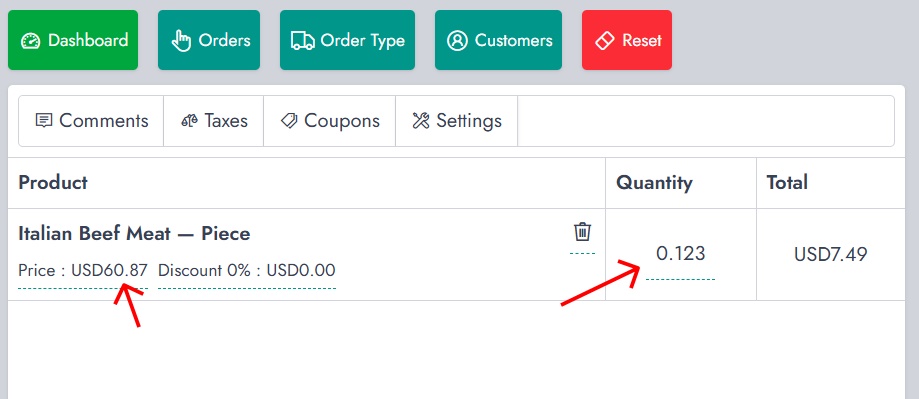
This means the barcode represents a product with PLU 5001 and a weight of 0.0123 kg.