
Home
NexoPOS
Retail business guide

Keep your retail sales, stock and payments connected

Explore NexoPOS for your shop in India: manage products and stock, record UPI and cash payments, and configure product taxes. Check GST invoice requirements and any e-invoicing workflow before you commit.

Setup enquiries require sign-in. Automatic UPI confirmation, GST return filing and IRP integration are separate capabilities to verify.
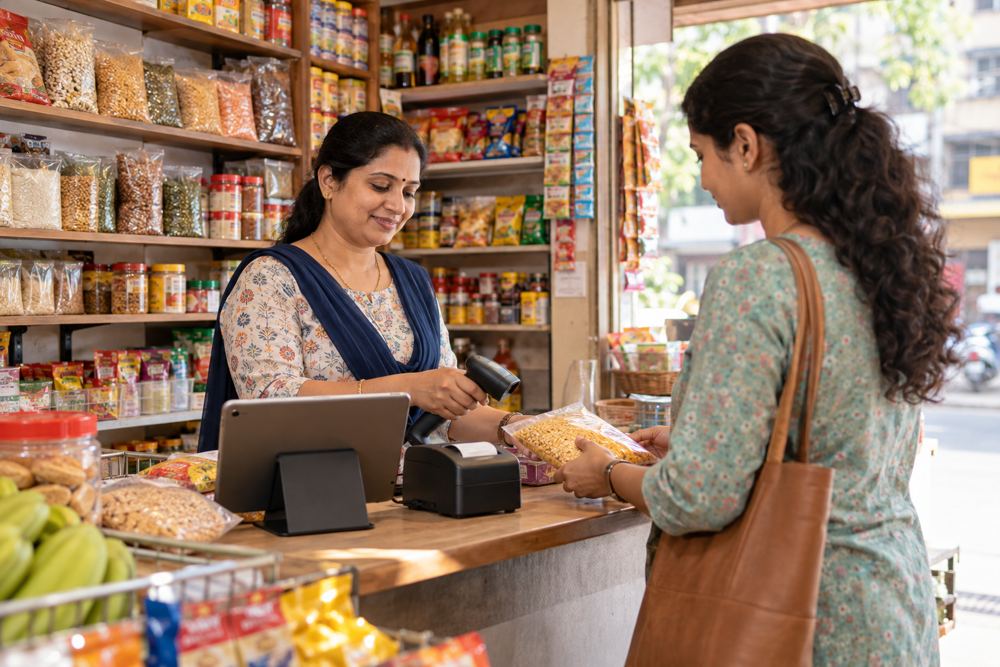
Illustrative Indian grocery shop checkout with a shopkeeper helping a customer.

Build around the way your shop sells

A grocery shop, clothing store and café can share the need for clear stock and payment records while needing different workflows. Start with your products, counters and daily closing process. Add extensions when a specific task needs them.

  • Find products by barcode and keep an order history.
  • Review inventory movements and returns against the original sale.
  • Record the customer and separate payment methods used for each order.
i Bring these to your setup review: your state, GST registration status, B2B/B2C sales mix, product categories, NexoPOS version, branch count and payment provider.

Use multi-tax settings as the starting point

NexoPOS documents tax groups, product-level tax assignment and inclusive or exclusive pricing. Map your accountant-approved rates into the setup, then test sample sales and the printed tax breakdown.

The appropriate GST components depend on the nature and place of supply. Intra-state supplies generally use CGST with SGST or UTGST; inter-state supplies generally use IGST. Product classification and special rules still matter.

= Illustrative calculation: if a particular intra-state item is correctly subject to 18% GST, an exclusive price of ₹1,000 becomes ₹1,180: ₹90 CGST plus ₹90 SGST. This is a test case, not a rate recommendation for your catalog.

Confirm that the installed version produces the correct component amounts and labels. Do not assume it automatically determines place of supply or switches between local and inter-state treatment.

Check the invoice as carefully as the tax total

A correct total alone does not establish that a document meets GST invoice rules. Review the document type required for your registration and transaction, including tax invoices or bills of supply where applicable.

  • Supplier identity and GSTIN; recipient details where required.
  • A compliant invoice number, issue date, product/service descriptions and applicable HSN/SAC information.
  • Quantities, taxable values, tax rates and separate component amounts.
  • Place of supply, delivery details and other required particulars for the transaction.

Treat these as acceptance checks. Dedicated GSTIN/HSN fields, compliant numbering and a complete India invoice template have not been verified for your installation. Additional fields, template work or an external invoicing workflow may be needed.

Establish whether e-invoicing applies to you

GST e-invoicing involves registering covered documents with an Invoice Registration Portal and obtaining an IRN and signed QR data. Check the ₹5 crore applicability threshold against your turnover history, entity exemptions and transaction types; do not apply a blanket rule to every retail sale.

The IRP guidance also states that, from 1 April 2025, taxpayers with AATO of ₹10 crore and above face a 30-day reporting restriction for invoices, credit notes and debit notes. Confirm current applicability before configuring the workflow.

i Integration status: a production-ready NexoPOS IRP connector has not been verified. Tax groups, PDF receipts and product imports do not register invoices with the IRP. Agree the integration, failed-submission handling, corrections and reconciliation before launch.

Record UPI alongside cash and card payments

Keep your existing merchant UPI or terminal workflow and record confirmed receipts under clear payment types in NexoPOS. This lets the operational order show how the customer paid, while the provider remains the source for confirmation and settlement.

  1. Create an active payment type labelled UPI under Orders → Payment Types.
  2. Confirm the payment through your merchant provider, then enter the received amount at checkout.
  3. For mixed payments, enter each confirmed amount under its own method.
  4. Match the recorded amounts to the provider statement during closing and investigate discrepancies.
i Mixed-payment example: a ₹1,180 order can be recorded as ₹1,000 UPI and ₹180 cash after both amounts are received. Provider refunds must also be processed through the relevant provider.

A UPI label does not create a dynamic payment QR, collect funds, receive webhooks or automatically match transactions. Those functions need a compatible provider integration.

Choose extensions that match your store

These ecosystem options address operations rather than India-specific certification. Confirm the exact core/module versions, hardware, license scope and current prices on the product pages.

Move your opening catalog into NexoPOS

Bulk Importer supports CSV imports for products, customers and procurements. Validate a sample file and opening balances before a full migration; imports do not establish GST return filing.

Scan barcodes and check stock

Barcode Utility is a mobile companion for scanning and inventory work. Verify the current app distribution, device pairing and installed-core compatibility.

Separate branch operations

Multistore provides isolated stores in one installation. Check state registrations, branch-specific documents and reporting needs; do not assume a shared product catalog or GST consolidation.

Plan receipt printing

NPS Adapter connects NexoPOS to the separate Nexo Print Server application. Check the Windows host, both licenses and your printer; printing support does not validate an India invoice.

Add restaurant workflows for a café

Gastro adds tables and kitchen workflows. Assess ingredient tracking and a digital menu only if they suit your food-service operation.

Agree the full cost and launch checks

The open-source core can be self-hosted. Budget for hosting or a local server, backups, maintenance, devices, paid modules and setup assistance. Provider fees and any GST-specific development or integration are separate costs to agree.

  • Test one local sale, a relevant inter-state/B2B scenario, a discount and a return with your accountant.
  • Compare stock, recorded payments, issued documents and provider settlements.
  • Test the selected language, currency formatting and actual printer output.
  • Document responsibilities for backups, corrections and failures of internet, payment services or invoicing services.

Local hosting does not by itself provide offline cloud access, automatic payment confirmation or later IRP synchronization. Test the complete deployment rather than assuming those behaviors.

Questions to settle before choosing

It provides configurable tax calculations. You still need to validate classifications, component labels, invoice fields, numbering and any applicable reporting integration against your installation.

No. A custom payment type records the method and amount. Automatic collection, confirmation and matching need a separate provider integration.

A verified GST return-filing workflow is not included in this assessment. Agree the accounting handoff and any external service before using the setup for live sales.

Check your India setup before you buy extensions

Tell us what you sell, which state you operate in and how you take payments. Share your invoice requirements and current NexoPOS version so the configuration and integration scope can be assessed.

Sign in to create a support request and use “India setup review” as the subject. Feasibility, delivery scope and any assistance costs need to be agreed before work starts.

Guidance and product references

Confirm current obligations, rates and exceptions with your GST adviser. The worked example assumes a specific tax treatment and is not a product classification.