

Barcode Utility For NexoPOS
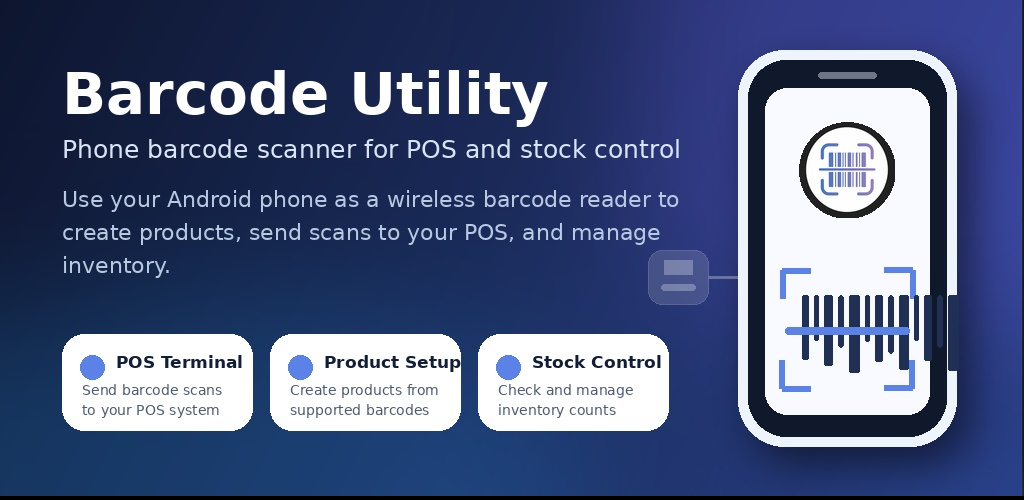
Barcode Utility is a mobile companion app designed to make barcode scanning, product creation, and inventory control easier for NexoPOS users.
Instead of relying only on a traditional barcode scanner, Barcode Utility allows you to turn your phone or tablet into a wireless barcode reader connected directly to your NexoPOS system. It also helps you create products faster using barcode information from the Open Food Facts API and gives you convenient tools to control your inventory from a mobile device.
What Is Barcode Utility?
Barcode Utility is built for businesses that use NexoPOS and need a faster, more flexible way to scan products, register items, and manage stock.
Whether you run a retail store, grocery shop, mini-market, warehouse, restaurant, pharmacy, or any business that works with barcoded products, Barcode Utility helps reduce manual work and improve daily productivity.
Main Features
1. Use Your Phone or Tablet as a Barcode Reader
Barcode Utility can transform a smartphone or tablet into a wireless barcode scanner connected to your NexoPOS point of sale.
Once connected, the mobile device can scan product barcodes and send them directly to the POS, just like a regular barcode scanner. This is especially useful when you do not have a physical barcode scanner available, or when you need a more flexible scanning solution.
- Scan product barcodes using the phone or tablet camera.
- Send scanned barcodes directly to the NexoPOS POS screen.
- Use the device as a wireless barcode reader.
- Useful for checkout, product lookup, stock control, and product creation.
- Ideal for businesses that want a low-cost barcode scanning solution.
2. Create Products Faster with Open Food Facts
Barcode Utility can help you create products in NexoPOS by retrieving product information from the Open Food Facts API when available.
Instead of typing every product detail manually, you can scan a barcode and allow the app to search for matching product information. When product data is found, it can help fill important details such as the product name, brand, and other available information.
- Scan a barcode to search for product information.
- Use Open Food Facts data to speed up product creation.
- Reduce manual typing when adding new products.
- Improve product registration workflow.
- Useful for grocery stores, supermarkets, food shops, and convenience stores.
Please note that product information depends on the availability and accuracy of data from Open Food Facts. Some products may not be found, and some information may need to be reviewed or completed manually.
3. Control Inventory from a Mobile Device
Barcode Utility can also be used as an inventory control tool. It allows staff to scan products and perform stock-related operations more conveniently from a mobile phone or tablet.
This makes it easier to verify products, check stock, count inventory, and assist with inventory corrections without being limited to the main POS terminal.
- Scan products during inventory checks.
- Identify products quickly using their barcode.
- Assist with stock verification and stock control.
- Use mobile devices for inventory operations.
- Improve speed and accuracy during stock management.
Why Use Barcode Utility?
Affordable Barcode Scanning
A professional barcode scanner can be useful, but not every business wants to purchase additional hardware immediately. Barcode Utility provides a practical alternative by allowing users to scan barcodes with a device they already own.
Flexible for Small and Growing Businesses
Small shops, restaurants, grocery stores, and warehouses can use Barcode Utility to simplify their workflow without investing in multiple barcode scanners.
Faster Product Registration
Creating products manually can take time, especially when dealing with many items. With Open Food Facts integration, Barcode Utility helps users create product records faster when barcode data is available.
Better Inventory Workflow
Staff members can move around the shop or stockroom with a mobile device and scan products directly, making inventory checks more practical and less dependent on a fixed computer.
Typical Use Cases
- Point of Sale Scanning: Use a phone or tablet to scan products and send barcodes directly to the NexoPOS checkout screen.
- Product Creation: Scan a new product barcode and retrieve available product data from Open Food Facts.
- Stock Verification: Scan products during inventory checks to confirm product identity and stock information.
- Warehouse Control: Use the app in storage areas where carrying a computer is not practical.
- Backup Scanner: Use the app when your physical barcode scanner is unavailable or not working.
Who Is This App For?
Barcode Utility is suitable for many businesses using NexoPOS, including:
- Retail stores
- Grocery stores
- Mini-markets
- Convenience stores
- Supermarkets
- Restaurants and cafés
- Warehouses
- Pharmacies
- Bookstores
- Electronics stores
- General inventory-based businesses
How It Works
Step 1: Install Barcode Utility
Install Barcode Utility on a compatible phone or tablet.
Step 2: Connect the App to NexoPOS
Connect the mobile app to your NexoPOS installation. Once the connection is established, the mobile device can communicate with the POS system.
Step 3: Start Scanning
Use the camera of the mobile device to scan product barcodes. Depending on the selected mode, Barcode Utility can send the scanned barcode to the POS, help create a product, or assist with inventory control.
Step 4: Use the Right Mode
- Barcode Reader Mode: Scan barcodes and send them to the POS.
- Product Creation Mode: Scan a barcode and search for product information using Open Food Facts.
- Inventory Control Mode: Scan products to help verify and manage stock.
Important Notes
- Barcode Utility requires a working NexoPOS installation.
- The mobile device and the POS may need to be connected to the same local network, depending on your configuration.
- Product information from Open Food Facts may not be available for every barcode.
- Barcode scanning quality depends on the mobile device camera and lighting conditions.
- For heavy checkout environments, a dedicated barcode scanner may still be recommended.
Benefits
- Use a phone or tablet as a barcode scanner.
- Reduce the need for extra hardware.
- Create products faster using barcode lookup.
- Improve inventory control from a mobile device.
- Make stock operations more flexible.
- Help staff work away from the main POS terminal.
- Improve productivity for small and medium businesses.
Requirements
- A working NexoPOS installation.
- A compatible phone or tablet.
- A stable local network connection.
- Internet access may be required for Open Food Facts product lookup.
- Camera permission must be enabled on the mobile device.
Disclaimer
Barcode Utility is designed as a companion tool for NexoPOS. The availability of product information depends on external data providers such as Open Food Facts. Some product details may be incomplete, unavailable, or require manual review before saving.
For businesses with high-volume checkout needs, Barcode Utility can be used as a convenient mobile scanner or backup scanner, but a dedicated professional barcode scanner may still offer better speed and durability in intensive environments