
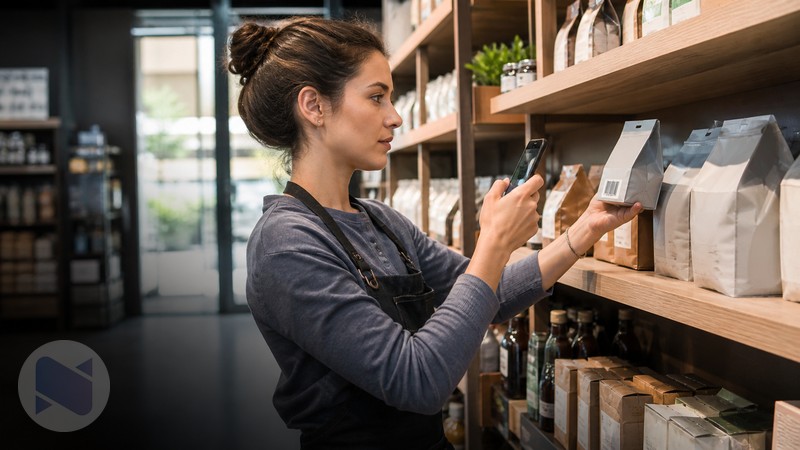
Physical stock counts are one of those jobs that look simple until a team has hundreds or thousands of products to verify. A mobile barcode scanner can reduce repeated typing and make the count easier to perform directly on the shop floor. Barcode Utility for NexoPOS uses an Android phone camera to scan products and connect the work to an online NexoPOS installation.
What Is Barcode Utility?
Barcode Utility is a companion application that turns an Android phone into a barcode reader connected to a POS terminal. In the NexoPOS workflow, it can help with product creation and physical stock control. The application is free to download from the NexoPOS marketplace.
Use Your Phone For Physical Stock Control
The stock-control workflow is designed for counting what is physically present and comparing it with the quantity recorded in NexoPOS. Before starting, the phone needs internet access, the NexoPOS installation must be accessible online, and the connected user needs permission to view products and manage stock adjustments.
- Connect the app to the NexoPOS installation using the installation URL and an API token QR code.
- Open Stock control and start a new adjustment with a descriptive name.
- Scan each product barcode or search for a product when scanning is not possible.
- Review the current stock and counted quantity for each product unit.
- Save the adjustment as a draft for review or perform it to apply the stock change.
Repeated scans of the same item increase the counted quantity on the existing line instead of creating duplicate lines. That makes the app practical for walking an aisle or stockroom and scanning the same product as each unit is counted.
Create Products Faster With A Barcode
Barcode Utility can also speed up product creation. Its product-creation workflow uses the Open Food Facts database to retrieve information for supported barcodes. After scanning, staff can review the returned product name and image, adjust fields, set the sale price, assign a category and unit, and send the prepared product to the connected NexoPOS store.
- Set default category, unit group, and unit values when creating several similar products.
- Review every returned product before sending it to the store.
- Complete required fields such as sale price and product-unit configuration.
- Treat the NexoPOS API token and its QR code like a password.
What To Check Before You Start
- The mobile device needs internet access for the connected workflow.
- The NexoPOS installation must be reachable online.
- The user must have the required product or stock-adjustment permissions.
- Barcode-based product lookup depends on the barcode being supported by the connected data source.
- A scan improves collection speed, but the team should still review quantities before applying an adjustment.
Who Should Use A Mobile Barcode Scanner?
Barcode Utility is a practical option for shops that already use NexoPOS and want a faster way to count stock without buying a dedicated handheld scanner. It is also useful for businesses onboarding packaged products, beverages, ingredients, or mixed retail inventory from a phone.
For a reliable process, use the app for collection, then use NexoPOS reports and adjustment history to investigate differences. The combination gives the team a quicker count and the owner a clearer record of what changed.
Prepare The Count Before Anyone Starts Scanning
A phone can make scanning faster, but it cannot repair a poorly prepared count. Before the team begins, decide which locations are included, pause or record stock movements where possible, label cartons that have already been counted, and agree whether damaged, returned, or quarantined items are included. A clear boundary prevents the same product from being counted twice or missed entirely.
For busy shops, a cycle count is often easier than a full-store count. Count one aisle, brand, category, or storage zone on a repeating schedule. That keeps the adjustment work manageable and lets the owner focus on high-value or fast-moving lines more often.
A Better Mobile Counting Method
- Assign each counter a clear area and do not overlap responsibility without a handoff.
- Move in one direction through the shelf or stockroom and mark sections as completed.
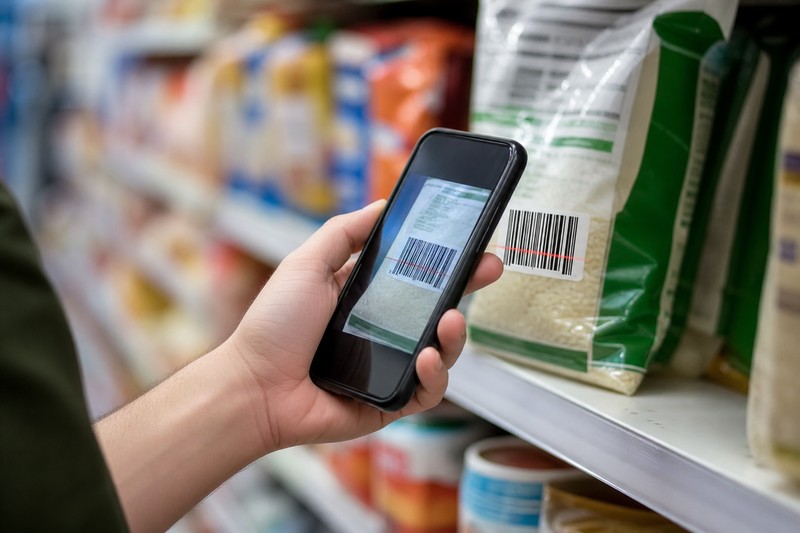
- Scan the barcode for every unit when practical; repeated scans increase the quantity on the existing Barcode Utility line.
- Use search when the barcode is damaged or missing, then select the exact product unit before adding it.
- Leave questionable items in the draft for review instead of forcing an immediate adjustment during the count.
Why Draft Adjustments Matter
The draft option is important because a stock adjustment changes the inventory record. Saving the count as a draft lets a manager review obvious exceptions, compare the count with recent deliveries and sales, and ask staff about differences before posting a permanent correction. It also separates the collection task from the approval task, which is useful when the person counting the aisle should not be the person authorizing inventory changes.
Once performed, the adjustment remains in history, and the documentation explains that a PDF summary can be downloaded from the saved draft preview. That gives the team a reference point for later questions about why a quantity changed.

Barcode Scanning Depends On Product Data Quality
The first scan is only as useful as the product record behind it. Make sure product units, barcodes, categories, and stock settings are maintained in NexoPOS. When several units exist for the same product—such as a single bottle, a carton, and a case—train staff to choose the unit they are physically counting. This is one of the most common sources of an apparent inventory discrepancy.
For new packaged items, Barcode Utility can use the Open Food Facts database to retrieve information for supported codes. That can reduce product-entry time, but staff should still review the imported name, image, price, category, unit group, and unit before creating the product. Lookup data is a starting point, not a substitute for the store's own product rules.
Keep The Connection Secure
Connecting the mobile app requires the complete NexoPOS installation URL and an API token QR code. Treat that token like a password: do not share the QR code in staff chats, revoke the token if a device is lost or an employee no longer needs access, and issue permissions that match the user’s job. A stock-count user does not necessarily need broad administrative access.
The Takeaway
A mobile barcode scanner is most valuable when it becomes part of a repeatable count process. Use Barcode Utility to capture quantities where the products are, save uncertain work as a draft, and use NexoPOS history and reports to investigate the causes of meaningful differences. The phone speeds up collection; the process creates trustworthy inventory.