

A customer takes a $100 cordless drill home on Monday and pays on Friday. On Monday, you’ve made a sale, one drill has left your shelf, and the customer owes you $100. On Friday, you collect the money. NexoPOS records the sale and the payment as separate events, so you can tell how the shop performed and what you’ve actually collected.
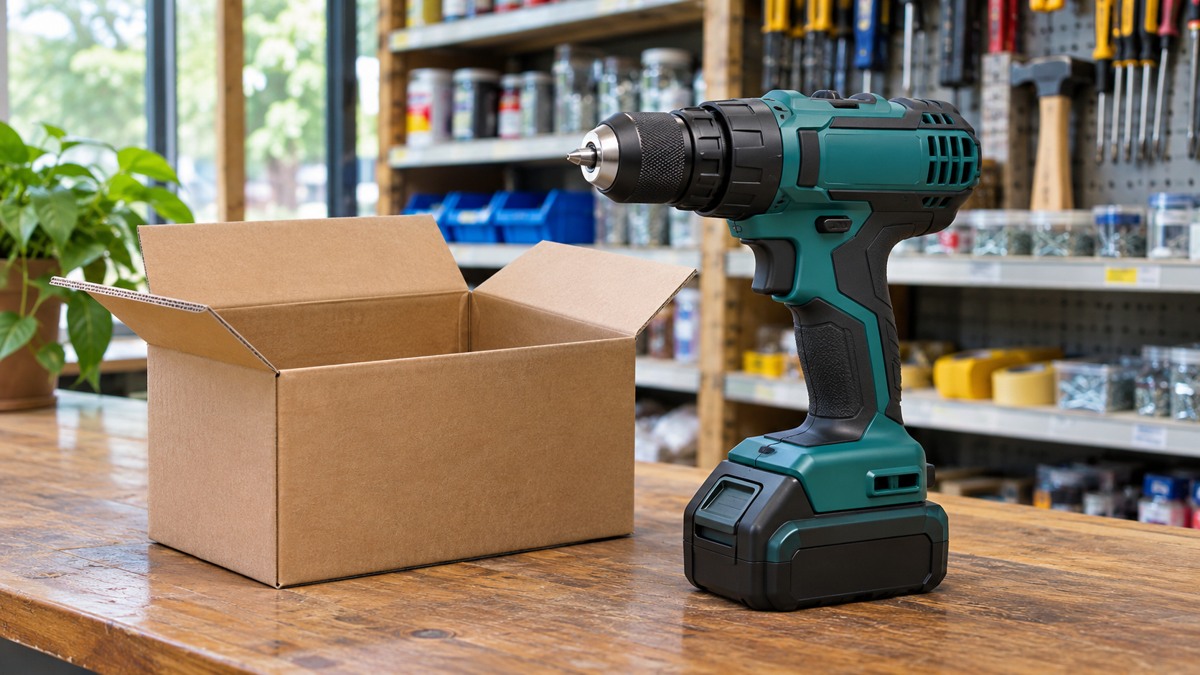
An 18V cordless drill like the one used in this walkthrough. AI-generated illustration.
What double-entry bookkeeping means in NexoPOS
Each accounting entry records an event in at least two accounts. The total debits equal the total credits. Debits increase accounts such as inventory and expenses. Credits increase accounts such as sales revenue and supplier balances. An entry can have more than two lines and still balance.
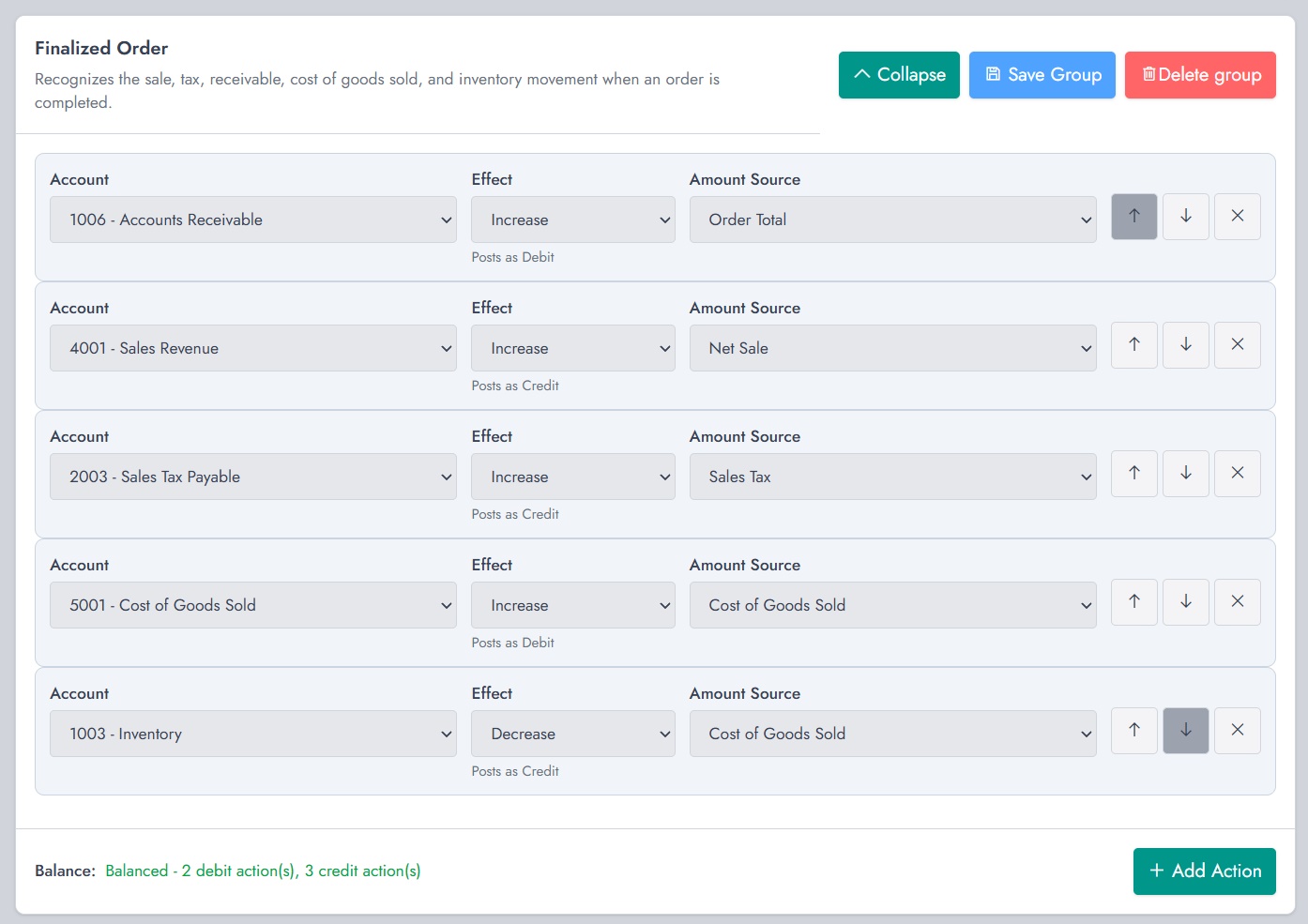
In NexoPOS 6.3.0, accounting rules tell the system which accounts to use and how much to post when an event happens. Your team records the stock receipt, sale, or payment in the usual workflow. The active rules create the corresponding accounting entries.
Accounts, rules, and entries. Accounts Receivable tracks what customers owe you. Accounts Payable tracks what you owe suppliers. Inventory tracks the cost of goods you still hold. A rule defines which accounts to use when something happens. An entry is what that rule posted for one actual transaction. The same sale rule reads different amounts from each order.
Follow one cordless drill through the books
Here’s an example from a hardware shop using the default 6.3.0 accounting rules. The shop receives one drill from a supplier for $60 on credit.
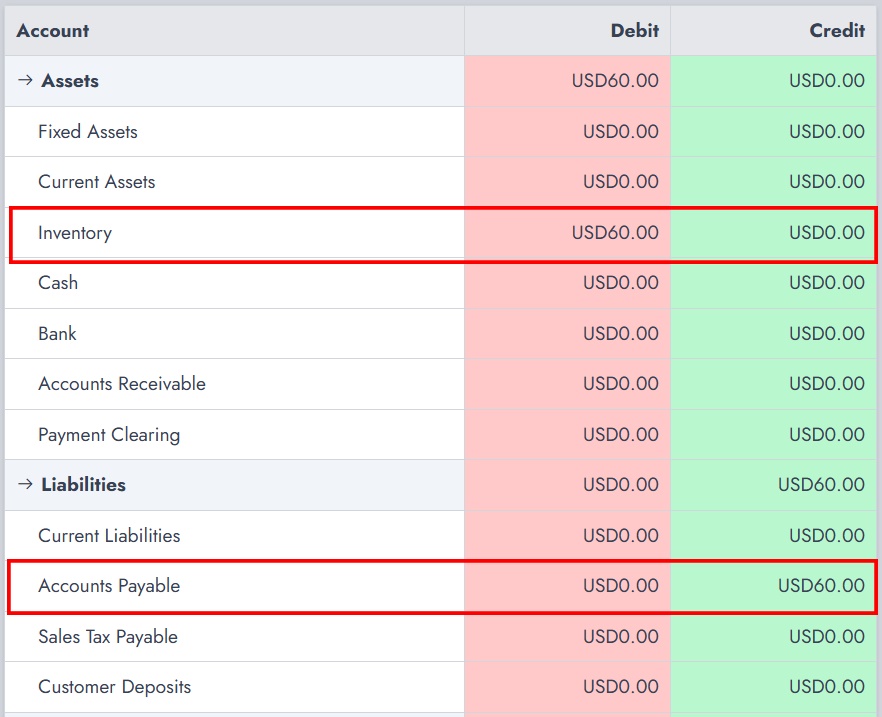
A contractor buys it for $100 and pays by bank transfer on Friday. The shop pays the supplier the following week. The example excludes tax and discounts.
After step 2, before either payment. The report totals $220 in debits and $220 in credits. Each side includes $60 from receiving the drill and $160 from the unpaid sale ($100 for the sale and $60 for the drill leaving inventory). Inventory shows $60 on both sides because the drill came in and then went out.
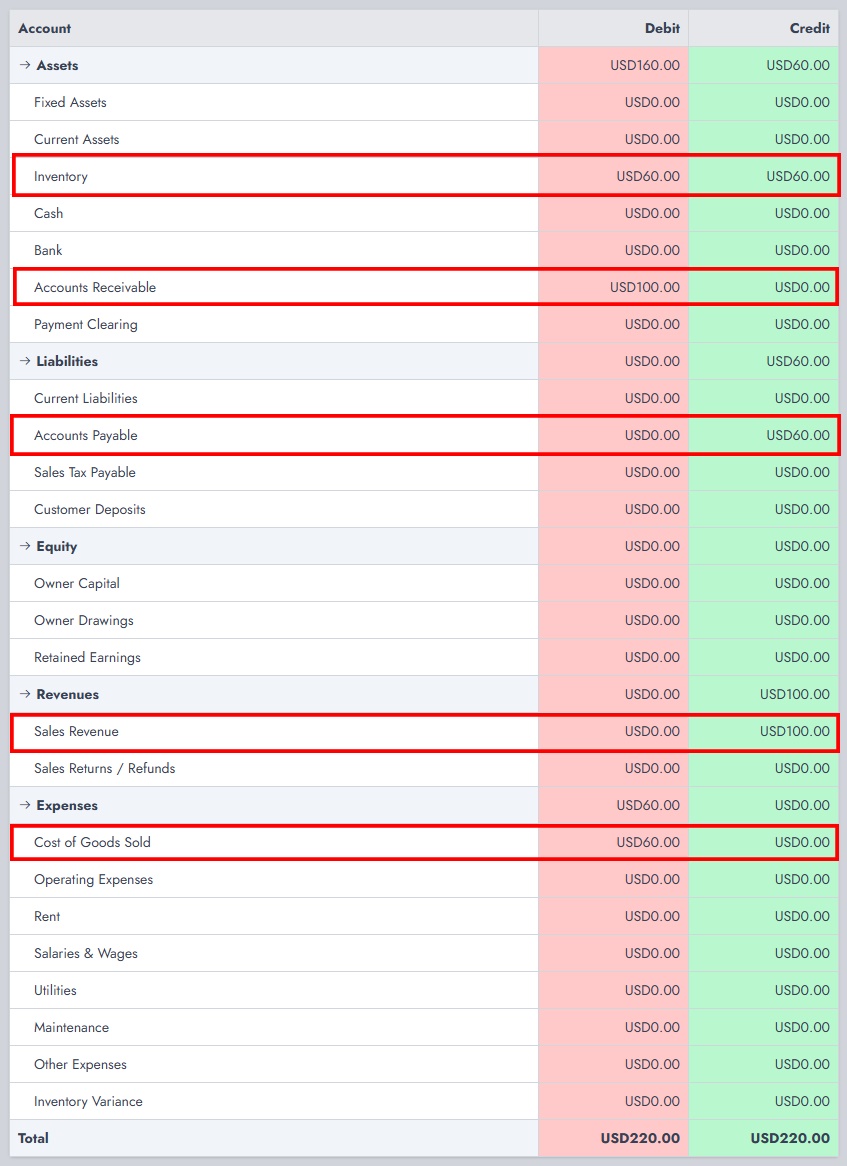
Transactions report after step 2. Both payments are still outstanding.
The table below follows all four steps. Its first two rows explain the screenshot. The last two show what NexoPOS posts when the customer and supplier payments are recorded.
| What you record in NexoPOS | Debit | Credit |
|---|---|---|
| Receive the drill and leave the supplier bill unpaid | Inventory $60 | Accounts Payable $60 |
| Finalize the $100 order as unpaid | Accounts Receivable $100 + Cost of Goods Sold $60 | Sales Revenue $100 + Inventory $60 |
| Record the customer’s $100 bank transfer | Bank $100 with the default bank payment mapping | Accounts Receivable $100 |
| Record the $60 supplier payment | Accounts Payable $60 | Payment Clearing $60 with the default supplier payment rule |
The $100 sale earned $40 in gross profit before operating expenses. At the point shown in the screenshot, the customer still owes $100 and the shop still owes the supplier $60.
The built-in bank payment type posts to Bank by default, and cash posts to Cash. Custom payment types can use a configured account or fall back to Payment Clearing. The transfer clears the customer balance for this order. Sales revenue stays at $100 because NexoPOS recorded it when the order was finalized.
What the shop owner can see at each step
After the sale: The shop has earned $40 in gross profit on the drill ($100 sale less $60 cost), before operating expenses. The customer still owes $100, and the shop still owes its supplier $60.
After the customer pays: The shop has collected $100. The supplier bill is still open, so the owner knows to set aside $60 for it.
After the supplier is paid: The $60 payable is cleared. That payment settles the bill for the drill already recorded in inventory and moved to Cost of Goods Sold at the time of sale.
How partial payments, taxes, and returns work
Partial payment. If the contractor pays $40 on Monday and $60 on Friday, the finalized sale still records $100 of revenue. Each payment posts separately. Accounts Receivable for that order falls first to $60 and then to zero. That gives you an amount to follow up on between payments.
Sales tax. If the drill sells for $100 plus $8 tax, the default rule debits Accounts Receivable for $108, credits Sales Revenue for $100, and credits Sales Tax Payable for $8. The $60 cost and inventory lines still apply. You can see how much of the customer balance comes from tax.
Refund and stock return. A refund reverses the relevant sale and payment amounts under the default rules. If the drill is recorded as a sellable return, NexoPOS also adds its $60 cost back to Inventory and reduces Cost of Goods Sold by $60.
Try the walkthrough in NexoPOS
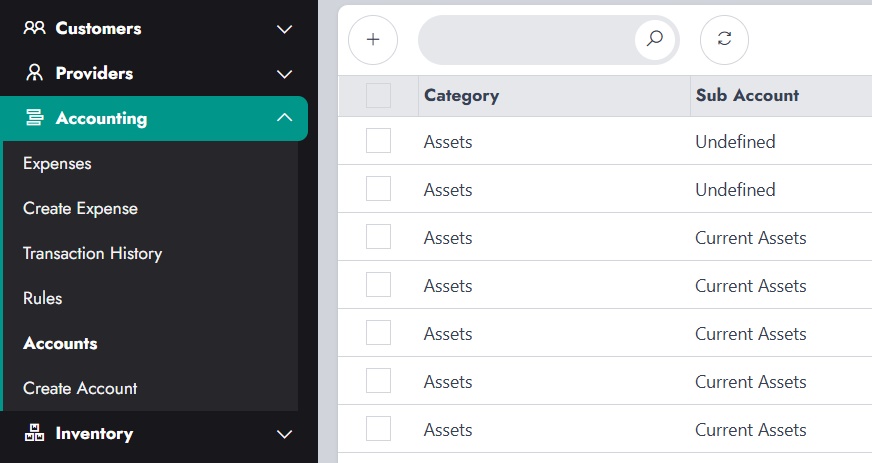
Use a demo store and a stock-tracked product. The screenshot shows Accounting → Accounts, where you review the chart of accounts. Open Rules to see what each event posts and Transaction History to see the resulting activity.
1. Receive one drill at $60. Leave the procurement unpaid. Expect Inventory and Accounts Payable to increase by $60 each.
2. Finalize a $100 unpaid order. Select the customer and sell the drill. Expect four changes covering the receivable, revenue, inventory, and cost of goods sold.
3. Record the $100 bank payment on the same order. Check that Bank increases and Accounts Receivable decreases. If a custom payment posts elsewhere, check the payment type’s Accounting Account mapping.
4. Record the supplier payment on the original procurement. Expect Accounts Payable to decrease by $60. Payment Clearing decreases under the default supplier payment rule.
In Accounting → Transaction History, find the relevant rows by transaction name and Triggered On date. Compare the Sub Account, Operation, and Value columns with the walkthrough. The operation shows whether an account increased or decreased. Increasing Sales Revenue is a credit, while increasing Cost of Goods Sold is a debit.
How to use it in a weekly review
Follow up on customer balances. Start with unpaid and partially paid orders. Open the original order and check its recorded payments before contacting the customer.
Plan supplier payments. Review received procurements with open balances. The goods may already have sold, and the supplier bill can still be due.
Investigate a margin change. Compare sales and cost of goods sold. If the margin looks wrong, check the recorded unit cost, refunds, and stock returns for that period.
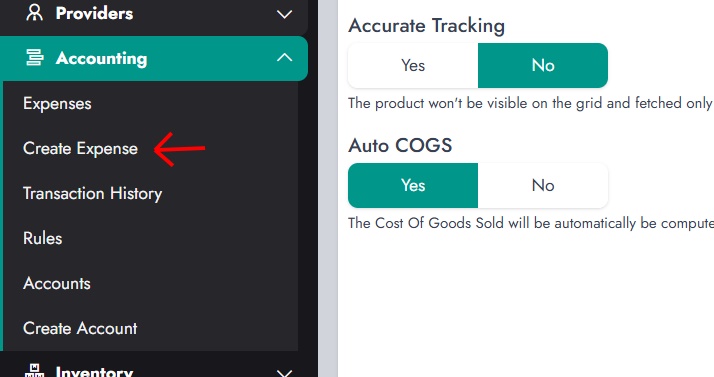
For costs outside checkout, such as rent or utilities, use Accounting → Create Expense.
Keeping those expenses alongside your store activity makes it easier to discuss operating costs with your bookkeeper and understand how they affect the gross profit you earn on sales.