

Pin Login Module For NexoPOS
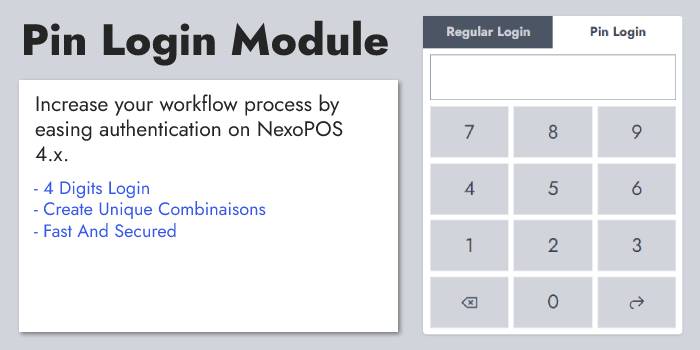
The Pin login modules add an easy login method to NexoPOS. This module is recommended if you have workers who need to take the shift quickly and don't necessarily need to remember their passwords.
This will explain everything you need to know to use this module.
Installing The Pin Login Module
This module can be installed as any other NexoPOS module. You just have to follow the instructions.
How It Works
Once you have installed and enabled the PIN login module, it will perform a modification of the user's table by adding a PIN column. The column is used to save the encrypted PIN for every user.
To avoid abuse, only the administrator can set a PIN for the users. We wanted to avoid, by multiple attempts, users guessing other users' PINs. The PIN itself consists of 4 random digits (no more no less).
We strongly discourage the administrator from setting a PIN login for his account. This should only be used for cashiers and other users. In case the administrator must have a PIN code, another administrator can be created and will then be able to perform this modification.
Pin Creation For Users
The first step is to head to the list of users, where we'll select the user to whom we would like to assign a PIN code.
From there, we just have to select the user and edit them. This also works if we try to create a new user. Note that you cannot create a PIN for your own account. It's not allowed to edit your own account, as you might edit for others. Editing your account will take you to your profile instead.
From the user account, you'll just have to write 4 digits that will be used as a PIN.
PINs are encrypted; it's therefore not possible to see a PIN when you edit a user. Once the PIN is defined, that will be hidden; however, if the PIN matches an existing PIN, you'll be notified.
Login Using A Pin
Once everything is set, you just need to head to the login page and try the PIN you've recently created. This should log in the user in case there is a match otherwise, an error will be thrown.
Once the login page, you'll notice that there are tabs. The first keeps the traditional login form with a username and password. The second tab is used for the PIN.
This form uses the Numpad component. That's all for using the Pin Login module on NexoPOS 4.x.