

Stock Transfers

Installation
The Stock Transfers works like any other NexoPOS module. Therefore, it can be installed from the dashboard.
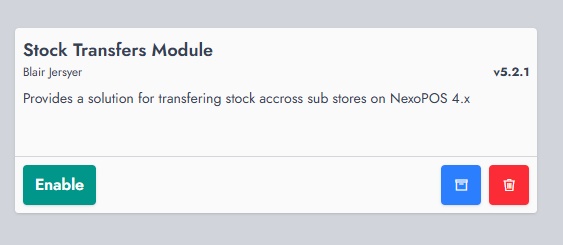
Before being able to use the Stock Transfers module, you need to have the Multi-Store module available and enabled, because it's a dependency.
Once the dependencies matter is sorted, you need to click on "Enable" to activate the module.
Transfering Inventory
Once the module is enabled, the module will add a menu on each stub store that has 2 options :
- Stock Transfer
- Stock Request
The UI for each feature is the same and looks like this :
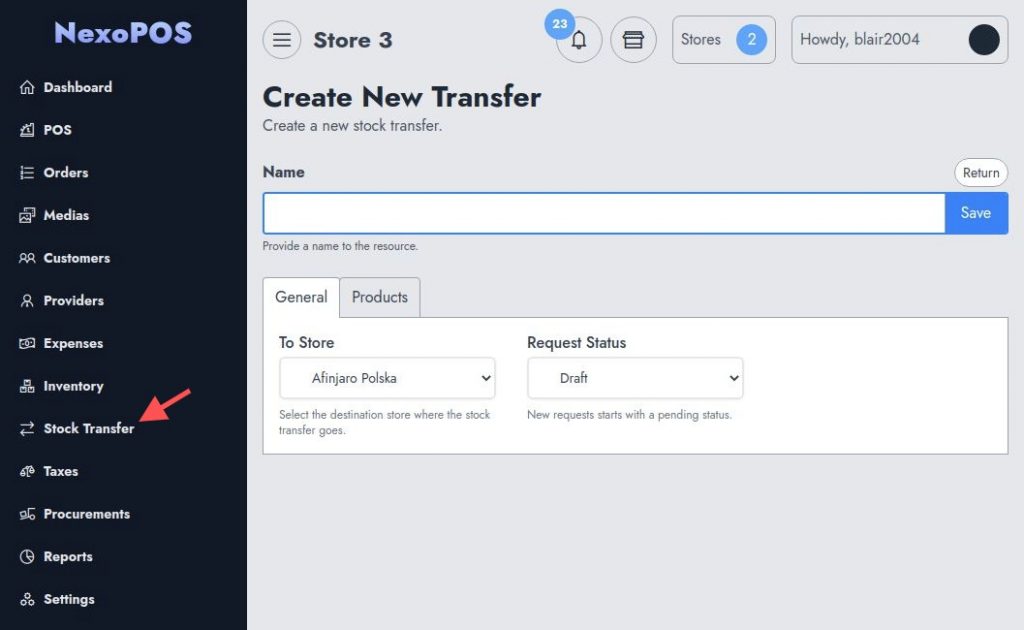
The UI has 2 tabs: General & Products
General
The General tabs include 2 fields "To Store" and "Request Status". If the operation is a "Stock Transfer", the transaction will be made to a store; the "To Store" is for choosing the store that should receive the transfer. If the operation is a "Stock Request", the field will rather be "From Store" where you'll define which store should provide the stock transfer. The "Request Status" will define whether the request is draft or pending.
Products
The products tab is where you'll define the product for either the stock request or stock transfer. Before being able to use this tab, you need to choose the store (From Store or To Store). The product tab includes a search form on which you can search for products using their name, SKU, or barcode.
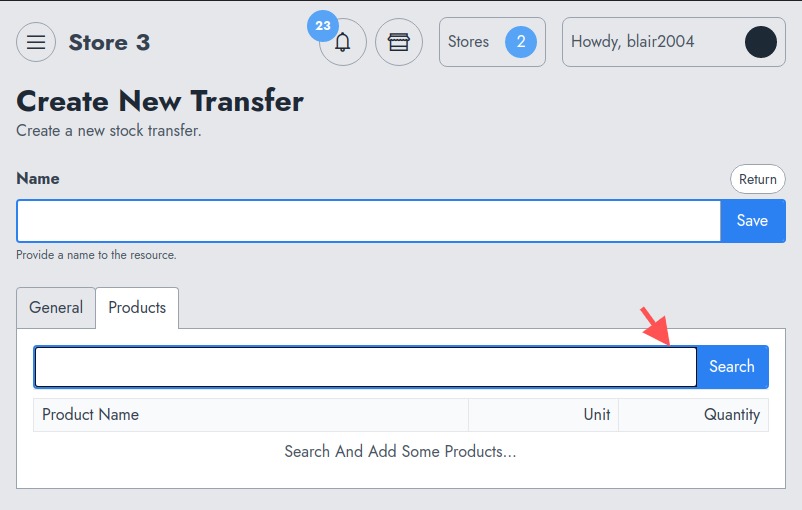
If the search term is not accurate enough, you'll see a suggestion of a product to choose from (otherwise, the product will immediately be added to the table).
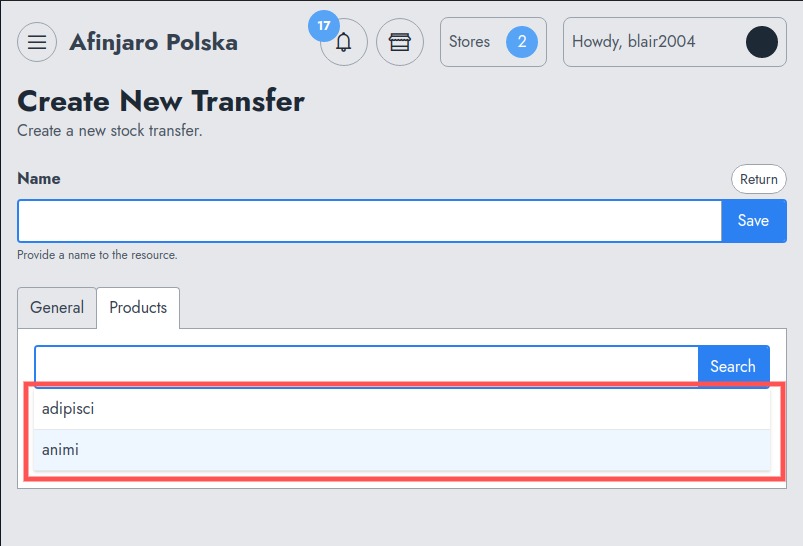
When a product is added, you're able to determine the :
- The unit of measure
- The quantity
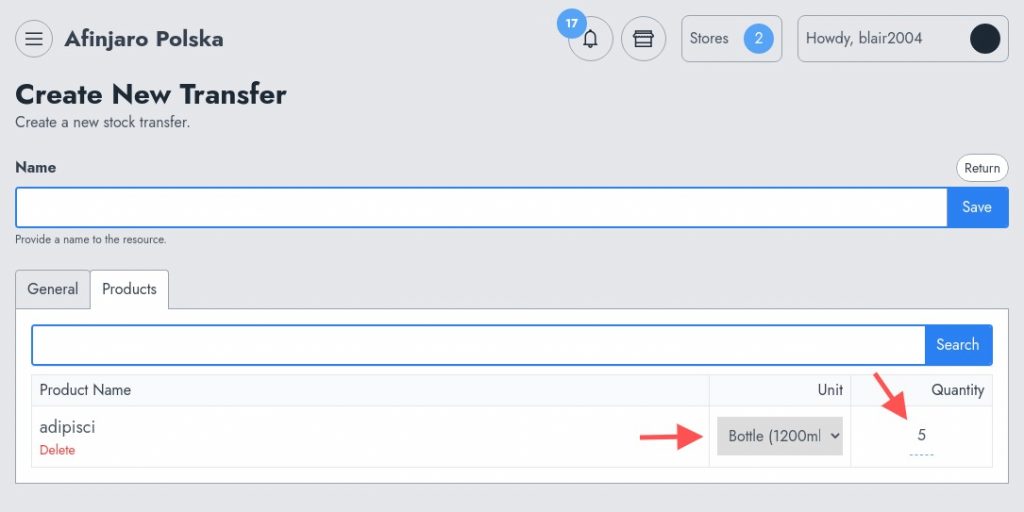
If the name of the operation is not provided, the Stock Transfers module will provide a default title for you. After having sent the stock, you'll be redirected to the list of stock transfers. That's basically where you can perform the following actions :
- Reject: either an ongoing transfer/request you've received
- Cancel: either an ongoing transfer/request you've initialized
- Approve: either an ongoing transfer/request you've received
- Check an invoice for a stock transfer/request.
If the stock transfer and stock request have the same purpose of transferring stock, both work differently.
Stock Request & Stock Transfers
These are two features available on the Stock Transfer module. Both have a different impact on the inventory and work slightly differently, even though it's all about stock transfers.
Stock Transfer
Is an operation that is initiated by a Store called "Source Store" to transfer inventory to another store called "Destination Store", with products that have been chosen and selected by the Source Store.
When a Stock Transfer is initiated, it applies a stock hold immediately to the products that are about to be sent. At that moment, the stock transfer has a status of "Ongoing".
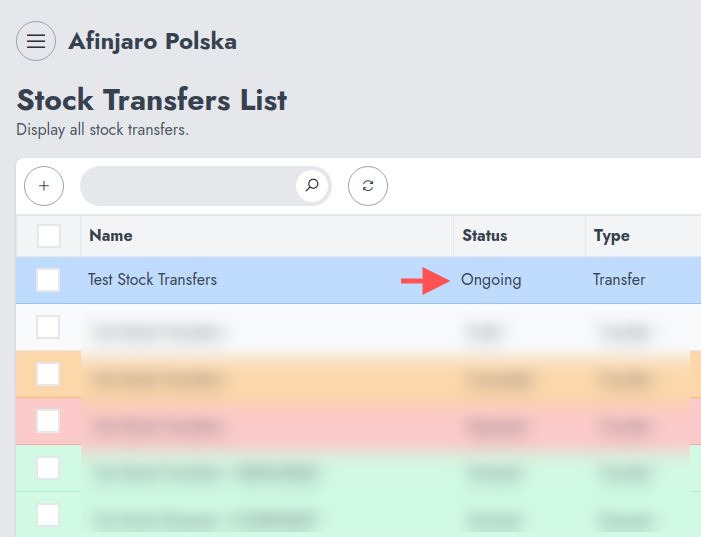
The destination store receives a notification of the incoming stock transfer to manually approve the request. When a stock transfer is ongoing, it can still be canceled by the source store.
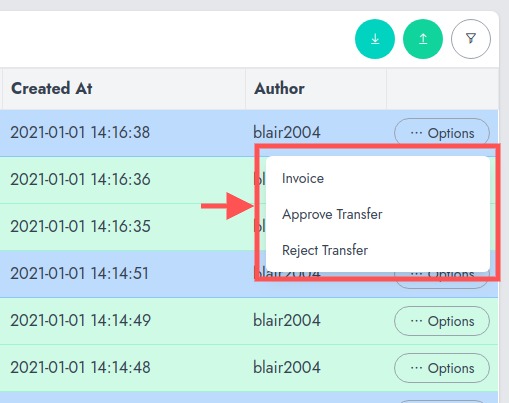
Once the stock transfer is approved, it cannot be canceled or reverted (unless another stock transaction is initiated by the destination store).
Stock Request
A stock request is initiated by a destination store that provides a list of products to the source store for approval as an inquiry. While proceeding with a request, the destination store is capable of browsing products from the source store list (with store enable) and requesting these.
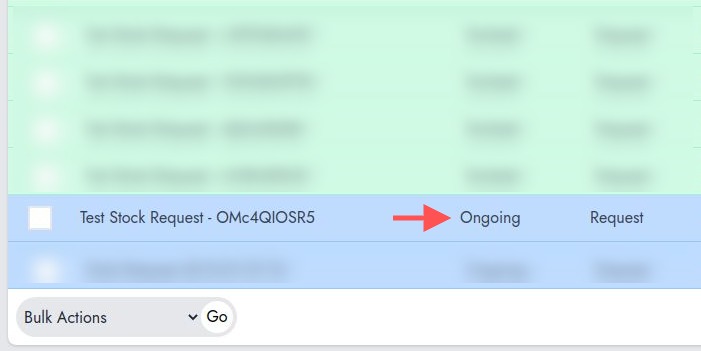
Before the Stock Request is approved, it can be canceled by the "destination store" that has initiated the request. At the moment the stock request is approved, the destination store immediately receives the stock requested.
Notifications
Every stock transaction that is initialized, approved, or rejected issues notifications for the administrator and store manager.
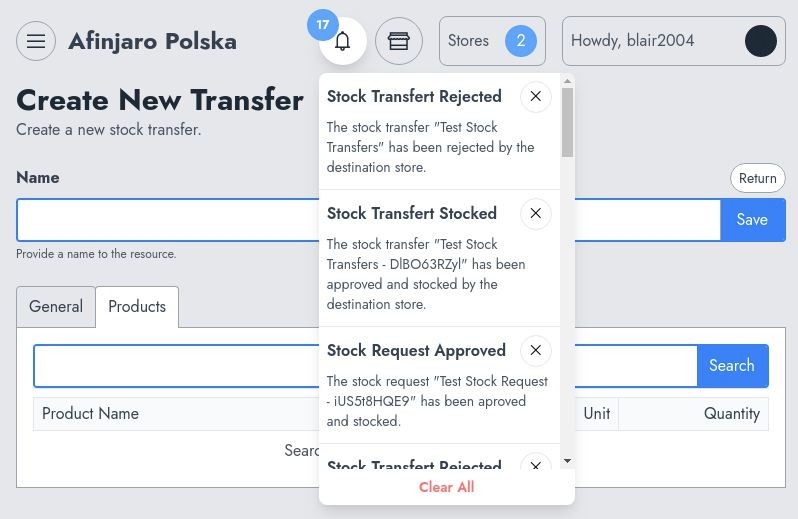
Clicking on each notification should take you directly to the invoice of the transaction.
That invoice helps to have an overview of the transaction. Since it's printable, it could be useful to perform adjustments on rejected transactions. Note that rejected transactions can still be edited and resent.